# Publipostage

<section class="text-token-text-primary w-full focus:outline-none [--shadow-height:45px] has-data-writing-block:pointer-events-none has-data-writing-block:-mt-(--shadow-height) has-data-writing-block:pt-(--shadow-height) [&:has([data-writing-block])>*]:pointer-events-auto [content-visibility:auto] supports-[content-visibility:auto]:[contain-intrinsic-size:auto_100lvh] R6Vx5W_threadScrollVars scroll-mb-[calc(var(--scroll-root-safe-area-inset-bottom,0px)+var(--thread-response-height))] scroll-mt-[calc(var(--header-height)+min(200px,max(70px,20svh)))]" data-scroll-anchor="false" data-testid="conversation-turn-4" data-turn="assistant" data-turn-id="request-WEB:2f56e70e-5307-493f-99aa-2c18d5594672-1" dir="auto" id="bkmrk-le-publipostage%C2%A0vous">Le publipostage **vous permet de créer un lot de documents personnalisés pour différents destinataires**. Par exemple, vous pouvez personnaliser une lettre type afin de vous adresser à chaque destinataire par son nom. Une source de données (liste, feuille de calcul ou base de données) est associée au document.

</section>#####  

##### **Publipostage avec <sub>![logo_icon_libre_office.png](https://portail.ac-reunion.fr/ladoclela/uploads/images/gallery/2025-08/scaled-1680-/logo-icon-libre-office.png) </sub>LibreOffice**

<details id="bkmrk-publipostage-avec-li"><summary>Publipostage avec LibreOffice</summary>

Nous allons procéder à la configuration de vos publipostages sur la **<sub>![logo_icon_zimbra.png](https://portail.ac-reunion.fr/ladoclela/uploads/images/gallery/2025-08/scaled-1680-/logo-icon-zimbra.png) </sub>**messagerie nationale Zimbra à l'aide de <sub>![icon_libre_office.png](https://portail.ac-reunion.fr/ladoclela/uploads/images/gallery/2025-08/scaled-1680-/KdEicon-libre-office.png) </sub>LibreOffice. Cette fonctionnalité vous permettra d’envoyer un grand nombre d’e-mails en une seule fois, tout en personnalisant le contenu pour chaque destinataire. **L'ensemble des étapes est obligatoire.**


#### **Je génère un mot de passe d'application sécurisé sur la <sub>![logo_icon_zimbra.png](https://portail.ac-reunion.fr/ladoclela/uploads/images/gallery/2025-08/scaled-1680-/logo-icon-zimbra.png) </sub>messagerie nationale Zimbra**

<details id="bkmrk-je-g%C3%A9n%C3%A8re-un-mot-de--1"><summary>Je génère un mot de passe d'application sécurisé sur la messagerie nationale Zimbra</summary>

- **Connectez vous sur *<sub>**![logo icone metice.png](https://portail.ac-reunion.fr/ladoclela/uploads/images/gallery/2025-08/scaled-1680-/logo-icone-metice.png)**</sub>*[Métice Rectorat.](https://sso.ac-reunion.fr/login?service=https%3A%2F%2Fhubole.ac-reunion.fr%2Fedispatcher%2Fng%2Fhub)**

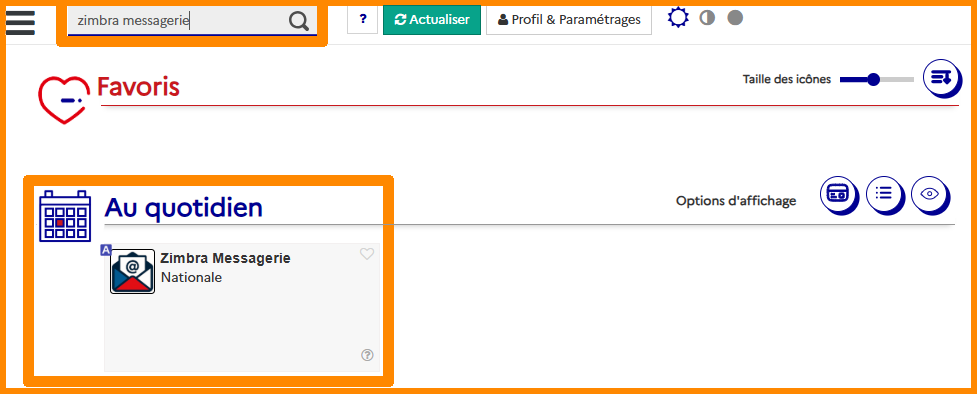
- **En haut à gauche, tapez dans la barre de recherche "Zimbra messagerie" et cliquez sur "<sub>![icone ETNA.png](https://portail.ac-reunion.fr/ladoclela/uploads/images/gallery/2025-07/scaled-1680-/icone-etna.png) </sub>Zimbra Messagerie".**

**[![zimbra_demarrrage.png](https://portail.ac-reunion.fr/ladoclela/uploads/images/gallery/2026-03/scaled-1680-/zimbra-demarrrage.png)](https://portail.ac-reunion.fr/ladoclela/uploads/images/gallery/2026-03/zimbra-demarrrage.png)**

- **En haut à gauche, cliquez sur "Préférences"**

[![imp2.png](https://portail.ac-reunion.fr/ladoclela/uploads/images/gallery/2025-07/scaled-1680-/imp2.png)](https://portail.ac-reunion.fr/ladoclela/uploads/images/gallery/2025-07/imp2.png)

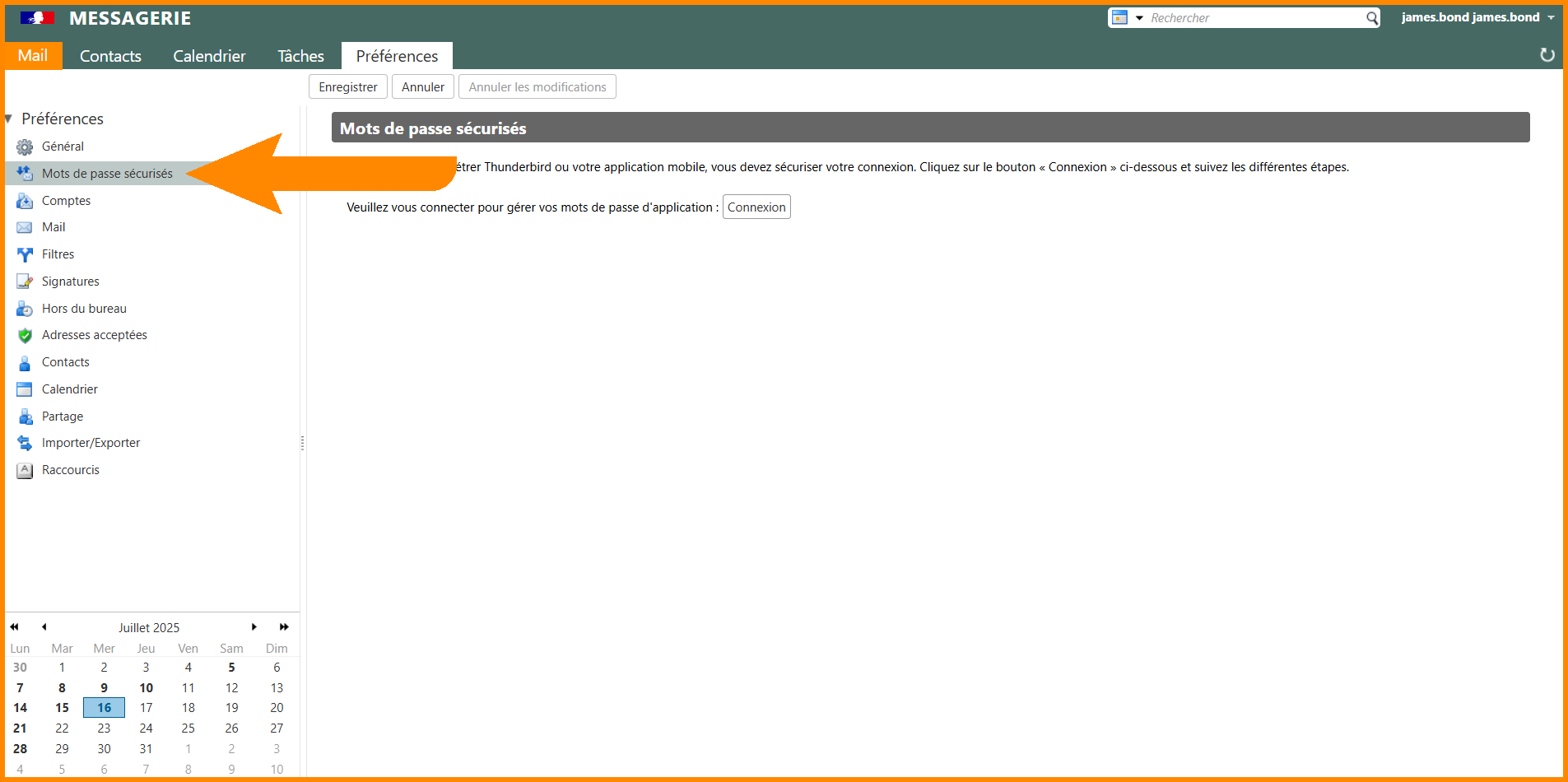
- **À gauche, cliquez sur "<sub>![icon_mdp.png](https://portail.ac-reunion.fr/ladoclela/uploads/images/gallery/2025-07/scaled-1680-/icon-mdp.png)</sub> Mots de passe sécurisés".**

[![thund25.png](https://portail.ac-reunion.fr/ladoclela/uploads/images/gallery/2025-07/scaled-1680-/thund25.png)](https://portail.ac-reunion.fr/ladoclela/uploads/images/gallery/2025-07/thund25.png)

- **Cliquez sur "Connexion".**

[![thund26.png](https://portail.ac-reunion.fr/ladoclela/uploads/images/gallery/2025-07/scaled-1680-/thund26.png)](https://portail.ac-reunion.fr/ladoclela/uploads/images/gallery/2025-07/thund26.png)

- **Connectez vous avec vos identifiants *<sub>**![logo icone metice.png](https://portail.ac-reunion.fr/ladoclela/uploads/images/gallery/2025-08/scaled-1680-/logo-icone-metice.png)**</sub>*Métice si nécessaire.**
- **Cliquez sur "Créer un mot de passe d'application".**

[![thund27.png](https://portail.ac-reunion.fr/ladoclela/uploads/images/gallery/2025-07/scaled-1680-/thund27.png)](https://portail.ac-reunion.fr/ladoclela/uploads/images/gallery/2025-07/thund27.png)
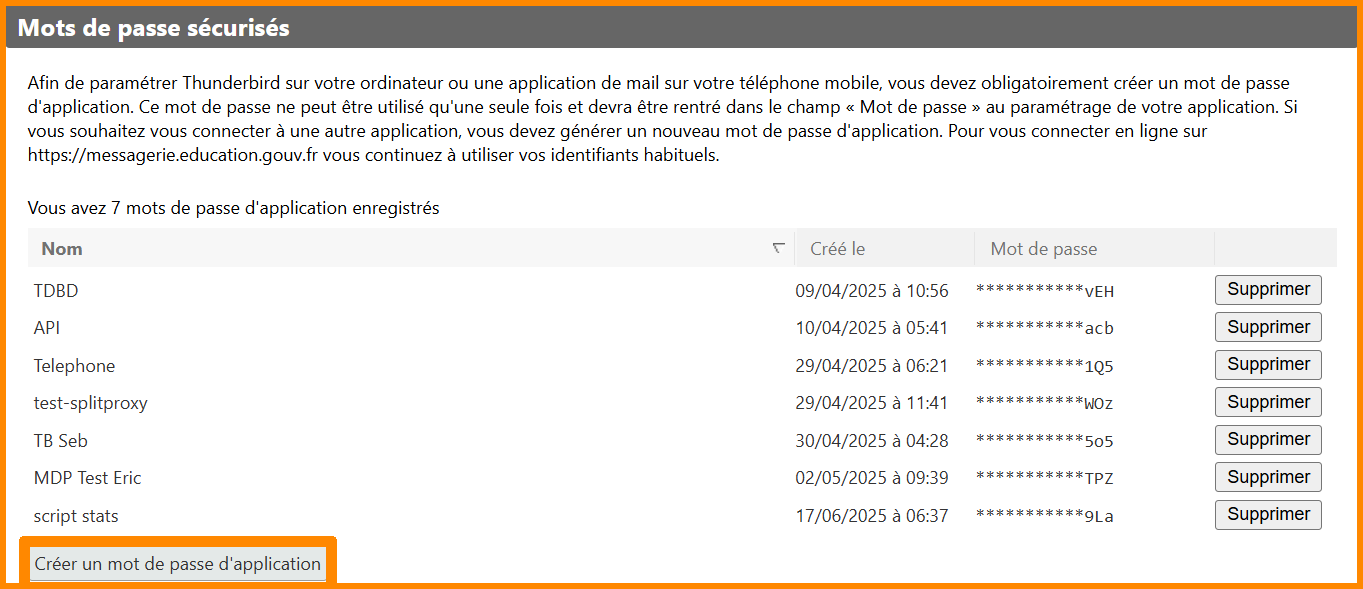
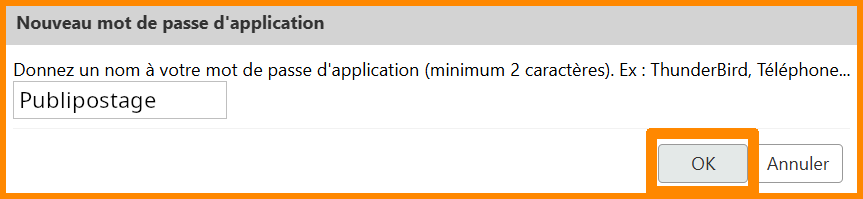
- **Une nouvelle fenêtre s'ouvre, nommez votre prochain mot de passe** *(ex : Publipostage)**.***
- **Cliquez sur "OK".**

[![pub22.png](https://portail.ac-reunion.fr/ladoclela/uploads/images/gallery/2025-08/scaled-1680-/pub22.png)](https://portail.ac-reunion.fr/ladoclela/uploads/images/gallery/2025-08/pub22.png)
- **Une nouvelle fenêtre s'ouvre avec le mot de passe d'application. Cliquez sur "Copier".**

[![thun29.png](https://portail.ac-reunion.fr/ladoclela/uploads/images/gallery/2025-07/scaled-1680-/thun29.png)](https://portail.ac-reunion.fr/ladoclela/uploads/images/gallery/2025-07/thun29.png)
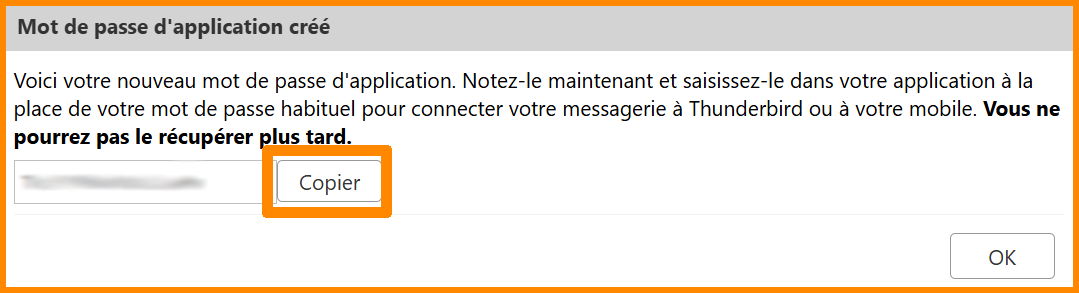
- **Enregistrez soigneusement ce mot de passe, il ne pourra pas être récupéré plus tard.**

<p class="callout success">**Félicitations, votre mot de passe d'application a été correctement généré.**</p>

</details>---

#### **Exporter ses contacts sur la** <sub>![logo_icon_zimbra.png](https://portail.ac-reunion.fr/ladoclela/uploads/images/gallery/2025-08/scaled-1680-/logo-icon-zimbra.png) </sub>**messagerie nationale Zimbra**

<details id="bkmrk-exporter-un-carnet-d-1"><summary>Exporter ses contacts sur la messagerie nationale Zimbra</summary>

- **En haut à gauche, cliquez sur "Préférences".**

[![imp2.png](https://portail.ac-reunion.fr/ladoclela/uploads/images/gallery/2025-07/scaled-1680-/imp2.png)](https://portail.ac-reunion.fr/ladoclela/uploads/images/gallery/2025-07/imp2.png)

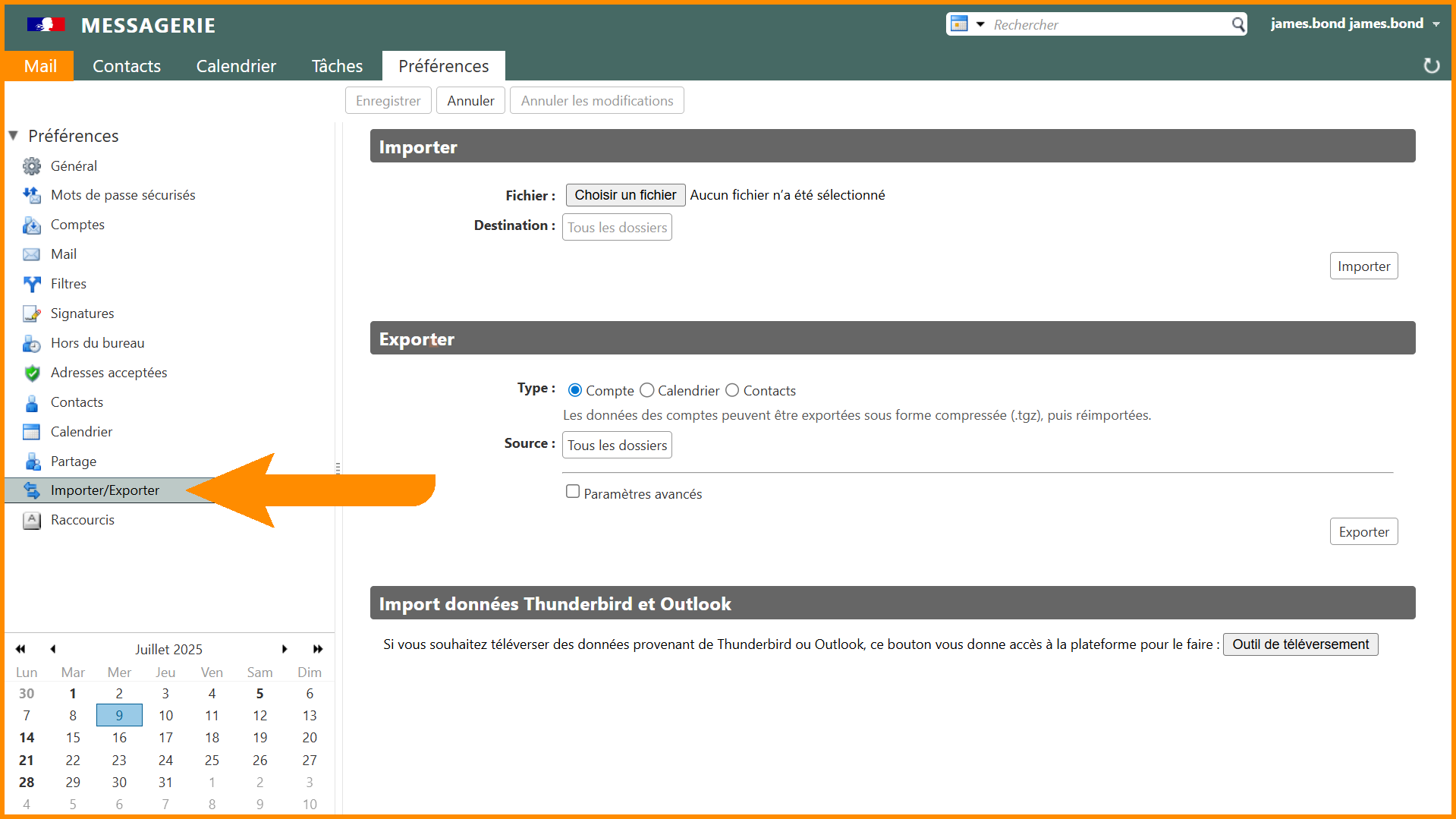
- **À gauche, cliquez sur "<sub>![icon export_import.png](https://portail.ac-reunion.fr/ladoclela/uploads/images/gallery/2025-07/scaled-1680-/KNhicon-export-import.png) </sub>Importer/Exporter"**

[![imp_import_export.png](https://portail.ac-reunion.fr/ladoclela/uploads/images/gallery/2025-07/scaled-1680-/imp-import-export.png)](https://portail.ac-reunion.fr/ladoclela/uploads/images/gallery/2025-07/imp-import-export.png)

- **Dans la catégorie "Exporter", cliquez sur "Tous les dossiers".**

[![cal21.png](https://portail.ac-reunion.fr/ladoclela/uploads/images/gallery/2025-08/scaled-1680-/cal21.png)](https://portail.ac-reunion.fr/ladoclela/uploads/images/gallery/2025-08/cal21.png)
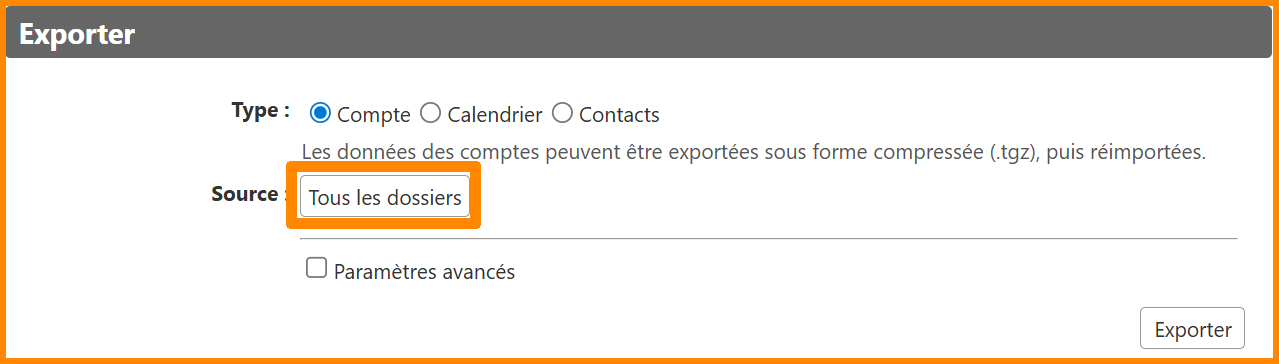
- **Une nouvelle fenêtre s'ouvre.**
- **Sélectionnez le carnet d'adresses auquel vous souhaitez effectuer un publipostage.**

[![car31.png](https://portail.ac-reunion.fr/ladoclela/uploads/images/gallery/2025-08/scaled-1680-/car31.png)](https://portail.ac-reunion.fr/ladoclela/uploads/images/gallery/2025-08/car31.png)
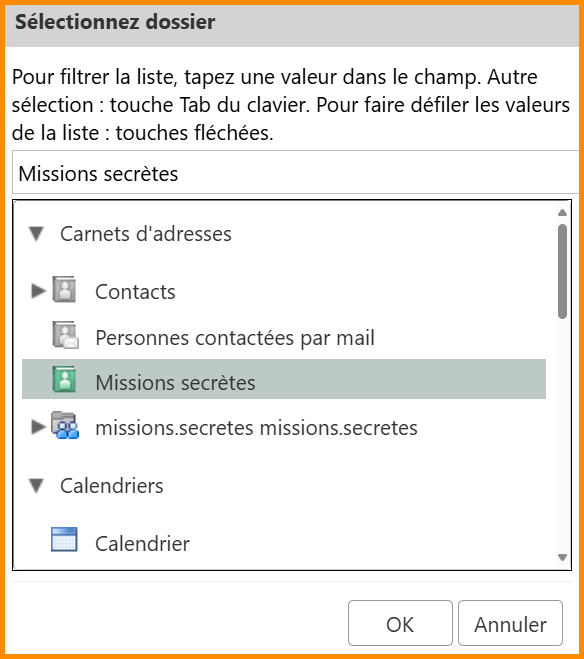
- **En bas à droite, cliquez sur "OK".**
- **Sélectionnez "Contacts" puis "Contacts du compte".**

[![pub1.png](https://portail.ac-reunion.fr/ladoclela/uploads/images/gallery/2025-08/scaled-1680-/pub1.png)](https://portail.ac-reunion.fr/ladoclela/uploads/images/gallery/2025-08/pub1.png)

- **Cliquez sur "Exporter".**

[![pub2.png](https://portail.ac-reunion.fr/ladoclela/uploads/images/gallery/2025-08/scaled-1680-/pub2.png)](https://portail.ac-reunion.fr/ladoclela/uploads/images/gallery/2025-08/pub2.png)

- **Le fichier vient d'être téléchargé dans votre dossier "Téléchargement".**

</details>---

#### **Paramétrer sa messagerie sur <sub>![icon_libre_office.png](https://portail.ac-reunion.fr/ladoclela/uploads/images/gallery/2025-08/scaled-1680-/KdEicon-libre-office.png) </sub>LibreOffice**

<details id="bkmrk-param%C3%A9trer-sa-messag-1"><summary>Paramétrer sa messagerie sur LibreOffice</summary>

- **Ouvrez l'application "<sub>![icon_libre_office.png](https://portail.ac-reunion.fr/ladoclela/uploads/images/gallery/2025-08/scaled-1680-/KdEicon-libre-office.png)</sub> Libre Office".**
- **Sélectionnez "'<sub>![logo_icon_libre_office.png](https://portail.ac-reunion.fr/ladoclela/uploads/images/gallery/2025-08/scaled-1680-/logo-icon-libre-office.png) </sub>Document Writer".**
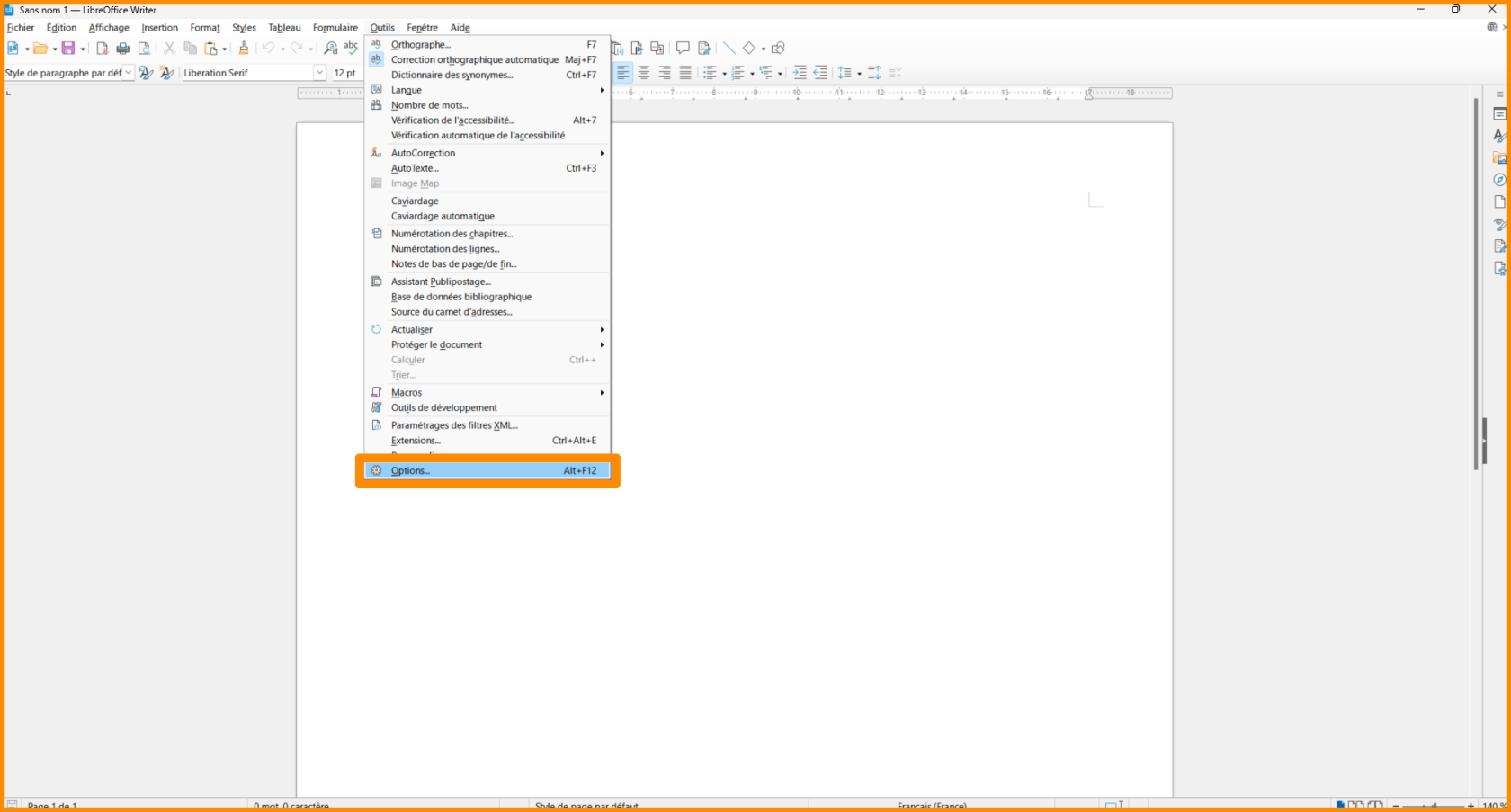
- **Cliquez sur "Outils", puis sur "<sub>![icon_paramètre](https://portail.ac-reunion.fr/ladoclela/uploads/images/gallery/2025-08/scaled-1680-/4539088.png)</sub>Options"**

[![pub3.png](https://portail.ac-reunion.fr/ladoclela/uploads/images/gallery/2025-08/scaled-1680-/pub3.png)](https://portail.ac-reunion.fr/ladoclela/uploads/images/gallery/2025-08/pub3.png)

- **Une nouvelle fenêtre s'ouvre.**
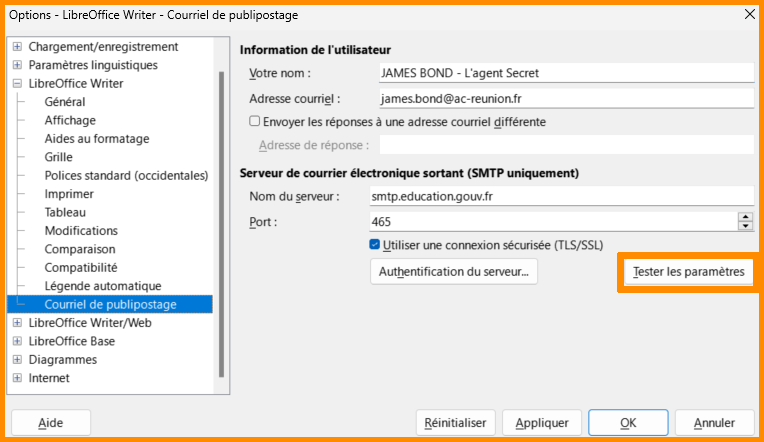
- **À gauche, dans la catégorie "LibreOffice Writer", cliquez sur "Courriel de publipostage".**

[![pub4.png](https://portail.ac-reunion.fr/ladoclela/uploads/images/gallery/2025-08/scaled-1680-/pub4.png)](https://portail.ac-reunion.fr/ladoclela/uploads/images/gallery/2025-08/pub4.png)
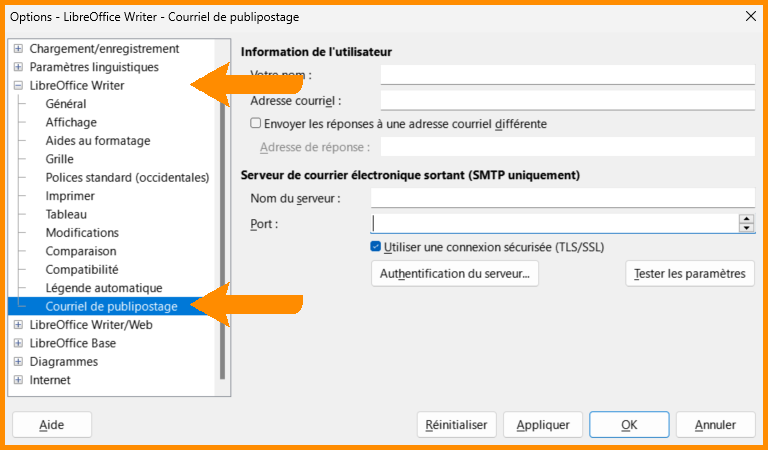
- **Remplissez les informations comme :**
    - **Information de l'utilisateur**
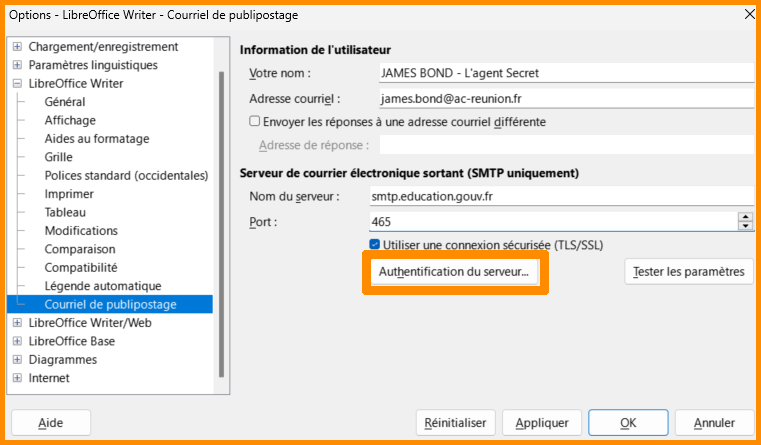
        - Votre nom : *Choisissez le nom qui apparaitra lors de la réception des mails*
        - Adresse courriel : prenom.nom@ac-reunion.fr
    - **Serveur de courrier électronique sortant (SMTP uniquement)**
        - Nom de serveur : smtp.education.gouv.fr
        - Port : 465
- **Cliquez sur "Authentification du serveur...".**

 [![pub5.png](https://portail.ac-reunion.fr/ladoclela/uploads/images/gallery/2025-08/scaled-1680-/pub5.png)](https://portail.ac-reunion.fr/ladoclela/uploads/images/gallery/2025-08/pub5.png)
- **Une nouvelle fenêtre s'ouvre.**
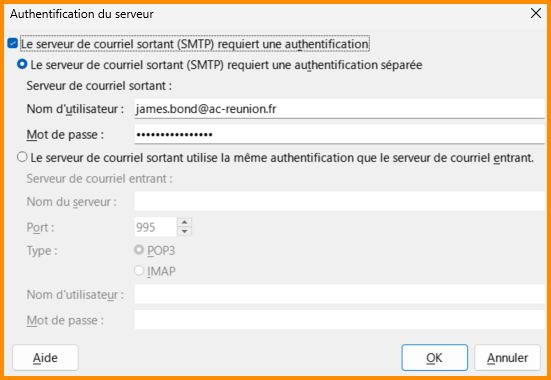
- **Cliquez sur "Le serveur de courriel sortant "SMTP" requiert une authentification".**
- **Cliquez sur "Le serveur de courriel sortant "SMTP" requiert une authentification séparée".**
- **Remplissez les informations comme :**
    - **Nom d'utilisateur :** prenom.nom@ac-reunion.fr
    - **Mot de passe :** [mot de passe d'application](https://portail.ac-reunion.fr/ladoclela/link/4236#bkmrk-je-g%C3%A9n%C3%A8re-un-mot-de-) généré plus tôt

[![pub6.png](https://portail.ac-reunion.fr/ladoclela/uploads/images/gallery/2025-08/scaled-1680-/pub6.png)](https://portail.ac-reunion.fr/ladoclela/uploads/images/gallery/2025-08/pub6.png)
- **Cliquez sur "OK".**
- **Cliquez sur "Tester les paramètres".**

[![pub7.png](https://portail.ac-reunion.fr/ladoclela/uploads/images/gallery/2025-08/scaled-1680-/pub7.png)](https://portail.ac-reunion.fr/ladoclela/uploads/images/gallery/2025-08/pub7.png)
- **Une nouvelle fenêtre s'ouvre.**
- **Attendez de recevoir les deux lignes validées.**[![pub8.png](https://portail.ac-reunion.fr/ladoclela/uploads/images/gallery/2025-08/scaled-1680-/pub8.png)](https://portail.ac-reunion.fr/ladoclela/uploads/images/gallery/2025-08/pub8.png)
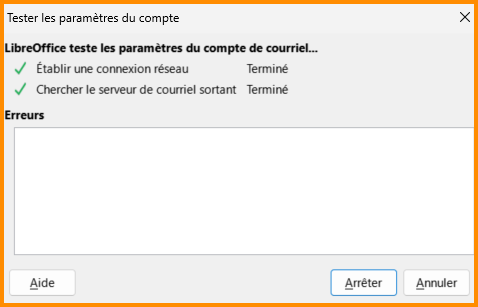
- **En bas à droite, cliquez sur "Annuler".**
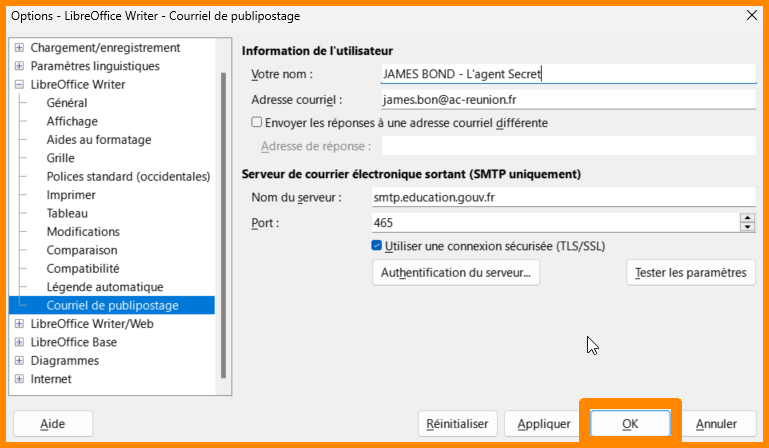
- **En bas à droite, cliquez sur "OK".**

[![publi.png](https://portail.ac-reunion.fr/ladoclela/uploads/images/gallery/2026-03/scaled-1680-/publi.png)](https://portail.ac-reunion.fr/ladoclela/uploads/images/gallery/2026-03/publi.png)
</details>---

#### **Importer les données de ses contacts sur <sub>![icon_libre_office.png](https://portail.ac-reunion.fr/ladoclela/uploads/images/gallery/2025-08/scaled-1680-/KdEicon-libre-office.png) </sub>LibreOffice**

<details id="bkmrk-importer-les-donn%C3%A9es-1"><summary>Importer les données de ses contacts sur LibreOffice</summary>

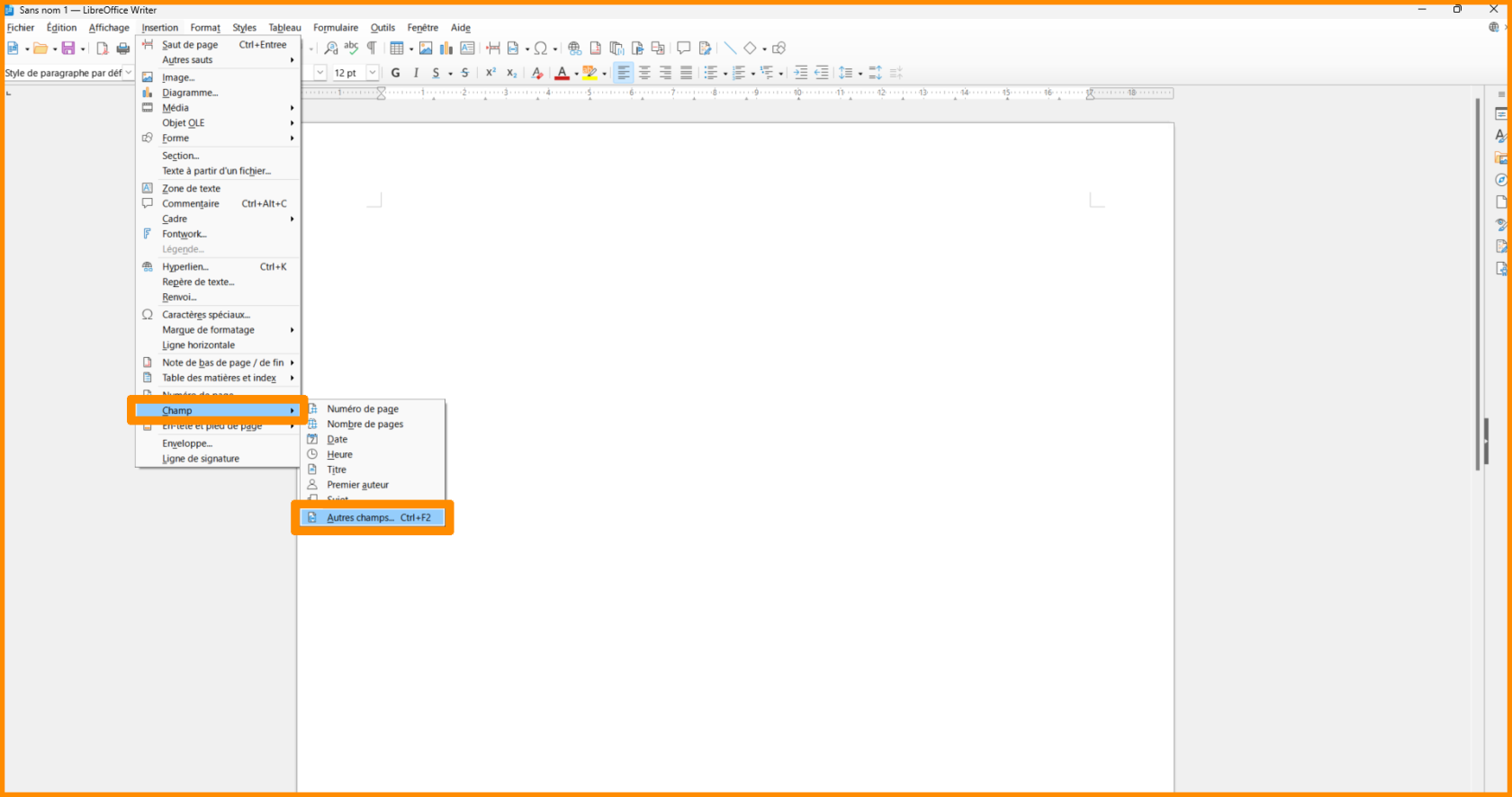
- **Cliquez sur "Insertion", puis sur "Champ", puis sur "Autre champ".**

[![pub9.png](https://portail.ac-reunion.fr/ladoclela/uploads/images/gallery/2025-08/scaled-1680-/pub9.png)](https://portail.ac-reunion.fr/ladoclela/uploads/images/gallery/2025-08/pub9.png)
- **Une nouvelle fenêtre s'ouvre.**
- **En bas à droite, cliquez sur "Parcourir...".**

[![pub10.png](https://portail.ac-reunion.fr/ladoclela/uploads/images/gallery/2025-08/scaled-1680-/pub10.png)](https://portail.ac-reunion.fr/ladoclela/uploads/images/gallery/2025-08/pub10.png)
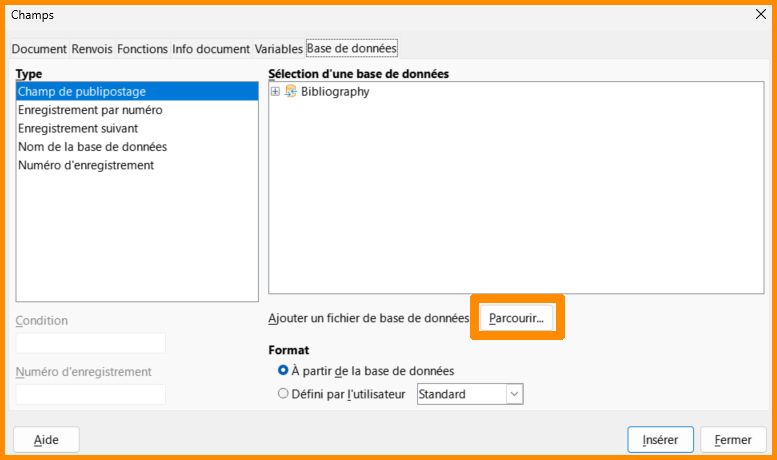
- **Sélectionnez votre fichier de contacts.**

<p class="callout warning">**Le fichier de contacts ne doit pas avoir été modifié depuis son exportation sur <sub>![logo-icon-zimbra.png](https://portail.ac-reunion.fr/ladoclela/uploads/images/gallery/2025-08/scaled-1680-/2aZlogo-icon-zimbra.png) </sub>Zimbra.**</p>

- **Une nouvelle fenêtre s'ouvre.**
- **Remplissez les informations comme :**
    - **Séparateur de champ :** ,
    - **Séparateur de texte :** "
    - **Séparateur de décimales :** .
    - **Cochez "Texte avec en-têtes"**

[![pub11.png](https://portail.ac-reunion.fr/ladoclela/uploads/images/gallery/2025-08/scaled-1680-/pub11.png)](https://portail.ac-reunion.fr/ladoclela/uploads/images/gallery/2025-08/pub11.png)
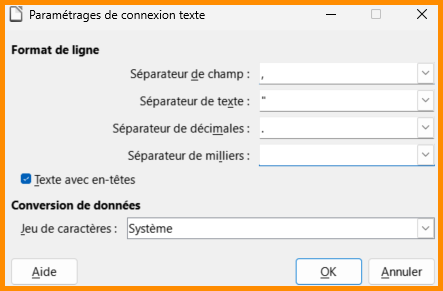
- **Cliquez sur "OK".**

</details>---

#### **Écrire le contenu à envoyer** 

<details id="bkmrk-%C3%89crire-le-contenu-%C3%A0--1"><summary>Écrire le contenu à envoyer </summary>

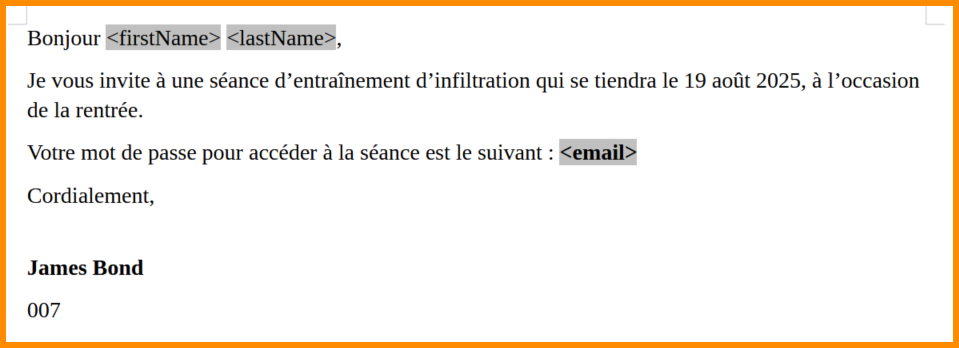
- **Sur le fichier "<sub>![logo_icon_libre_office.png](https://portail.ac-reunion.fr/ladoclela/uploads/images/gallery/2025-08/scaled-1680-/logo-icon-libre-office.png) </sub>LibreOffice Writer", écrivez votre mail.**
- **Pour insérez les données de vos contacts, cliquez sur "Insertion", puis sur "Champ", puis sur "Autre champ".**

[![pub9.png](https://portail.ac-reunion.fr/ladoclela/uploads/images/gallery/2025-08/scaled-1680-/pub9.png)](https://portail.ac-reunion.fr/ladoclela/uploads/images/gallery/2025-08/pub9.png)

- **Une nouvelle fenêtre s'ouvre.**
- **Cliquez sur les petits "+" à côté des dossiers ciblés jusqu'à avoir une liste de champs.**

[![pub12.png](https://portail.ac-reunion.fr/ladoclela/uploads/images/gallery/2025-08/scaled-1680-/pub12.png)](https://portail.ac-reunion.fr/ladoclela/uploads/images/gallery/2025-08/pub12.png)
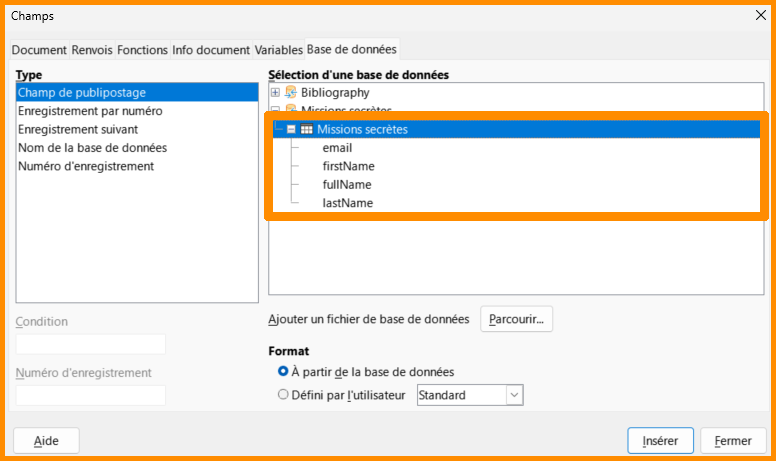
- **Cliquez sur le champ qui vous intéresse puis sur "Insérer". Le champ s'affiche sur votre document texte en surligné gris et entouré de crochets.**

<p class="callout info">Les champs peuvent parfois être écrits en anglais. Voici une traduction générale :   
email = email  
firstName = Prénom  
lastName = Nom  
fullName = Nom, Prénom</p>

[![pub13.png](https://portail.ac-reunion.fr/ladoclela/uploads/images/gallery/2025-08/scaled-1680-/pub13.png)](https://portail.ac-reunion.fr/ladoclela/uploads/images/gallery/2025-08/pub13.png)

</details>---

#### **Effectuer l'envoi du publipostage**

<details id="bkmrk-effectuer-l%27envoi-du-1"><summary>Effectuer l'envoi du publipostage</summary>

- **Cliquez sur "Outils", puis sur "Assistant Publipostage"**

[![pub14.png](https://portail.ac-reunion.fr/ladoclela/uploads/images/gallery/2025-08/scaled-1680-/pub14.png)](https://portail.ac-reunion.fr/ladoclela/uploads/images/gallery/2025-08/pub14.png)
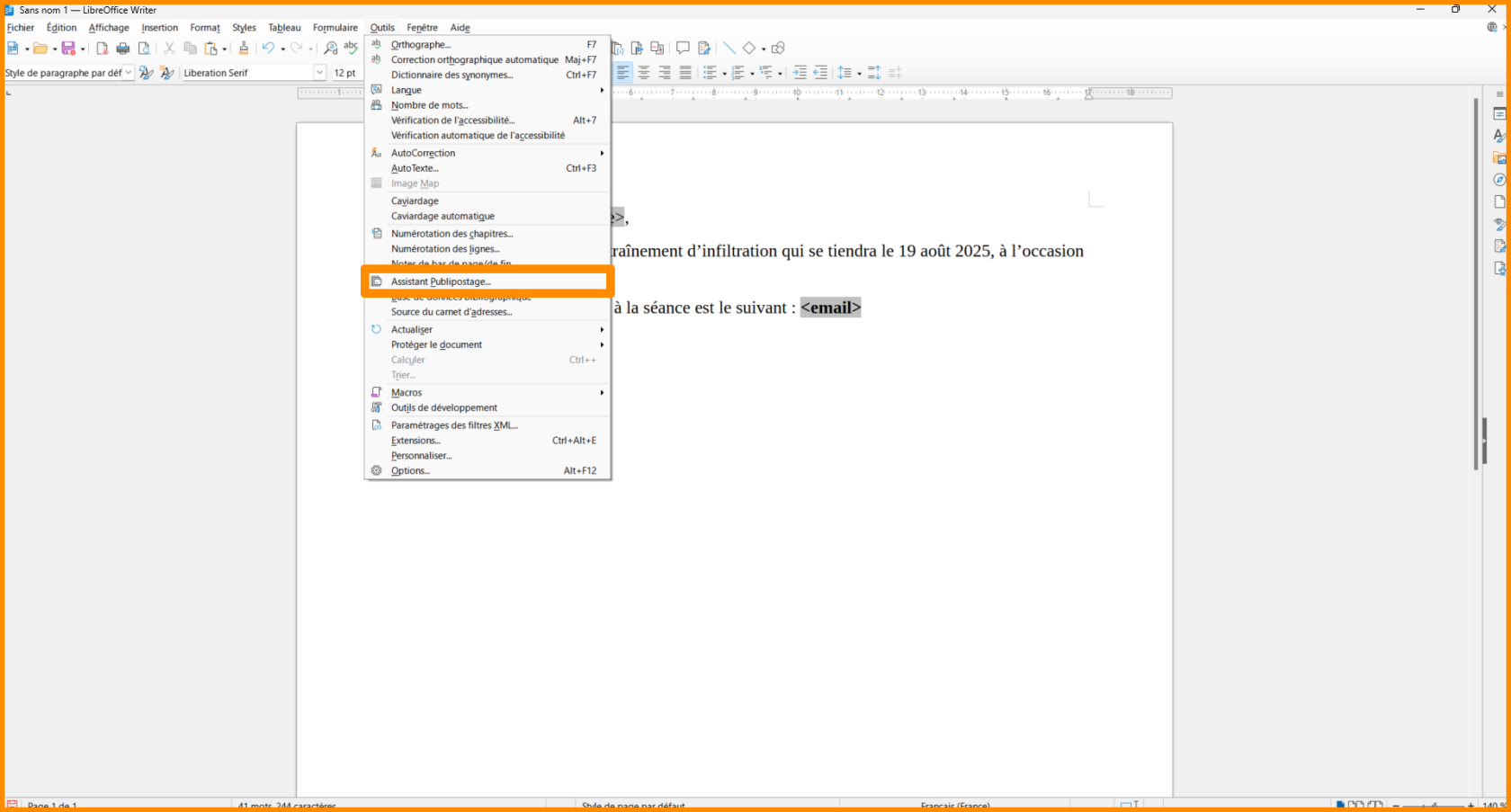
- **Une nouvelle fenêtre s'ouvre.**
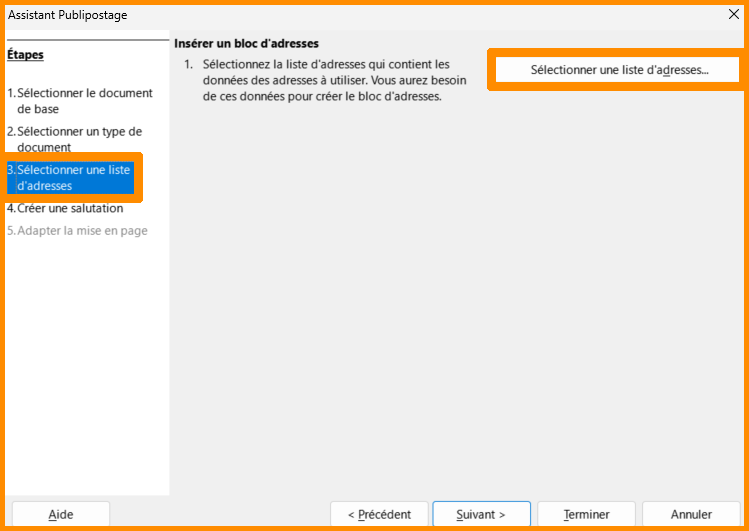
- **À gauche, cliquez sur "3. Sélectionner une liste d'adresses".**
- **Cliquez sur "Sélectionner une liste d'adresses...".**

[![pub15.png](https://portail.ac-reunion.fr/ladoclela/uploads/images/gallery/2025-08/scaled-1680-/zBWpub15.png)](https://portail.ac-reunion.fr/ladoclela/uploads/images/gallery/2025-08/zBWpub15.png)
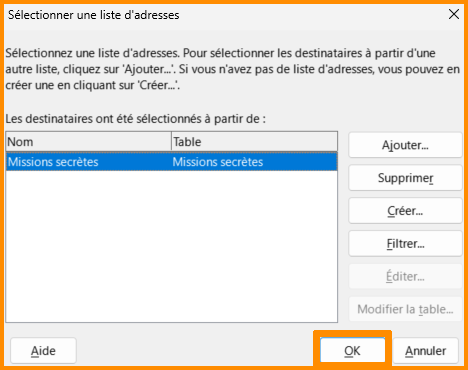
- **Une nouvelle fenêtre s'ouvre.**
- **Sélectionnez votre liste de contacts.**
- **Cliquez sur "OK".**

[![pub16.png](https://portail.ac-reunion.fr/ladoclela/uploads/images/gallery/2025-08/scaled-1680-/pub16.png)](https://portail.ac-reunion.fr/ladoclela/uploads/images/gallery/2025-08/pub16.png)
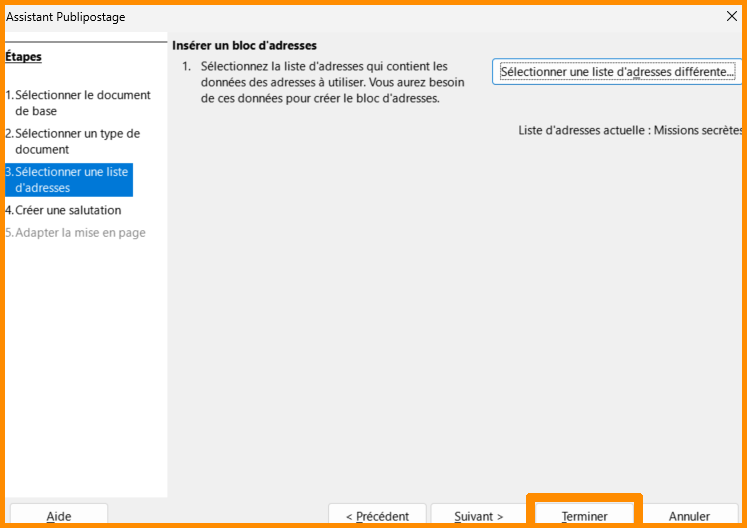
- **En bas à droite, cliquez sur "Terminer".**

[![pub17.png](https://portail.ac-reunion.fr/ladoclela/uploads/images/gallery/2025-08/scaled-1680-/pub17.png)](https://portail.ac-reunion.fr/ladoclela/uploads/images/gallery/2025-08/pub17.png)
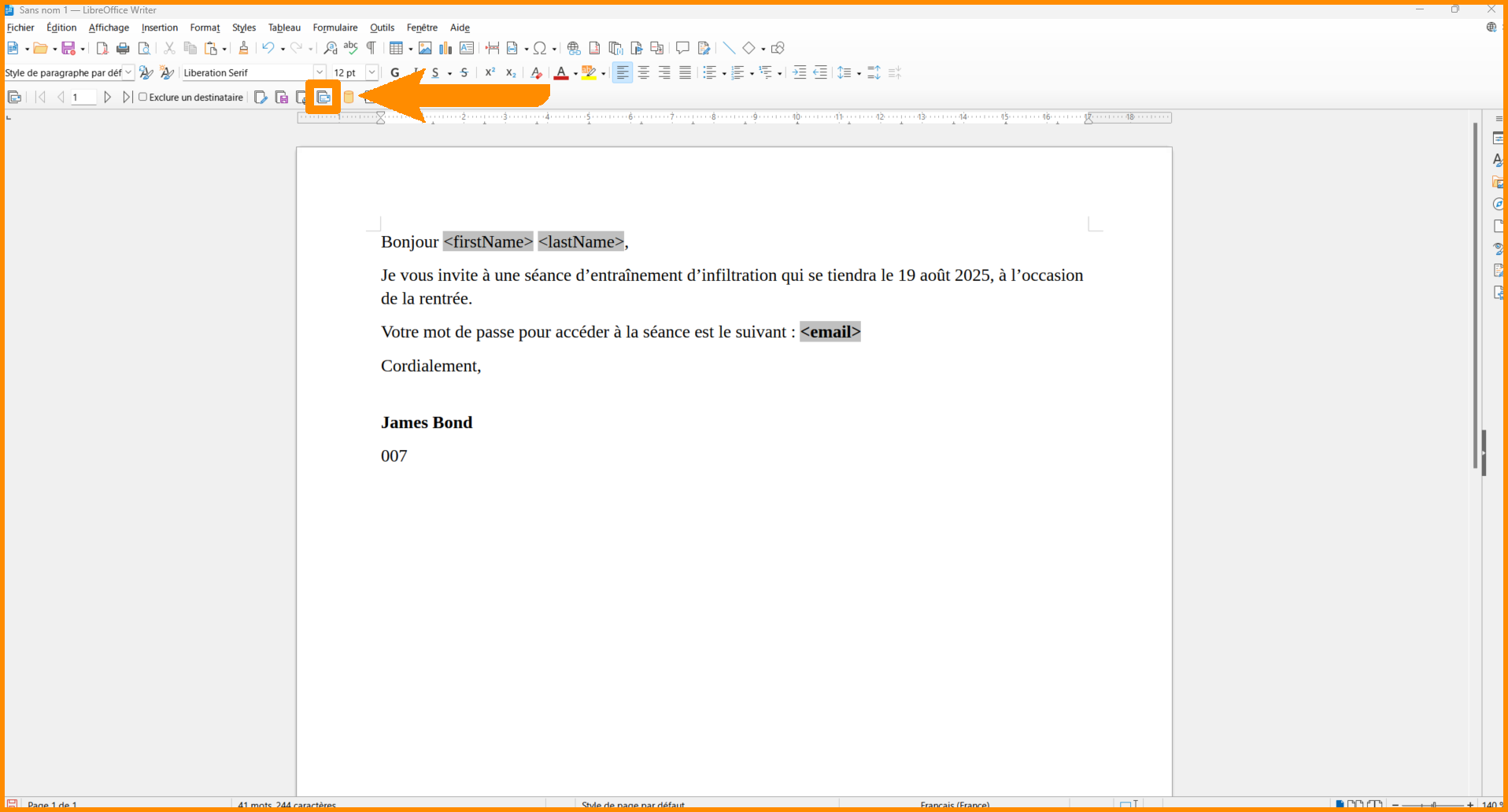
- **Dans la barre d'outils, cliquez sur "Envoyer les courriels".**

[![pub18.png](https://portail.ac-reunion.fr/ladoclela/uploads/images/gallery/2025-08/scaled-1680-/pub18.png)](https://portail.ac-reunion.fr/ladoclela/uploads/images/gallery/2025-08/pub18.png)
- **Une nouvelle fenêtre s'ouvre.**
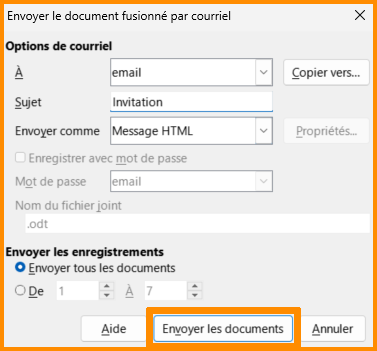
- **Remplissez les informations comme :** 
    - **À :** sélectionnez "email"
    - **Sujet :** définissez le sujet du mail
    - **Envoyez comme :** sélectionnez le rendu du fichier

<p class="callout info">**Nous vous conseillons de sélectionner le format "Message HTML" afin de conserver l’ensemble des modifications** *(style de police, images, couleurs, ...)***. Choisissez "Document PDF" si vous souhaitez transmettre le message sous forme de document, ou "Texte OpenDocument" s’il s’agit d’un fichier à remplir.**</p>

[![pub19.png](https://portail.ac-reunion.fr/ladoclela/uploads/images/gallery/2025-08/scaled-1680-/xDcpub19.png)](https://portail.ac-reunion.fr/ladoclela/uploads/images/gallery/2025-08/xDcpub19.png)

- **En bas, cliquez sur "Envoyez les documents".**

</details>


---

#### **Visualisation du message reçu**

<details id="bkmrk-visualisation-du-mes"><summary>Visualisation du message reçu</summary>

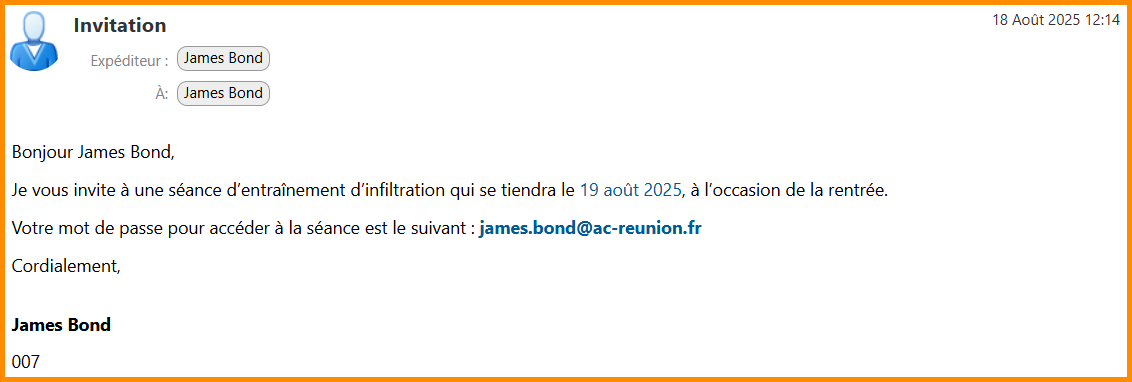
- **Rendu en format "Message HTML".**

[![pub20.png](https://portail.ac-reunion.fr/ladoclela/uploads/images/gallery/2025-08/scaled-1680-/pub20.png)](https://portail.ac-reunion.fr/ladoclela/uploads/images/gallery/2025-08/pub20.png)
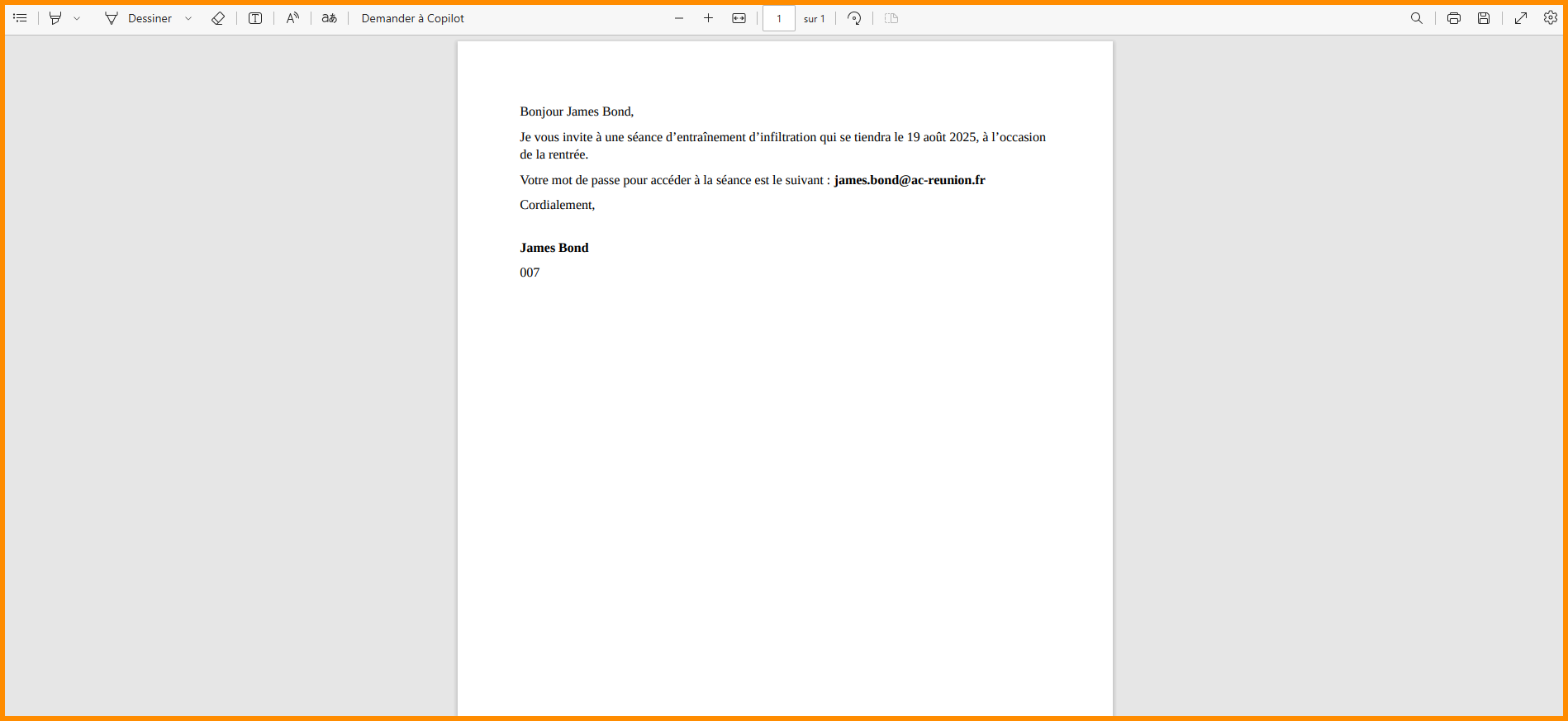
- **Rendu en format "Document PDF".**

[![pub21.png](https://portail.ac-reunion.fr/ladoclela/uploads/images/gallery/2025-08/scaled-1680-/pub21.png)](https://portail.ac-reunion.fr/ladoclela/uploads/images/gallery/2025-08/pub21.png)
</details></details>---

#### **Publipostage avec <sub>![image.png](https://portail.ac-reunion.fr/ladoclela/uploads/images/gallery/2026-03/scaled-1680-/nvBimage.png)</sub> Word et ![icon_thunderbird_td_TDBD](https://portail.ac-reunion.fr/ladoclela/uploads/images/gallery/2025-07/scaled-1680-/1024x1024-at-2x.png)Thunderbird**

<details id="bkmrk-publipostage-avec-wo-1"><summary>Publipostage avec Word et Thunderbird</summary>

Le publipostage avec <sub>![image.png](https://portail.ac-reunion.fr/ladoclela/uploads/images/gallery/2026-03/scaled-1680-/nvBimage.png)</sub>Word est plus limité que celui de <sub>![logo_icon_libre_office.png](https://portail.ac-reunion.fr/ladoclela/uploads/images/gallery/2025-08/scaled-1680-/logo-icon-libre-office.png)</sub>LibreOffice, car il ne permet pas d’appliquer de mise en forme avancée (polices, tailles, couleurs, etc.) dans le mail. Pour garder la mise en page, vous êtes obligés d'envoyer votre mail en pièce jointe.

#### **Mettre <sub>![icon_thunderbird_td_TDBD](https://portail.ac-reunion.fr/ladoclela/uploads/images/gallery/2025-07/scaled-1680-/1024x1024-at-2x.png)</sub>Thunderbird comme application par défaut**

<details id="bkmrk-mettre-thunderbird-c-2"><summary>Mettre Thunderbird comme application par défaut</summary>

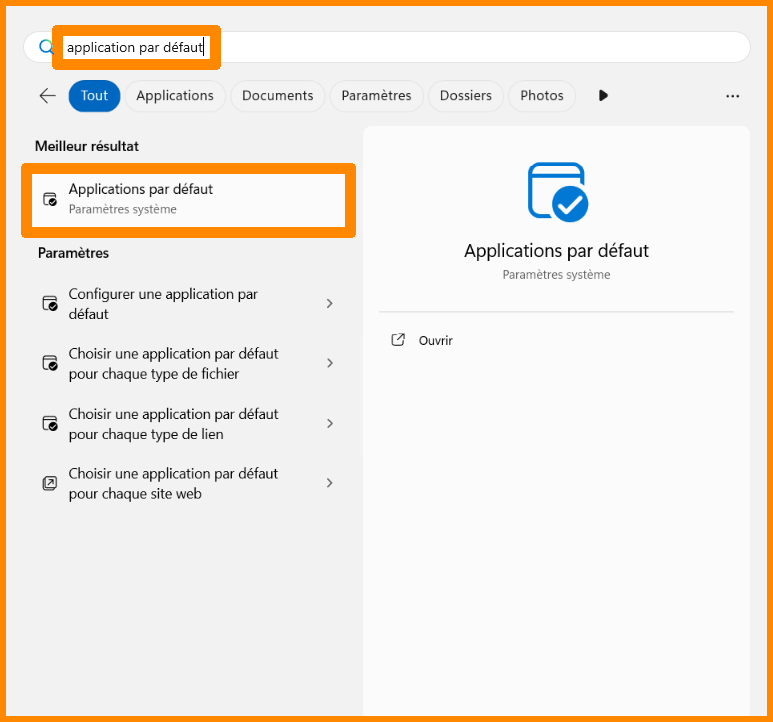
- **Ouvrez votre barre de recherche ![image.png](https://portail.ac-reunion.fr/ladoclela/uploads/images/gallery/2026-03/scaled-1680-/Jjpimage.png)Windows.**
- **Recherchez "application par défaut".**
- **Cliquez sur "<sub>![logo_par_defaut.png](https://portail.ac-reunion.fr/ladoclela/uploads/images/gallery/2026-03/scaled-1680-/logo-par-defaut.png)</sub> application par défaut"**

[![tdbd3.png](https://portail.ac-reunion.fr/ladoclela/uploads/images/gallery/2026-04/scaled-1680-/tdbd3.png)](https://portail.ac-reunion.fr/ladoclela/uploads/images/gallery/2026-04/tdbd3.png)

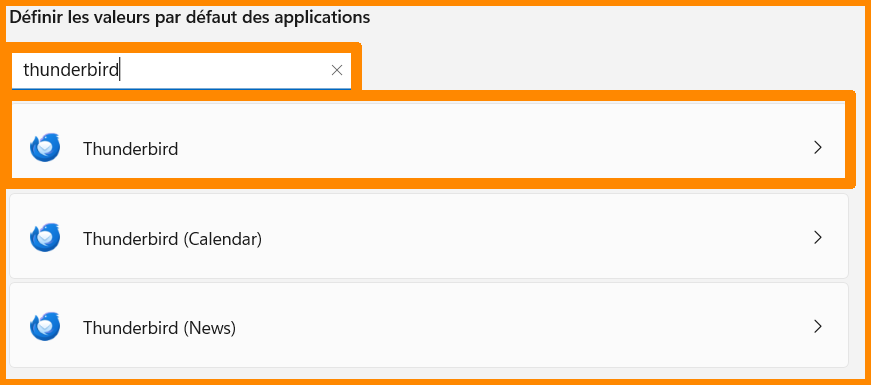
- **Dans "Rechercher des applications", inscrivez "Thunderbird".**
- **Cliquez sur "<sub>![icon_thunderbird_td_TDBD](https://portail.ac-reunion.fr/ladoclela/uploads/images/gallery/2025-07/scaled-1680-/1024x1024-at-2x.png)</sub>Thunderbird".**

[![pardefaut2.png](https://portail.ac-reunion.fr/ladoclela/uploads/images/gallery/2026-03/scaled-1680-/pardefaut2.png)](https://portail.ac-reunion.fr/ladoclela/uploads/images/gallery/2026-03/pardefaut2.png)

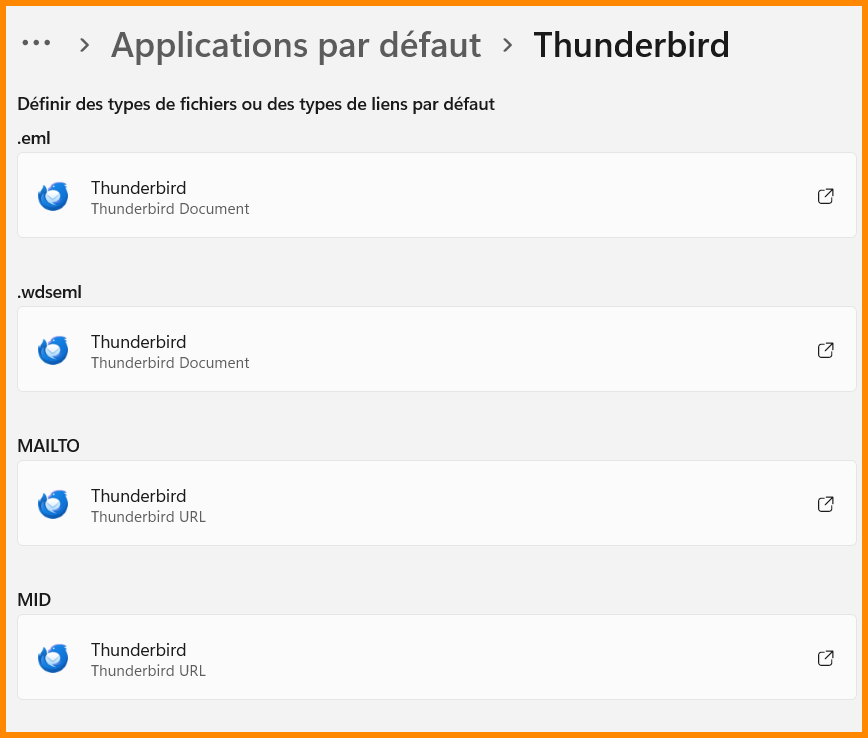
- **Sélectionnez "<sub>![icon_thunderbird_td_TDBD](https://portail.ac-reunion.fr/ladoclela/uploads/images/gallery/2025-07/scaled-1680-/1024x1024-at-2x.png)</sub>Thunderbird" dans chaque catégorie.**

[![tdbd2.png](https://portail.ac-reunion.fr/ladoclela/uploads/images/gallery/2026-04/scaled-1680-/tdbd2.png)](https://portail.ac-reunion.fr/ladoclela/uploads/images/gallery/2026-04/tdbd2.png)

</details>---

#### **Exporter ses contacts sur la** <sub>![logo_icon_zimbra.png](https://portail.ac-reunion.fr/ladoclela/uploads/images/gallery/2025-08/scaled-1680-/logo-icon-zimbra.png) </sub>**messagerie nationale Zimbra**

<details id="bkmrk-exporter-ses-contact-2"><summary>Exporter ses contacts sur la messagerie nationale Zimbra</summary>

- **En haut à gauche, cliquez sur "Préférences".**

[![imp2.png](https://portail.ac-reunion.fr/ladoclela/uploads/images/gallery/2025-07/scaled-1680-/imp2.png)](https://portail.ac-reunion.fr/ladoclela/uploads/images/gallery/2025-07/imp2.png)

- **À gauche, cliquez sur "<sub>![icon export_import.png](https://portail.ac-reunion.fr/ladoclela/uploads/images/gallery/2025-07/scaled-1680-/KNhicon-export-import.png) </sub>Importer/Exporter"**

[![imp_import_export.png](https://portail.ac-reunion.fr/ladoclela/uploads/images/gallery/2025-07/scaled-1680-/imp-import-export.png)](https://portail.ac-reunion.fr/ladoclela/uploads/images/gallery/2025-07/imp-import-export.png)

- **Dans la catégorie "Exporter", cliquez sur "Tous les dossiers".**

[![cal21.png](https://portail.ac-reunion.fr/ladoclela/uploads/images/gallery/2025-08/scaled-1680-/cal21.png)](https://portail.ac-reunion.fr/ladoclela/uploads/images/gallery/2025-08/cal21.png)

- **Une nouvelle fenêtre s'ouvre.**
- **Sélectionnez le carnet d'adresses auquel vous souhaitez effectuer un publipostage.**

[![car31.png](https://portail.ac-reunion.fr/ladoclela/uploads/images/gallery/2025-08/scaled-1680-/car31.png)](https://portail.ac-reunion.fr/ladoclela/uploads/images/gallery/2025-08/car31.png)

- **En bas à droite, cliquez sur "OK".**
- **Sélectionnez "Contacts" puis "Contacts du compte".**

[![pub1.png](https://portail.ac-reunion.fr/ladoclela/uploads/images/gallery/2025-08/scaled-1680-/pub1.png)](https://portail.ac-reunion.fr/ladoclela/uploads/images/gallery/2025-08/pub1.png)

- **Cliquez sur "Exporter".**

[![pub2.png](https://portail.ac-reunion.fr/ladoclela/uploads/images/gallery/2025-08/scaled-1680-/pub2.png)](https://portail.ac-reunion.fr/ladoclela/uploads/images/gallery/2025-08/pub2.png)

- **Le fichier vient d'être téléchargé dans votre dossier "Téléchargement".**

</details>---

#### **Importer les données de ses contacts sur ![image.png](https://portail.ac-reunion.fr/ladoclela/uploads/images/gallery/2026-03/scaled-1680-/nvBimage.png)<sub> </sub>Word**

<details id="bkmrk-importer-les-donn%C3%A9es-3"><summary>Importer les données de ses contacts sur Word</summary>

- **Ouvrez l'application "<sub>![image.png](https://portail.ac-reunion.fr/ladoclela/uploads/images/gallery/2026-03/scaled-1680-/BXwimage.png)</sub> Word Document".**
- **Dans la barre de menu, cliquez sur "Publipostage".**

**[![publi2.png](https://portail.ac-reunion.fr/ladoclela/uploads/images/gallery/2026-04/scaled-1680-/publi2.png)](https://portail.ac-reunion.fr/ladoclela/uploads/images/gallery/2026-04/publi2.png)**

- **Cliquez sur "<sub>![logo_icon_selection_destinataires.png](https://portail.ac-reunion.fr/ladoclela/uploads/images/gallery/2026-04/scaled-1680-/logo-icon-selection-destinataires.png)</sub>Sélection des destinataires".**

**[![publi3.png](https://portail.ac-reunion.fr/ladoclela/uploads/images/gallery/2026-04/scaled-1680-/publi3.png)](https://portail.ac-reunion.fr/ladoclela/uploads/images/gallery/2026-04/publi3.png)**

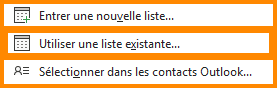
- **Cliquez sur "**<sub>![logo_icon_liste_existante.png](https://portail.ac-reunion.fr/ladoclela/uploads/images/gallery/2026-04/scaled-1680-/logo-icon-liste-existante.png)</sub> **Utiliser une liste existante".**

[![publi4.png](https://portail.ac-reunion.fr/ladoclela/uploads/images/gallery/2026-04/scaled-1680-/d2tpubli4.png)](https://portail.ac-reunion.fr/ladoclela/uploads/images/gallery/2026-04/d2tpubli4.png)

- **Sélectionnez votre fichier de contacts.**

</details>---

#### **Écrire le contenu à envoyer** 

<details id="bkmrk-%C3%89crire-le-contenu-%C3%A0--3"><summary>Écrire le contenu à envoyer</summary>

- **Sur le fichier <sub>![image.png](https://portail.ac-reunion.fr/ladoclela/uploads/images/gallery/2026-03/scaled-1680-/nvBimage.png) </sub>Word, écrivez votre mail.
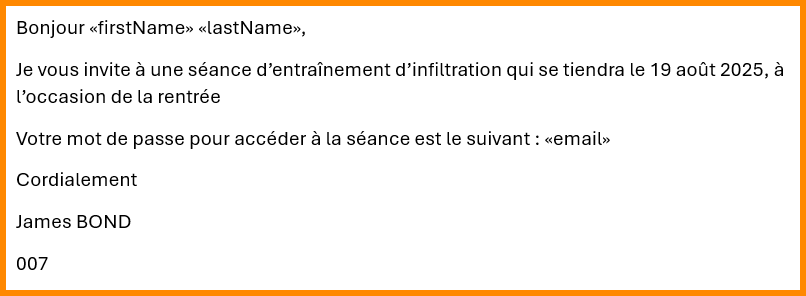
- **Pour insérez les données de vos contacts, cliquez sur "<sub>![logo_icon_insétet_champ_fusion.png](https://portail.ac-reunion.fr/ladoclela/uploads/images/gallery/2026-04/scaled-1680-/Axzlogo-icon-insetet-champ-fusion.png) </sub>Insérer un champ de fusion" et sélectionnez le champ ciblé.**

[![publi5.png](https://portail.ac-reunion.fr/ladoclela/uploads/images/gallery/2026-04/scaled-1680-/6sSpubli5.png)](https://portail.ac-reunion.fr/ladoclela/uploads/images/gallery/2026-04/6sSpubli5.png)

<p class="callout info">Les champs peuvent parfois être écrits en anglais. Voici une traduction générale :   
email = email  
firstName = Prénom  
lastName = Nom  
fullName = Nom, Prénom</p>

[![publi67.png](https://portail.ac-reunion.fr/ladoclela/uploads/images/gallery/2026-04/scaled-1680-/publi67.png)](https://portail.ac-reunion.fr/ladoclela/uploads/images/gallery/2026-04/publi67.png)

</details>---

#### **Effectuer l'envoi du publipostage**

<details id="bkmrk-effectuer-l%27envoi-du-3"><summary>Effectuer l'envoi du publipostage</summary>

- **En haut à droite, cliquez sur "<sub>![logo_icon_terminer_fusionner.png](https://portail.ac-reunion.fr/ladoclela/uploads/images/gallery/2026-04/scaled-1680-/logo-icon-terminer-fusionner.png) </sub>Terminer &amp; fusionner"**

[![publi7.png](https://portail.ac-reunion.fr/ladoclela/uploads/images/gallery/2026-04/scaled-1680-/publi7.png)](https://portail.ac-reunion.fr/ladoclela/uploads/images/gallery/2026-04/publi7.png)

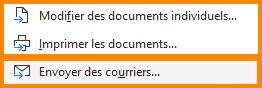
- **Cliquez sur "<sub>![logo_icon_terminer_fusionner.png](https://portail.ac-reunion.fr/ladoclela/uploads/images/gallery/2026-04/scaled-1680-/RAYlogo-icon-terminer-fusionner.png)</sub> Envoyer des courriers...".**

[![publi8.png](https://portail.ac-reunion.fr/ladoclela/uploads/images/gallery/2026-04/scaled-1680-/publi8.png)](https://portail.ac-reunion.fr/ladoclela/uploads/images/gallery/2026-04/publi8.png)

- **Un nouvel onglet s'ouvre.**
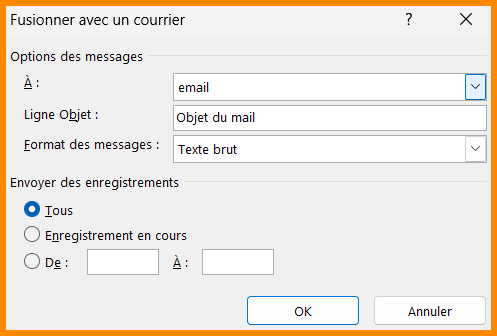
- **Remplissez les informations comme :** 
    - **À :** email
    - **Ligne Objet :** Objet du mail
    - **Format des messages :** Texte brut (ou "pièce jointe" pour garder la mise en forme)

[![pardefaut9.png](https://portail.ac-reunion.fr/ladoclela/uploads/images/gallery/2026-03/scaled-1680-/pardefaut9.png)](https://portail.ac-reunion.fr/ladoclela/uploads/images/gallery/2026-03/pardefaut9.png)
- **En bas à droite, cliquez sur "OK".**

<p class="callout info"> </p>

</details>
</details>---

#### **Limite d'envoi de messages**

<details id="bkmrk-limite-d%27envoi-de-me-1"><summary>Limite d'envoi de messages</summary>

Afin d'éviter toutes formes d'**usurpation de compte**, une **limite d'envoi de mails** est appliquée pour chaque utilisateur. Le décompte de messages active des seuils réparties en 3 catégories différentes :

<table border="1" class="align-center" style="border-collapse: collapse; width: 100%; height: 167.375px; border-width: 1px;"><colgroup><col style="width: 24.1335%;"></col><col style="width: 39.1574%;"></col><col style="width: 36.7091%;"></col></colgroup><tbody><tr style="height: 29.7969px;"><td style="border-color: rgb(0, 0, 0); border-style: none; height: 29.7969px;"> </td><td class="align-center" style="height: 29.7969px; background-color: rgb(230, 126, 35); border-color: rgb(0, 0, 0); border-style: solid;"><span style="color: rgb(236, 240, 241);">**WARN**</span></td><td class="align-center" style="height: 29.7969px; background-color: rgb(224, 62, 45); border-color: rgb(0, 0, 0); border-style: solid;"><span style="color: rgb(236, 240, 241);">**MAX**</span></td></tr><tr style="height: 68.5938px;"><td class="align-center" style="border-color: rgb(0, 0, 0); height: 68.5938px; background-color: rgb(53, 152, 219); vertical-align: middle;"><span style="color: rgb(255, 255, 255);">**EFFET**</span></td><td style="border-color: rgb(0, 0, 0); height: 68.5938px; vertical-align: middle;"><span style="color: rgb(0, 0, 0);">Les mails sont mis en **quarantaine** chez le destinataire.</span></td><td style="border-color: rgb(0, 0, 0); height: 68.5938px; vertical-align: middle;"><span style="color: rgb(0, 0, 0);">Le mail est **bloqué et supprimé** par le serveur</span></td></tr><tr style="height: 68.9844px;"><td class="align-center" style="border-color: rgb(0, 0, 0); height: 68.9844px; background-color: rgb(53, 152, 219); vertical-align: middle;"><span style="color: rgb(255, 255, 255);">**ACTIONS**</span></td><td style="border-color: rgb(0, 0, 0); height: 68.9844px; vertical-align: middle;"><span style="color: rgb(0, 0, 0);">Le destinataire peut débloquer le message s'il le considère comme légitime  
*(cf [documentation](https://portail.ac-reunion.fr/ladoclela/link/4234#bkmrk-g%C3%A9rer-ses-messages-e-1))*  
</span></td><td style="border-color: rgb(0, 0, 0); height: 68.9844px; vertical-align: middle;"><span style="color: rgb(0, 0, 0);">L'expéditeur doit attendre la fin de l'intervalle de temps indiqué ci dessous avant de renvoyer un mail.</span></td></tr></tbody></table>

Il existe une variable supplémentaire dans le décompte. Il se fait par adresse IP et par émetteur.

<span style="color: rgb(0, 0, 0);">**SEUILS DE TOLÉRANCE SELON L'ADRESSE IP**</span>

<table border="1" style="border-collapse: collapse; width: 100%; height: 178.594px; border: 1px solid rgb(0, 0, 0);"><colgroup><col style="width: 24.647%;"></col><col style="width: 38.7718%;"></col><col style="width: 36.5813%;"></col></colgroup><tbody><tr style="height: 29.7727px;"><td class="align-center" rowspan="2" style="height: 59.5738px; background-color: rgb(53, 152, 219); border-color: rgb(0, 0, 0); vertical-align: middle;"><span style="color: rgb(255, 255, 255);">**INTERVALLE DE TEMPS**</span></td><td class="align-center" colspan="2" style="height: 29.7727px; background-color: rgb(53, 152, 219); border-color: rgb(0, 0, 0);"><span style="color: rgb(255, 255, 255);">**NOMBRE DE MAILS COMPTÉS**</span></td></tr><tr style="height: 29.8011px;"><td class="align-center" style="height: 29.8011px; background-color: rgb(230, 126, 35); border-color: rgb(0, 0, 0); border-style: solid;"><span style="color: rgb(236, 240, 241);">**WARN**</span></td><td class="align-center" style="height: 29.8011px; background-color: rgb(224, 62, 45); border-color: rgb(0, 0, 0); border-style: solid;"><span style="color: rgb(236, 240, 241);">**MAX**</span></td></tr><tr style="height: 29.7727px;"><td class="align-center" style="height: 29.7727px; background-color: rgb(212, 230, 241); border-color: rgb(0, 0, 0);">**<span style="color: rgb(0, 0, 0);">1 min</span>**</td><td class="align-center" style="height: 29.7727px; border-color: rgb(0, 0, 0);"><span style="color: rgb(0, 0, 0);">500</span></td><td class="align-center" style="height: 29.7727px; border-color: rgb(0, 0, 0);"><span style="color: rgb(0, 0, 0);">700 et plus</span></td></tr><tr style="height: 29.7727px;"><td class="align-center" style="height: 29.7727px; background-color: rgb(212, 230, 241); border-color: rgb(0, 0, 0);">**<span style="color: rgb(0, 0, 0);">10 min</span>**</td><td class="align-center" style="height: 29.7727px; border-color: rgb(0, 0, 0);"><span style="color: rgb(0, 0, 0);">800</span></td><td class="align-center" style="height: 29.7727px; border-color: rgb(0, 0, 0);"><span style="color: rgb(0, 0, 0);">1000 et plus</span></td></tr><tr style="height: 29.7727px;"><td class="align-center" style="height: 29.7727px; background-color: rgb(212, 230, 241); border-color: rgb(0, 0, 0);">**<span style="color: rgb(0, 0, 0);">60 min</span>**</td><td class="align-center" style="height: 29.7727px; border-color: rgb(0, 0, 0);"><span style="color: rgb(0, 0, 0);">3000</span></td><td class="align-center" style="height: 29.7727px; border-color: rgb(0, 0, 0);"><span style="color: rgb(0, 0, 0);">6000 et plus</span></td></tr><tr style="height: 29.7017px;"><td class="align-center" style="height: 29.7017px; background-color: rgb(212, 230, 241); border-color: rgb(0, 0, 0);">**<span style="color: rgb(0, 0, 0);">600 min</span>**</td><td class="align-center" style="height: 29.7017px; border-color: rgb(0, 0, 0);"><span style="color: rgb(0, 0, 0);">6000</span></td><td class="align-center" style="height: 29.7017px; border-color: rgb(0, 0, 0);"><span style="color: rgb(0, 0, 0);">8000 et plus</span></td></tr></tbody></table>

<span style="color: rgb(0, 0, 0);">**SEUILS DE TOLÉRANCE SELON L'ÉMETTEUR**</span>

<table border="1" style="border-collapse: collapse; width: 100%; height: 178.781px; border: 1px solid rgb(0, 0, 0);"><colgroup><col style="width: 24.647%;"></col><col style="width: 38.7718%;"></col><col style="width: 36.5813%;"></col></colgroup><tbody><tr style="height: 29.7969px;"><td class="align-center" rowspan="2" style="height: 59.5938px; background-color: rgb(53, 152, 219); border-color: rgb(0, 0, 0); vertical-align: middle;"><span style="color: rgb(255, 255, 255);">**INTERVALLE DE TEMPS**</span></td><td class="align-center" colspan="2" style="height: 29.7969px; background-color: rgb(53, 152, 219); border-color: rgb(0, 0, 0);"><span style="color: rgb(255, 255, 255);">**NOMBRE DE MAILS COMPTÉS**</span></td></tr><tr style="height: 29.7969px;"><td class="align-center" style="height: 29.7969px; background-color: rgb(230, 126, 35); border-color: rgb(0, 0, 0); border-style: solid;"><span style="color: rgb(236, 240, 241);">**WARN**</span></td><td class="align-center" style="height: 29.7969px; background-color: rgb(224, 62, 45); border-color: rgb(0, 0, 0); border-style: solid;"><span style="color: rgb(236, 240, 241);">**MAX**</span></td></tr><tr style="height: 29.7969px;"><td class="align-center" style="height: 29.7969px; background-color: rgb(212, 230, 241); border-color: rgb(0, 0, 0);">**<span style="color: rgb(0, 0, 0);">1 min</span>**</td><td class="align-center" style="height: 29.7969px; border-color: rgb(0, 0, 0);"><span style="color: rgb(0, 0, 0);">500</span></td><td class="align-center" style="height: 29.7969px; border-color: rgb(0, 0, 0);"><span style="color: rgb(0, 0, 0);">2000 et plus</span></td></tr><tr style="height: 29.7969px;"><td class="align-center" style="height: 29.7969px; background-color: rgb(212, 230, 241); border-color: rgb(0, 0, 0);">**<span style="color: rgb(0, 0, 0);">10 min</span>**</td><td class="align-center" style="height: 29.7969px; border-color: rgb(0, 0, 0);"><span style="color: rgb(0, 0, 0);">800</span></td><td class="align-center" style="height: 29.7969px; border-color: rgb(0, 0, 0);"><span style="color: rgb(0, 0, 0);">2500 et plus</span></td></tr><tr style="height: 29.7969px;"><td class="align-center" style="height: 29.7969px; background-color: rgb(212, 230, 241); border-color: rgb(0, 0, 0);">**<span style="color: rgb(0, 0, 0);">60 min</span>**</td><td class="align-center" style="height: 29.7969px; border-color: rgb(0, 0, 0);"><span style="color: rgb(0, 0, 0);">2000</span></td><td class="align-center" style="height: 29.7969px; border-color: rgb(0, 0, 0);"><span style="color: rgb(0, 0, 0);">4000 et plus</span></td></tr><tr style="height: 29.7969px;"><td class="align-center" style="height: 29.7969px; background-color: rgb(212, 230, 241); border-color: rgb(0, 0, 0);">**<span style="color: rgb(0, 0, 0);">600 min</span>**</td><td class="align-center" style="height: 29.7969px; border-color: rgb(0, 0, 0);"><span style="color: rgb(0, 0, 0);">5000</span></td><td class="align-center" style="height: 29.7969px; border-color: rgb(0, 0, 0);"><span style="color: rgb(0, 0, 0);">8000 et plus</span></td></tr></tbody></table>

<span style="color: rgb(0, 0, 0);">**SEUILS DE TOLÉRANCE SELON L'HEURE**</span>

Les seuils sont différents selon si l'envoi du mail s'effectue en dehors des horaires du bureau défini entre 7h et 20h. Voici les spécificités selon si le message est envoyé :

<table border="1" style="border-collapse: collapse; width: 100%; height: 136.188px;"><colgroup><col style="width: 24.9037%;"></col><col style="width: 38.2542%;"></col><col style="width: 36.8421%;"></col></colgroup><tbody><tr style="height: 44.7969px;"><td class="align-center" style="height: 44.7969px; border-style: none; border-color: rgb(0, 0, 0); vertical-align: middle;">  
</td><td class="align-center" style="height: 44.7969px; background-color: rgb(53, 152, 219); border-color: rgb(0, 0, 0); vertical-align: middle;"><span style="color: rgb(255, 255, 255);">**JOUR DE LA SEMAINE**</span></td><td class="align-center" style="height: 44.7969px; background-color: rgb(53, 152, 219); border-color: rgb(0, 0, 0); vertical-align: middle;"><span style="color: rgb(255, 255, 255);">**WEEK-END**</span></td></tr><tr style="height: 44.7969px;"><td class="align-center" style="height: 44.7969px; border-color: rgb(0, 0, 0); background-color: rgb(53, 152, 219); vertical-align: middle;"><span style="color: rgb(255, 255, 255);">**HORAIRES DU BUREAU (7h à 20h)**</span></td><td class="align-center" style="height: 44.7969px; border-color: rgb(0, 0, 0); vertical-align: middle;"><span style="color: rgb(0, 0, 0);">Coefficient normal</span></td><td class="align-center" style="height: 44.7969px; border-color: rgb(0, 0, 0); vertical-align: middle;"><span style="color: rgb(0, 0, 0);">Seuil divisé par 2</span></td></tr><tr style="height: 46.5938px;"><td class="align-center" style="height: 46.5938px; border-color: rgb(0, 0, 0); background-color: rgb(53, 152, 219); vertical-align: middle;"><span style="color: rgb(255, 255, 255);">**EN DEHORS DES HORAIRES**</span></td><td class="align-center" colspan="2" style="height: 46.5938px; border-color: rgb(0, 0, 0); vertical-align: middle;"><span style="color: rgb(0, 0, 0);">Seuil divisé par 4</span>  
</td></tr></tbody></table>

*<span style="text-decoration: underline;">Exemple :</span> MAX sur 60 minutes = 8000 mails, mais réduit à 2000 en dehors des horaires du bureau.*

<span style="color: rgb(0, 0, 0);">**SEUILS DE TOLÉRANCE SELON LE PUBLIC**</span>

Les seuils peuvent être augmentés selon le profilage des expéditeurs comme :

- <span style="text-decoration: underline;">**L'expéditeur est un chef d'établissement :**</span> tolérance multipliée par 2
- <span style="text-decoration: underline;">**Messages depuis l'IP d'un établissement scolaire :**</span> tolérance multipliée par 4
- <span style="text-decoration: underline;">**Messages transmis par l'intermédiaire d'une liste de diffusion :**</span> aucune restriction

*<span style="text-decoration: underline;">Exemple :</span> MAX sur 60 minutes = 8000 mails, mais augmenté pour la secrétaire du collège Golden Eye à 32000 messages.*

<span style="color: rgb(0, 0, 0);">**COMPROMISSION D'UN COMPTE**</span>

Lorsqu’un compte dépasse l’un des seuils WARNING ou MAX, les responsables de la sécurité informatique sont notifiés afin de déterminer s’il s’agit d’une usurpation d’identité. En cas de compromission avérée, celle-ci est alors activée et le mot de passe de votre compte Métice est alors réinitialisé.

</details>