# Documentation XIVO

# Paramétrer son poste

Dans cette partie, nous allons voir comment paramétrer l’ensemble de votre poste d’appel, notamment les éventuelles redirections d’appels, ainsi que la configuration des périphériques et du casque.

<p class="callout info">**Toutes *les étapes sont nécessaires pour paramétrer au mieux votre application <sub>![logo_icon_xivo.png](https://portail.ac-reunion.fr/ladoclela/uploads/images/gallery/2025-09/scaled-1680-/logo-icon-xivo.png) </sub>XIVO.***</p>

#### **Ouvrir l'application ![logo_icon_xivo.png](https://portail.ac-reunion.fr/ladoclela/uploads/images/gallery/2025-09/scaled-1680-/logo-icon-xivo.png)<sub> </sub>XIVO**

<details id="bkmrk-lancer-l%27application"><summary>Ouvrir l'application XIVO</summary>

<table border="1" style="border-collapse: collapse; width: 100%;"><colgroup><col style="width: 50.706%;"></col><col style="width: 49.294%;"></col></colgroup><tbody><tr><td style="vertical-align: middle; height: 369.281px; border-style: none;">- **Cliquez sur le bouton "<sub>![windows.png](https://portail.ac-reunion.fr/ladoclela/uploads/images/gallery/2025-10/scaled-1680-/windows.png)</sub> Démarrage".**
- **Recherchez "Xivo".**
- **Cliquez sur "`xivo-desktop-assistant`".**
- **L'application s'ouvre.**

</td><td style="vertical-align: middle; height: 369.281px; border-style: none;">[![xivà33.png](https://portail.ac-reunion.fr/ladoclela/uploads/images/gallery/2025-10/scaled-1680-/xiva33.png)](https://portail.ac-reunion.fr/ladoclela/uploads/images/gallery/2025-10/xiva33.png)

</td></tr><tr><td style="vertical-align: middle; height: 70.0312px; border-style: none;">- **Sur la page d'authentification, renseignez vos identifiants Métice pour vous connecter.**

</td><td style="vertical-align: middle; height: 70.0312px; border-style: none;">[![xivo33.png](https://portail.ac-reunion.fr/ladoclela/uploads/images/gallery/2025-10/scaled-1680-/4CNxivo33.png)](https://portail.ac-reunion.fr/ladoclela/uploads/images/gallery/2025-10/4CNxivo33.png)

</td></tr></tbody></table>

</details>---


#### **Gérer son poste d'appel**

<details id="bkmrk-g%C3%A9rer-son-poste-d%27ap-1"><summary>Gérer son poste d'appel</summary>

<table border="1" style="border-collapse: collapse; width: 100%; height: 1346.13px;"><colgroup><col style="width: 50.0342%;"></col><col style="width: 50.0342%;"></col></colgroup><tbody><tr style="height: 306.188px;"><td style="height: 306.188px; vertical-align: middle; border-style: none;">- **En haut à droite, cliquez sur "<sub>![logo_icon_xivo_gestion_appel.jpg](https://portail.ac-reunion.fr/ladoclela/uploads/images/gallery/2025-09/scaled-1680-/logo-icon-xivo-gestion-appel.jpg)</sub> Gestion d'Appels".**

<p class="callout info">L'icone peut varier avec "<sub>![logo_telephonie.png](https://portail.ac-reunion.fr/ladoclela/uploads/images/gallery/2025-10/scaled-1680-/logo-telephonie.png)</sub>" selon le périphérique d'appel sélectionné.</p>

</td><td style="height: 306.188px; vertical-align: middle; border-style: none;">[![xivo14.jpg](https://portail.ac-reunion.fr/ladoclela/uploads/images/gallery/2025-09/scaled-1680-/xivo14.jpg)](https://portail.ac-reunion.fr/ladoclela/uploads/images/gallery/2025-09/xivo14.jpg)

</td></tr><tr style="height: 195.797px;"><td style="height: 195.797px; vertical-align: middle; border-style: none;">- **Sélectionnez votre périphérique d'appel :** 
    - **<sub>![logo_client_xivo.png](https://portail.ac-reunion.fr/ladoclela/uploads/images/gallery/2025-10/scaled-1680-/logo-client-xivo.png) </sub>CLIENT XIVO :** Application **![logo_icon_xivo.png](https://portail.ac-reunion.fr/ladoclela/uploads/images/gallery/2025-09/scaled-1680-/logo-icon-xivo.png)** <span style="color: rgb(68, 68, 68);">XIVO</span>
    - **<sub>![logo_telephonie.png](https://portail.ac-reunion.fr/ladoclela/uploads/images/gallery/2025-10/scaled-1680-/logo-telephonie.png) </sub>TÉLÉPHONE :** Téléphone fixe

<p class="callout info">**[Documentation sur la différence entre les deux périphériques.](https://portail.ac-reunion.fr/ladoclela/books/documentation-xivo/page/utiliser-le-telephone-fixe-ou-le-softphone-xivo)**</p>

</td><td rowspan="3" style="height: 527.234px; vertical-align: middle; border-style: none;">[![xivo45.png](https://portail.ac-reunion.fr/ladoclela/uploads/images/gallery/2025-10/scaled-1680-/xivo45.png)](https://portail.ac-reunion.fr/ladoclela/uploads/images/gallery/2025-10/xivo45.png)</td></tr><tr style="height: 70.2344px;"><td style="height: 70.2344px; vertical-align: middle; border-style: none;">- **Activez le mode « Ne pas déranger »** pour que le correspondant soit redirigé vers la messagerie.

</td></tr><tr style="height: 261.203px;"><td style="vertical-align: middle; border-style: none; height: 261.203px;">- **Activez le mode « Renvoyer tous les appels »** pour rediriger vos correspondants vers un autre numéro.
- **Activez le mode « Renvoyer les appels en cas de non-réponse »** pour transférer un appel si aucune réponse n’est donnée après 30 secondes de sonnerie.

<p class="callout info">Vous ne pouvez activer qu’un seul des 2 modes.</p>

</td></tr><tr style="height: 425.875px;"><td style="height: 425.875px; vertical-align: middle; border-style: none;">- **Cliquez sur "FERMER".**

</td><td style="height: 425.875px; vertical-align: middle; border-style: none;">[![xivo46.png](https://portail.ac-reunion.fr/ladoclela/uploads/images/gallery/2025-10/scaled-1680-/xivo46.png)](https://portail.ac-reunion.fr/ladoclela/uploads/images/gallery/2025-10/xivo46.png)

</td></tr></tbody></table>

<p class="callout warning">N’oubliez pas de désactiver le mode « **Ne pas déranger** » lorsque vous êtes à votre poste, sans quoi vous ne recevrez plus aucun appel.</p>

</details>---

#### **Paramétrer les périphériques audio**

<details id="bkmrk-param%C3%A9trer-les-p%C3%A9rip"><summary>Paramétrer les périphériques audio</summary>

<table border="1" style="border-collapse: collapse; width: 100%; height: 905.531px;"><colgroup><col style="width: 50.0642%;"></col><col style="width: 50.0642%;"></col></colgroup><tbody><tr style="height: 637.359px;"><td style="vertical-align: middle; height: 637.359px; border-style: none;">- **En haut à droite, cliquez sur "<sub>![logo_icon_xivo_configurer.jpg](https://portail.ac-reunion.fr/ladoclela/uploads/images/gallery/2025-09/scaled-1680-/logo-icon-xivo-configurer.jpg) </sub>**
    
    **Configuration".**

</td><td style="vertical-align: middle; height: 637.359px; border-style: none;">[![xivo3.jpg](https://portail.ac-reunion.fr/ladoclela/uploads/images/gallery/2025-09/scaled-1680-/xivo3.jpg)](https://portail.ac-reunion.fr/ladoclela/uploads/images/gallery/2025-09/xivo3.jpg)

</td></tr><tr style="height: 29.7969px;"><td style="height: 29.7969px; vertical-align: middle; border-style: none;">- **Sélectionnez les périphériques que vous souhaitez utiliser :**
    
    
    - **Périphérique de sortie** : appareil sur lequel vous entendrez votre correspondant.
    - **Périphérique d’entrée** : micro utilisé pour communiquer.
    - **Périphérique de sonnerie secondaire** : deuxième appareil permettant d’entendre seulement les appels entrants.

</td><td style="height: 29.7969px; vertical-align: middle; border-style: none;">[![image.png](https://portail.ac-reunion.fr/ladoclela/uploads/images/gallery/2025-09/scaled-1680-/bKnimage.png)](https://portail.ac-reunion.fr/ladoclela/uploads/images/gallery/2025-09/bKnimage.png)</td></tr></tbody></table>

<p class="callout info">Pour tester vos périphériques audio, vous pouvez appeler le **`*55`**, une ligne prévue pour effectuer des tests d’écho.</p>

</details>---

#### **Modifier sa sonnerie**  


<details id="bkmrk-modifier-sa-sonnerie-1"><summary>Modifier sa sonnerie</summary>

<table border="1" style="border-collapse: collapse; width: 100%; height: 1920.89px;"><colgroup><col style="width: 50.0642%;"></col><col style="width: 50.0642%;"></col></colgroup><tbody><tr style="height: 637.688px;"><td style="vertical-align: middle; height: 637.688px; border-style: none;">- **En haut à droite, cliquez sur "<sub>![logo_icon_xivo_configurer.jpg](https://portail.ac-reunion.fr/ladoclela/uploads/images/gallery/2025-09/scaled-1680-/logo-icon-xivo-configurer.jpg) </sub>**
    
    **Configuration".**

</td><td style="vertical-align: middle; height: 637.688px; border-style: none;">[![xivo3.jpg](https://portail.ac-reunion.fr/ladoclela/uploads/images/gallery/2025-09/scaled-1680-/xivo3.jpg)](https://portail.ac-reunion.fr/ladoclela/uploads/images/gallery/2025-09/xivo3.jpg)

</td></tr><tr style="height: 644.703px;"><td style="vertical-align: middle; border-style: none; height: 644.703px;">- **Cliquez sur "<sub>![logo_icon_sonnerie.jpg](https://portail.ac-reunion.fr/ladoclela/uploads/images/gallery/2025-09/scaled-1680-/logo-icon-sonnerie.jpg) </sub>Sonnerie".**

</td><td style="vertical-align: middle; border-style: none; height: 644.703px;">[![xivo15.jpg](https://portail.ac-reunion.fr/ladoclela/uploads/images/gallery/2025-09/scaled-1680-/xivo15.jpg)](https://portail.ac-reunion.fr/ladoclela/uploads/images/gallery/2025-09/xivo15.jpg)

</td></tr><tr style="height: 638.5px;"><td style="vertical-align: middle; border-style: none; height: 638.5px;">- **Écoutez les différentes sonneries et sélectionnez celle que vous souhaitez utiliser.**
- **En haut à droite, cliquez sur la croix pour fermer la fenêtre.**

</td><td style="vertical-align: middle; border-style: none; height: 638.5px;">[![Sans titre.jpg](https://portail.ac-reunion.fr/ladoclela/uploads/images/gallery/2025-09/scaled-1680-/sans-titre.jpg)](https://portail.ac-reunion.fr/ladoclela/uploads/images/gallery/2025-09/sans-titre.jpg)

</td></tr></tbody></table>

</details>
---

#### **Décrocher avec son casque**  


<details id="bkmrk-d%C3%A9crocher-avec-son-c-1"><summary>Décrocher avec son casque</summary>

<table border="1" style="border-collapse: collapse; width: 100%; height: 1632.56px;"><colgroup><col style="width: 50.0642%;"></col><col style="width: 50.0642%;"></col></colgroup><tbody><tr style="height: 637.688px;"><td style="vertical-align: middle; height: 637.688px; border-style: none;">- **En haut à droite, cliquez sur "<sub>![logo_icon_xivo_configurer.jpg](https://portail.ac-reunion.fr/ladoclela/uploads/images/gallery/2025-09/scaled-1680-/logo-icon-xivo-configurer.jpg) </sub>**
    
    **Configuration".**

</td><td style="vertical-align: middle; height: 637.688px; border-style: none;">[![xivo3.jpg](https://portail.ac-reunion.fr/ladoclela/uploads/images/gallery/2025-09/scaled-1680-/xivo3.jpg)](https://portail.ac-reunion.fr/ladoclela/uploads/images/gallery/2025-09/xivo3.jpg)

</td></tr><tr style="height: 644.688px;"><td style="vertical-align: middle; border-style: none; height: 644.688px;">- **Cliquez sur "![logo_icon_casque.jpg](https://portail.ac-reunion.fr/ladoclela/uploads/images/gallery/2025-09/scaled-1680-/logo-icon-casque.jpg) Décroché au casque".**

</td><td style="vertical-align: middle; border-style: none; height: 644.688px;">[![xivo16.jpg](https://portail.ac-reunion.fr/ladoclela/uploads/images/gallery/2025-09/scaled-1680-/xivo16.jpg)](https://portail.ac-reunion.fr/ladoclela/uploads/images/gallery/2025-09/xivo16.jpg)

</td></tr><tr style="height: 239px;"><td style="vertical-align: middle; height: 239px; border-style: none;">- **Une nouvelle fenêtre s'ouvre et rechercher votre casque.**
- **Une fois trouvée, cliquez sur votre casque.**

</td><td style="vertical-align: middle; height: 239px; border-style: none;">[![xivo17.jpg](https://portail.ac-reunion.fr/ladoclela/uploads/images/gallery/2025-09/scaled-1680-/xivo17.jpg)](https://portail.ac-reunion.fr/ladoclela/uploads/images/gallery/2025-09/xivo17.jpg)

</td></tr><tr style="height: 21.7969px;"><td style="vertical-align: middle; height: 21.7969px; border-style: none;">- **Le nom de votre casque s'affiche.**

</td><td style="vertical-align: middle; height: 21.7969px; border-style: none;">[![xivo18.jpg](https://portail.ac-reunion.fr/ladoclela/uploads/images/gallery/2025-09/scaled-1680-/xivo18.jpg)](https://portail.ac-reunion.fr/ladoclela/uploads/images/gallery/2025-09/xivo18.jpg)

</td></tr></tbody></table>

<p class="callout warning">Le simple fait de paramétrer votre casque dans la catégorie **« Décroché au casque »** **ne signifie pas qu’il sera utilisé par défaut** pour la communication. Cette option permet uniquement d’**utiliser les boutons du casque** pour décrocher un appel. Pour que le casque soit **utilisé lors des appels, configurez les périphériques audio** comme indiqué plus haut.</p>

</details>---

#### **Activer / Désactiver l'ouverture de ![logo_icon_xivo.png](https://portail.ac-reunion.fr/ladoclela/uploads/images/gallery/2025-09/scaled-1680-/logo-icon-xivo.png)<sub> </sub>XIVO au démarrage**

<details id="bkmrk-activer-%2F-d%C3%A9sactiver-1"><summary>Activer / Désactiver l'ouverture de Xivo au démarrage</summary>

<table border="1" style="border-collapse: collapse; width: 100%; height: 1104.53px;"><colgroup><col style="width: 50%;"></col><col style="width: 50%;"></col></colgroup><tbody><tr style="height: 369.812px;"><td style="vertical-align: middle; height: 369.812px; border-style: none;">- **Cliquez sur le bouton "<sub>![windows.png](https://portail.ac-reunion.fr/ladoclela/uploads/images/gallery/2025-10/scaled-1680-/windows.png)</sub> Démarrage".**
- **Recherchez "Gestionnaire des tâches".**
- **Cliquez sur "<sub>![logo_gestion_tâches.png](https://portail.ac-reunion.fr/ladoclela/uploads/images/gallery/2025-10/scaled-1680-/logo-gestion-taches.png)</sub> Gestionnaire des tâches".**
- **Une nouvelle fenêtre s'ouvre.**

</td><td style="vertical-align: middle; height: 369.812px; border-style: none;">[![xivo34.png](https://portail.ac-reunion.fr/ladoclela/uploads/images/gallery/2025-10/scaled-1680-/xivo34.png)](https://portail.ac-reunion.fr/ladoclela/uploads/images/gallery/2025-10/xivo34.png)</td></tr><tr style="height: 202.312px;"><td style="vertical-align: middle; height: 202.312px; border-style: none;">- **À gauche, cliquez sur "<sub>![logo_application_démarrage.png](https://portail.ac-reunion.fr/ladoclela/uploads/images/gallery/2025-10/scaled-1680-/logo-application-demarrage.png)</sub> Applications de démarrage"**

</td><td style="vertical-align: middle; height: 202.312px; border-style: none;">[![xivo35.png](https://portail.ac-reunion.fr/ladoclela/uploads/images/gallery/2025-10/scaled-1680-/xivo35.png)](https://portail.ac-reunion.fr/ladoclela/uploads/images/gallery/2025-10/xivo35.png)

</td></tr><tr style="height: 210.922px;"><td style="vertical-align: middle; height: 210.922px; border-style: none;">- **En haut, dans la barre de recherche, inscrivez "xivo".**
- **Lancez la recherche.**

</td><td style="vertical-align: middle; height: 210.922px; border-style: none;">[![xivo36.png](https://portail.ac-reunion.fr/ladoclela/uploads/images/gallery/2025-10/scaled-1680-/xivo36.png)](https://portail.ac-reunion.fr/ladoclela/uploads/images/gallery/2025-10/xivo36.png)

</td></tr><tr style="height: 202.297px;"><td style="vertical-align: middle; height: 202.297px; border-style: none;">- **Faites un clic droit sur l'application `xivo-desktop-assistant.exe`.**
- **Cliquez sur Activer / Désactiver** *(selon vos préférences).*

  
</td><td style="vertical-align: middle; height: 202.297px; border-style: none;">[![xivo37.png](https://portail.ac-reunion.fr/ladoclela/uploads/images/gallery/2025-10/scaled-1680-/xivo37.png)](https://portail.ac-reunion.fr/ladoclela/uploads/images/gallery/2025-10/xivo37.png)

</td></tr><tr style="height: 29.7969px;"><td style="vertical-align: middle; height: 29.7969px; border-color: rgb(255, 255, 255); border-style: none;">- **Vérifiez que votre statut a bien été modifié dans la colonne "Statut".**

</td><td style="vertical-align: middle; height: 29.7969px; border-color: rgb(255, 255, 255); border-style: none;">[![xivo38.png](https://portail.ac-reunion.fr/ladoclela/uploads/images/gallery/2025-10/scaled-1680-/xivo38.png)](https://portail.ac-reunion.fr/ladoclela/uploads/images/gallery/2025-10/xivo38.png)

</td></tr></tbody></table>

</details>---

#### **Créer un <sub>![icon_xivo_groupement.png](https://portail.ac-reunion.fr/ladoclela/uploads/images/gallery/2026-04/scaled-1680-/aCuicon-xivo-groupement.png) </sub>groupe d'appel**

<details id="bkmrk-cr%C3%A9er-un-groupe-d%27ap-1"><summary>Créer un groupe d'appel</summary>

<table border="1" style="border-collapse: collapse; width: 100%;"><colgroup><col style="width: 50%;"></col><col style="width: 50%;"></col></colgroup><tbody><tr><td style="text-align: justify; border-color: rgb(255, 255, 255); vertical-align: middle;"><p class="callout info">Un <sub>![icon_xivo_groupement.png](https://portail.ac-reunion.fr/ladoclela/uploads/images/gallery/2026-04/scaled-1680-/aCuicon-xivo-groupement.png)</sub> groupe d’appel permet d'appeler en même temps plusieurs utilisateurs appartenant à un même service, en composant un unique numéro. Offrant à l’appelant une expérience simple, fluide et centralisée.</p>

</td><td style="border-color: rgb(255, 255, 255); vertical-align: middle;">[![xivo15.png](https://portail.ac-reunion.fr/ladoclela/uploads/images/gallery/2026-04/scaled-1680-/xivo15.png)](https://portail.ac-reunion.fr/ladoclela/uploads/images/gallery/2026-04/xivo15.png)

</td></tr></tbody></table>

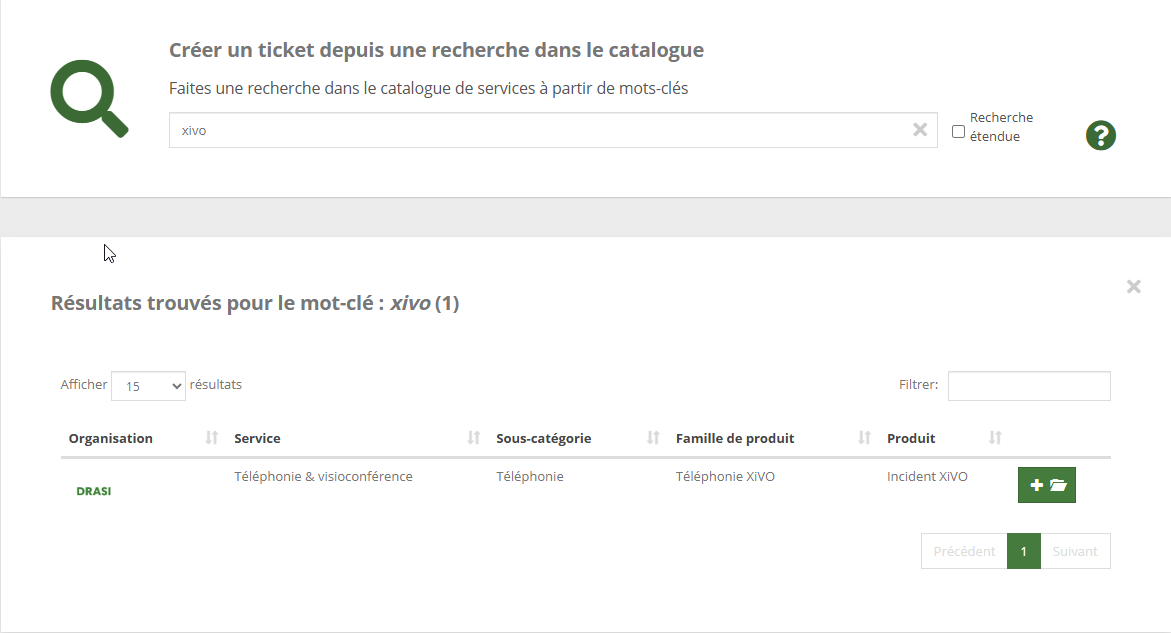
- **Pour créer un groupe d'appel, le chef de la division doit effectuer la demande dans un ticket Fil@os.**

[![image.png](https://portail.ac-reunion.fr/ladoclela/uploads/images/gallery/2026-04/scaled-1680-/SyNimage.png)](https://portail.ac-reunion.fr/ladoclela/uploads/images/gallery/2026-04/SyNimage.png)
<table border="1" style="border-collapse: collapse; width: 100%;"><colgroup><col style="width: 54.5221%;"></col><col style="width: 45.4137%;"></col></colgroup><tbody><tr><td style="border-style: none; vertical-align: middle; border-color: rgb(255, 255, 255);">- Une fois intégré au groupe, vous pouvez : 
    - <sub>![mettre en pause.png](https://portail.ac-reunion.fr/ladoclela/uploads/images/gallery/2026-04/scaled-1680-/mettre-en-pause.png) </sub>Mettre en pause les appels pour le groupe
    - <sub>![prendre l'appell.png](https://portail.ac-reunion.fr/ladoclela/uploads/images/gallery/2026-04/scaled-1680-/prendre-lappell.png) </sub>Prendre les appels pour le groupe

</td><td style="vertical-align: middle; border-color: rgb(255, 255, 255);">[![image.png](https://portail.ac-reunion.fr/ladoclela/uploads/images/gallery/2026-04/scaled-1680-/Uelimage.png)](https://portail.ac-reunion.fr/ladoclela/uploads/images/gallery/2026-04/Uelimage.png)

[![image.png](https://portail.ac-reunion.fr/ladoclela/uploads/images/gallery/2026-04/scaled-1680-/90Mimage.png)](https://portail.ac-reunion.fr/ladoclela/uploads/images/gallery/2026-04/90Mimage.png)

</td></tr></tbody></table>

</details>---

#### **Tutoriel vidéo**

<video class=" align-center" controls="controls" height="778" poster="" width="400"><source src="https://podeduc.apps.education.fr/media/videos/69ad71e4757450b26ac3bf7437fab6923afd6e4f78413b393cb68710924828b1/107029/720p.mp4" type="video/mp4"></source></video>

---

<p class="callout success">**Félicitations, vous savez désormais comment configurer vos poste d'appel.**</p>

# ⚠️ - Utiliser le téléphone fixe ou le softphone Xivo

Pour les utilisateurs disposant d’un téléphone fixe, **l’application XiVO** peut contrôler **deux périphériques d’appel** :

- votre **téléphone fixe**
- et votre **softphone XiVO** (application installée sur l’ordinateur)


---

#### **Différence entre les deux téléphériques :**

<table border="1" id="bkmrk-%C2%A0client-xivo-%C2%A0t%C3%89l%C3%89ph" style="border-collapse: collapse; width: 100%; height: 509px; border: 1px solid rgb(0, 0, 0);"><colgroup><col style="width: 50%;"></col><col style="width: 50%;"></col></colgroup><tbody><tr style="height: 38.7188px;"><td class="align-center" style="height: 38.7188px; background-color: rgb(53, 152, 219); border-color: rgb(0, 0, 0); vertical-align: middle;"><span style="color: rgb(255, 255, 255);">**<sub>![logo_client_xivo_blanc.png](https://portail.ac-reunion.fr/ladoclela/uploads/images/gallery/2025-10/scaled-1680-/logo-client-xivo-blanc.png)</sub>**</span><span style="color: rgb(255, 255, 255);">**<sub> </sub>CLIENT XIVO**</span>

</td><td class="align-center" style="height: 38.7188px; background-color: rgb(53, 152, 219); border-color: rgb(0, 0, 0); vertical-align: middle;"><span style="color: rgb(255, 255, 255);">**<sub>![logo_telephonie_blanc.png](https://portail.ac-reunion.fr/ladoclela/uploads/images/gallery/2025-10/scaled-1680-/logo-telephonie-blanc.png)</sub>**</span><span style="color: rgb(255, 255, 255);">**<sub> </sub>TÉLÉPHONE**</span>

</td></tr><tr style="height: 406.891px;"><td style="height: 406.891px; border-color: rgb(0, 0, 0); vertical-align: middle; border-style: solid;">[![xivo44.png](https://portail.ac-reunion.fr/ladoclela/uploads/images/gallery/2025-10/scaled-1680-/C2ixivo44.png)](https://portail.ac-reunion.fr/ladoclela/uploads/images/gallery/2025-10/C2ixivo44.png)

</td><td style="height: 406.891px; border-color: rgb(0, 0, 0); vertical-align: middle; border-style: solid;">[![image.png](https://portail.ac-reunion.fr/ladoclela/uploads/images/gallery/2025-10/scaled-1680-/u8Wimage.png)](https://portail.ac-reunion.fr/ladoclela/uploads/images/gallery/2025-10/u8Wimage.png)

</td></tr><tr style="height: 63.3906px;"><td style="height: 63.3906px; border-color: rgb(0, 0, 0); vertical-align: middle; border-style: solid;">Correspond à l’application XiVO installée sur votre ordinateur. Lorsqu’il est sélectionné, les appels entrants et sortants passent directement par votre PC.</td><td style="height: 63.3906px; border-color: rgb(0, 0, 0); vertical-align: middle; border-style: solid;">Correspond à votre poste téléphonique physique présent sur votre bureau. Lorsqu’il est sélectionné, les appels passent directement via ce téléphone fixe.</td></tr></tbody></table>

---

#### **Choisir son périphérique**

**Les deux périphériques <span style="color: rgb(224, 62, 45);">ne peuvent pas être</span> utilisés simultanément.** Il est donc important de sélectionner celui qui correspond à votre situation :

- **<span style="text-decoration: underline;">Vous disposez d'un téléphone fixe à côté de vous :</span>** "<sub>![logo_telephonie.png](https://portail.ac-reunion.fr/ladoclela/uploads/images/gallery/2025-10/scaled-1680-/logo-telephonie.png) </sub>TÉLÉPHONE"
- **<span style="text-decoration: underline;">Vous n'avez pas de téléphone fixe à côté de vous :</span>** "<sub>![logo_client_xivo.png](https://portail.ac-reunion.fr/ladoclela/uploads/images/gallery/2025-10/scaled-1680-/logo-client-xivo.png) </sub>CLIENT XIVO"
- <span style="text-decoration: underline;">**Vous êtes en télétravail ou en déplacement :** </span>"<sub>![logo_client_xivo.png](https://portail.ac-reunion.fr/ladoclela/uploads/images/gallery/2025-10/scaled-1680-/logo-client-xivo.png) </sub>CLIENT XIVO"

***Exemple de mauvaise pratique :** Vous êtes en télétravail mais avez laissé le périphérique **« Téléphone »** activé. Dans ce cas, tous vos appels seront reçus sur votre poste fixe resté au bureau.*

<p class="callout info">**Pour éviter toute forme de confusion et réduire les manipulations, il est conseillé de paramétrer par défaut le périphérique sur "<sub>![logo_client_xivo.png](https://portail.ac-reunion.fr/ladoclela/uploads/images/gallery/2025-10/scaled-1680-/logo-client-xivo.png) </sub>CLIENT XIVO".** </p>

---

#### **Paramétrer son périphérique**

<table border="1" id="bkmrk-en-haut-%C3%A0-droite%2C-cl" style="border-collapse: collapse; width: 100%;"><colgroup><col style="width: 50.0618%;"></col><col style="width: 50.0618%;"></col></colgroup><tbody><tr><td style="height: 306.188px; vertical-align: middle; border-style: none;">- **En haut à droite, cliquez sur "<sub>![logo_icon_xivo_gestion_appel.jpg](https://portail.ac-reunion.fr/ladoclela/uploads/images/gallery/2025-09/scaled-1680-/logo-icon-xivo-gestion-appel.jpg)</sub> Gestion d'Appels".**

<p class="callout info">L'icone peut varier avec "<sub>![logo_telephonie.png](https://portail.ac-reunion.fr/ladoclela/uploads/images/gallery/2025-10/scaled-1680-/logo-telephonie.png)</sub>" selon le périphérique d'appel actuellement sélectionné.</p>

</td><td style="border-style: none;">[![xivo14.jpg](https://portail.ac-reunion.fr/ladoclela/uploads/images/gallery/2025-09/scaled-1680-/xivo14.jpg)](https://portail.ac-reunion.fr/ladoclela/uploads/images/gallery/2025-09/xivo14.jpg)</td></tr><tr><td style="height: 195.797px; vertical-align: middle; border-style: none;">- **Choisissez votre périphérique d’appel en vous référant aux exemples plus haut.**

</td><td style="border-style: none;">[![xivo47.png](https://portail.ac-reunion.fr/ladoclela/uploads/images/gallery/2025-10/scaled-1680-/xivo47.png)](https://portail.ac-reunion.fr/ladoclela/uploads/images/gallery/2025-10/xivo47.png)

</td></tr><tr><td style="vertical-align: middle; border-style: none;">- **Cliquez sur "FERMER".**

</td><td style="border-style: none;">[![xivo48.png](https://portail.ac-reunion.fr/ladoclela/uploads/images/gallery/2025-10/scaled-1680-/xivo48.png)](https://portail.ac-reunion.fr/ladoclela/uploads/images/gallery/2025-10/xivo48.png)

</td></tr></tbody></table>

# Gérer ses contacts

Dans cette partie, nous allons voir comment créer et modifier vos contacts. À noter que, par défaut, **votre annuaire académique est déjà initialisé** sur votre profil et que ces contacts **ne sont pas modifiables**.

Les tutoriels ci-dessous concernent uniquement les <span style="text-decoration: underline;">**contacts que vous avez créés personnellement**</span>.

#### **Créer un contact**

<details id="bkmrk-cr%C3%A9er-un-contact-%C2%A0"><summary>Créer un contact</summary>

<table border="1" style="border-collapse: collapse; width: 100%; height: 1307.64px; border-width: 1px; border-style: none;"><colgroup><col style="width: 50.5128%;"></col><col style="width: 49.4872%;"></col></colgroup><tbody><tr style="height: 521.172px;"><td style="vertical-align: middle; height: 521.172px; border-style: none;">- **En haut à droite, cliquez sur "<sub>![logo_icon_xivo_configurer.jpg](https://portail.ac-reunion.fr/ladoclela/uploads/images/gallery/2025-09/scaled-1680-/logo-icon-xivo-configurer.jpg) </sub>Configuration".**

</td><td style="vertical-align: middle; height: 521.172px; border-style: none;">[![xivo3.jpg](https://portail.ac-reunion.fr/ladoclela/uploads/images/gallery/2025-09/scaled-1680-/xivo3.jpg)](https://portail.ac-reunion.fr/ladoclela/uploads/images/gallery/2025-09/xivo3.jpg)

</td></tr><tr style="height: 524.656px;"><td style="vertical-align: middle; height: 524.656px; border-style: none;">- **En haut à gauche, cliquez sur "Contacts".**

</td><td style="vertical-align: middle; height: 524.656px; border-style: none;">[![xivo4.jpg](https://portail.ac-reunion.fr/ladoclela/uploads/images/gallery/2025-09/scaled-1680-/xivo4.jpg)](https://portail.ac-reunion.fr/ladoclela/uploads/images/gallery/2025-09/xivo4.jpg)</td></tr><tr style="height: 53.2344px;"><td style="vertical-align: middle; height: 53.2344px; border-style: none;">- **Cliquez sur "![xivo_contact_crer.jpg](https://portail.ac-reunion.fr/ladoclela/uploads/images/gallery/2025-09/scaled-1680-/xivo-contact-crer.jpg)<sub> </sub>Créer un contact".**

</td><td style="vertical-align: middle; height: 53.2344px; border-style: none;">[![xivo5.jpg](https://portail.ac-reunion.fr/ladoclela/uploads/images/gallery/2025-09/scaled-1680-/xivo5.jpg)](https://portail.ac-reunion.fr/ladoclela/uploads/images/gallery/2025-09/xivo5.jpg)

</td></tr><tr style="height: 29.7969px;"><td style="vertical-align: middle; height: 29.7969px; border-style: none;">- **Inscrivez les informations de votre nouveau contact.**

<p class="callout info">Pour intégrer plus de numéro au contact, cliquez sur le symbole "∨" à droite du champ "Numéro Principal".</p>

<p class="callout info">Pour ajouter le contact dans vos favoris, cliquez sur le symbole ★.</p>

- **Cliquez sur "CONFIRMER"**

</td><td style="vertical-align: middle; height: 29.7969px; border-style: none;">[![xivo6.jpg](https://portail.ac-reunion.fr/ladoclela/uploads/images/gallery/2025-09/scaled-1680-/xivo6.jpg)](https://portail.ac-reunion.fr/ladoclela/uploads/images/gallery/2025-09/xivo6.jpg)

</td></tr></tbody></table>

</details>---

#### **Importer des contacts**

<details id="bkmrk-exporter-ses-contact-1"><summary>Importer des contacts</summary>

<table border="1" style="border-collapse: collapse; width: 100%;"><colgroup><col style="width: 50.0642%;"></col><col style="width: 50.0642%;"></col></colgroup><tbody><tr><td style="vertical-align: middle; height: 521.172px; border-style: none;">- **En haut à droite, cliquez sur "<sub>![logo_icon_xivo_configurer.jpg](https://portail.ac-reunion.fr/ladoclela/uploads/images/gallery/2025-09/scaled-1680-/logo-icon-xivo-configurer.jpg) </sub>Configuration".**

</td><td style="vertical-align: middle; height: 521.172px; border-style: none;">[![xivo3.jpg](https://portail.ac-reunion.fr/ladoclela/uploads/images/gallery/2025-09/scaled-1680-/xivo3.jpg)](https://portail.ac-reunion.fr/ladoclela/uploads/images/gallery/2025-09/xivo3.jpg)

</td></tr><tr><td style="vertical-align: middle; height: 53.2344px; border-style: none;">- **Cliquez sur "<sub>![xivo_contact_importer.jpg](https://portail.ac-reunion.fr/ladoclela/uploads/images/gallery/2025-09/scaled-1680-/xivo-contact-importer.jpg)</sub> Importer des contacts".**
- **Votre explorateur de fichiers s'ouvre.**
- **Sélectionnez votre fichier de contacts.**

</td><td style="vertical-align: middle; height: 53.2344px; border-style: none;">[![xivo7.jpg](https://portail.ac-reunion.fr/ladoclela/uploads/images/gallery/2025-09/scaled-1680-/xivo7.jpg)](https://portail.ac-reunion.fr/ladoclela/uploads/images/gallery/2025-09/xivo7.jpg)

</td></tr><tr><td style="vertical-align: middle; height: 29.7969px; border-style: none;">- **Un message de validation apparait.**

</td><td style="vertical-align: middle; height: 29.7969px; border-style: none;">[![image.png](https://portail.ac-reunion.fr/ladoclela/uploads/images/gallery/2025-09/scaled-1680-/uQiimage.png)](https://portail.ac-reunion.fr/ladoclela/uploads/images/gallery/2025-09/uQiimage.png)

</td></tr></tbody></table>

</details>---

#### **Exporter ses contacts**

<details id="bkmrk-importer-des-contact-1"><summary>Exporter des contacts</summary>

<table border="1" style="border-collapse: collapse; width: 100%;"><colgroup><col style="width: 50.0642%;"></col><col style="width: 50.0642%;"></col></colgroup><tbody><tr><td style="vertical-align: middle; height: 521.172px; border-style: none;">- **En haut à droite, cliquez sur "<sub>![logo_icon_xivo_configurer.jpg](https://portail.ac-reunion.fr/ladoclela/uploads/images/gallery/2025-09/scaled-1680-/logo-icon-xivo-configurer.jpg) </sub>Configuration".**

</td><td style="vertical-align: middle; height: 521.172px; border-style: none;">[![xivo3.jpg](https://portail.ac-reunion.fr/ladoclela/uploads/images/gallery/2025-09/scaled-1680-/xivo3.jpg)](https://portail.ac-reunion.fr/ladoclela/uploads/images/gallery/2025-09/xivo3.jpg)

</td></tr><tr><td style="vertical-align: middle; height: 53.2344px; border-style: none;">- **Cliquez sur "<sub>![xivo_contact_exporter.jpg](https://portail.ac-reunion.fr/ladoclela/uploads/images/gallery/2025-09/scaled-1680-/xivo-contact-exporter.jpg)</sub> Exporter des contacts".**
- **Votre explorateur de fichiers s'ouvre.**
- **Choisissez un nom pour votre fichier et enregistrez-le.**

</td><td style="vertical-align: middle; height: 53.2344px; border-style: none;">[![xivo8.jpg](https://portail.ac-reunion.fr/ladoclela/uploads/images/gallery/2025-09/scaled-1680-/xivo8.jpg)](https://portail.ac-reunion.fr/ladoclela/uploads/images/gallery/2025-09/xivo8.jpg)

</td></tr></tbody></table>

</details>---

#### **Mettre un contact en favori**

<details id="bkmrk-mettre-un-contact-en-1"><summary>Mettre un contact en favori</summary>

<table border="1" style="border-collapse: collapse; width: 100%; height: 1071.78px;"><colgroup><col style="width: 50%;"></col><col style="width: 50%;"></col></colgroup><tbody><tr style="height: 379.766px;"><td style="vertical-align: middle; height: 379.766px; border-style: none;">- **Dans le champ "NUMERO / NOM", recherchez votre contact.**
- **Cliquez sur "<sub>![logo_icon_rechercher.jpg](https://portail.ac-reunion.fr/ladoclela/uploads/images/gallery/2025-09/scaled-1680-/logo-icon-rechercher.jpg) </sub>Rechercher".**

</td><td style="vertical-align: middle; height: 379.766px; border-style: none;">[![xivo9.jpg](https://portail.ac-reunion.fr/ladoclela/uploads/images/gallery/2025-09/scaled-1680-/xivo9.jpg)](https://portail.ac-reunion.fr/ladoclela/uploads/images/gallery/2025-09/xivo9.jpg)</td></tr><tr style="height: 123.781px;"><td style="vertical-align: middle; height: 123.781px; border-style: none;">- **Tous les contacts similaires à votre recherche apparaissent.**
- **Cliquez sur "![logo_icon_xivo_modifier.jpg](https://portail.ac-reunion.fr/ladoclela/uploads/images/gallery/2025-09/scaled-1680-/logo-icon-xivo-modifier.jpg)Modifier" à côté de votre contact.**

</td><td class="align-left" style="vertical-align: middle; height: 123.781px; border-style: none;">[![xivo10.jpg](https://portail.ac-reunion.fr/ladoclela/uploads/images/gallery/2025-09/scaled-1680-/Oqcxivo10.jpg)](https://portail.ac-reunion.fr/ladoclela/uploads/images/gallery/2025-09/Oqcxivo10.jpg)

</td></tr><tr style="height: 389.453px;"><td style="vertical-align: middle; height: 389.453px; text-align: justify; border-style: none;">- **Cliquez sur "★ Ajouter le contact aux favoris".**
- **Cliquez sur "CONFIRMER".**

</td><td style="vertical-align: middle; height: 389.453px; border-style: none;">[![xivo11.jpg](https://portail.ac-reunion.fr/ladoclela/uploads/images/gallery/2025-09/scaled-1680-/xivo11.jpg)](https://portail.ac-reunion.fr/ladoclela/uploads/images/gallery/2025-09/xivo11.jpg)

</td></tr><tr style="height: 29.7969px;"><td style="vertical-align: middle; height: 29.7969px; border-style: none;">- **Votre contact apparait sur votre page d'accueil.**

</td><td style="vertical-align: middle; height: 29.7969px; border-style: none;">[![image.png](https://portail.ac-reunion.fr/ladoclela/uploads/images/gallery/2025-09/scaled-1680-/k2Ximage.png)](https://portail.ac-reunion.fr/ladoclela/uploads/images/gallery/2025-09/k2Ximage.png)

</td></tr></tbody></table>

</details>---

#### **Tutoriel vidéo**

<video class=" align-center" controls="controls" height="778" poster="" width="400"><source src="https://podeduc.apps.education.fr/media/videos/69ad71e4757450b26ac3bf7437fab6923afd6e4f78413b393cb68710924828b1/107026/720p.mp4" type="video/mp4"></source></video>

---

<p class="callout success">**Félicitations, vous savez désormais comment configurer vos contacts.**</p>

# Gérer ses appels

Dans cette section, nous allons découvrir toutes les fonctionnalités que l’application <sub>![logo_icon_xivo.png](https://portail.ac-reunion.fr/ladoclela/uploads/images/gallery/2025-09/scaled-1680-/logo-icon-xivo.png) </sub>XIVO offre lors de l’émission et de la réception d’appels téléphoniques.

##### **Connaitre le statut d'une personne**

<details id="bkmrk-connaitre-le-statut--1"><summary>Connaitre le statut d'une personne</summary>

<table border="1" style="border-collapse: collapse; width: 100%;"><colgroup><col style="width: 26.218%;"></col><col style="width: 73.9103%;"></col></colgroup><tbody><tr><td class="align-center" style="vertical-align: middle;">[![i8limage.png](https://portail.ac-reunion.fr/ladoclela/uploads/images/gallery/2026-04/scaled-1680-/S26i8limage.png)](https://portail.ac-reunion.fr/ladoclela/uploads/images/gallery/2026-04/S26i8limage.png)

</td><td class="align-center" style="vertical-align: middle;">**L'utilisateur est disponible**</td></tr><tr><td class="align-center" style="vertical-align: middle;">![xivo10.png](https://portail.ac-reunion.fr/ladoclela/uploads/images/gallery/2026-04/scaled-1680-/OeRxivo10.png)</td><td class="align-center" style="vertical-align: middle;">**L'utilisateur est en cours d'appel**</td></tr><tr><td class="align-center" style="vertical-align: middle;">![image.png](https://portail.ac-reunion.fr/ladoclela/uploads/images/gallery/2026-04/scaled-1680-/jjlimage.png)</td><td class="align-center" style="vertical-align: middle;">**L'utilisateur est mis en pause dans son appel**</td></tr><tr><td class="align-center" style="vertical-align: middle;">![image.png](https://portail.ac-reunion.fr/ladoclela/uploads/images/gallery/2026-04/scaled-1680-/85Vimage.png)</td><td class="align-center" style="vertical-align: middle;">**L'utilisateur est occupé avec un appel**</td></tr></tbody></table>

</details>---

#### **Appeler un numéro non enregistré**

<details id="bkmrk-appeler-un-num%C3%A9ro-no"><summary>Appeler un numéro non enregistré</summary>

<table border="1" style="border-collapse: collapse; width: 100%; height: 328.406px;"><colgroup><col style="width: 50%;"></col><col style="width: 50%;"></col></colgroup><tbody><tr style="height: 134.656px;"><td style="border-style: none; vertical-align: middle; height: 134.656px;">- **Dans le champ "NUMERO / NOM", écrivez le numéro à appeler.**

</td><td style="border-style: none; vertical-align: middle; height: 134.656px;">[![xivo24.png](https://portail.ac-reunion.fr/ladoclela/uploads/images/gallery/2025-09/scaled-1680-/xivo24.png)](https://portail.ac-reunion.fr/ladoclela/uploads/images/gallery/2025-09/xivo24.png)  
</td></tr><tr style="height: 134.656px;"><td style="border-style: none; vertical-align: middle; height: 134.656px;">- **À droite, cliquez sur "<sub>![logo_icon_appel.png](https://portail.ac-reunion.fr/ladoclela/uploads/images/gallery/2025-09/scaled-1680-/logo-icon-appel.png) </sub>Appeler".**

</td><td style="border-style: none; vertical-align: middle; height: 134.656px;">[![xivo25.png](https://portail.ac-reunion.fr/ladoclela/uploads/images/gallery/2025-09/scaled-1680-/xivo25.png)](https://portail.ac-reunion.fr/ladoclela/uploads/images/gallery/2025-09/xivo25.png)</td></tr><tr style="height: 29.2969px;"><td style="height: 29.7969px; vertical-align: middle; border-style: none;">- **L'appel se lance.**

</td><td style="height: 29.7969px; vertical-align: middle; border-style: none;">[![image.png](https://portail.ac-reunion.fr/ladoclela/uploads/images/gallery/2025-09/scaled-1680-/e5oimage.png)](https://portail.ac-reunion.fr/ladoclela/uploads/images/gallery/2025-09/e5oimage.png)

</td></tr></tbody></table>

</details>---

#### **Appeler un contact enregistré**

<details id="bkmrk-appeler-un-contact-d"><summary>Appeler un contact</summary>

<table border="1" style="border-collapse: collapse; width: 100%; height: 119.188px;"><colgroup><col style="width: 49.9854%;"></col><col style="width: 49.9854%;"></col></colgroup><tbody><tr style="height: 29.7969px;"><td style="vertical-align: middle; border-style: none;">- **Dans le champ "NUMERO / NOM", recherchez votre contact.**
- **Cliquez sur "<sub>![logo_icon_rechercher.jpg](https://portail.ac-reunion.fr/ladoclela/uploads/images/gallery/2025-09/scaled-1680-/logo-icon-rechercher.jpg) </sub>Rechercher".**

</td><td style="vertical-align: middle; border-style: none;">[![xivo9.jpg](https://portail.ac-reunion.fr/ladoclela/uploads/images/gallery/2025-09/scaled-1680-/xivo9.jpg)](https://portail.ac-reunion.fr/ladoclela/uploads/images/gallery/2025-09/xivo9.jpg)</td></tr><tr style="height: 29.7969px;"><td style="vertical-align: middle; border-style: none;">- **Tous les contacts similaires à votre recherche apparaissent.**
- **Cliquez sur "<sub>![logo_icon_appel.png](https://portail.ac-reunion.fr/ladoclela/uploads/images/gallery/2025-09/scaled-1680-/logo-icon-appel.png) </sub>Appeler" à côté de votre contact.**

</td><td class="align-left" style="vertical-align: middle; border-style: none;">[![xivo30.png](https://portail.ac-reunion.fr/ladoclela/uploads/images/gallery/2025-09/scaled-1680-/xivo30.png)](https://portail.ac-reunion.fr/ladoclela/uploads/images/gallery/2025-09/xivo30.png)

</td></tr><tr style="height: 29.7969px;"><td style="height: 29.7969px; vertical-align: middle; border-style: none;">- **L'appel se lance.**

</td><td style="height: 29.7969px; vertical-align: middle; border-style: none;">[![image.png](https://portail.ac-reunion.fr/ladoclela/uploads/images/gallery/2025-09/scaled-1680-/e5oimage.png)](https://portail.ac-reunion.fr/ladoclela/uploads/images/gallery/2025-09/e5oimage.png)

</td></tr></tbody></table>

</details>---

#### **Recevoir un appel**

<details id="bkmrk-recevoir-un-appel-lo"><summary>Recevoir un appel</summary>

**Lorsqu'une personne essaye de vous contacter, vous recevez deux types de notifications différentes.**

<table border="1" style="border-collapse: collapse; width: 100%; height: 326.86px;"><colgroup><col style="width: 50%;"></col><col style="width: 50%;"></col></colgroup><tbody><tr style="height: 34.2344px;"><td class="align-center" style="height: 34.2344px; vertical-align: middle; background-color: rgb(53, 152, 219); border-color: rgb(0, 0, 0); border-style: solid;"><span style="color: rgb(255, 255, 255);">**UNE POP-UP SUR L'APPLICATION <sub>![logo_icon_xivo.png](https://portail.ac-reunion.fr/ladoclela/uploads/images/gallery/2025-09/scaled-1680-/logo-icon-xivo.png) </sub>XIVO**</span></td><td class="align-center" style="height: 34.2344px; vertical-align: middle; background-color: rgb(53, 152, 219); border-color: rgb(0, 0, 0); border-style: solid;"><span style="color: rgb(255, 255, 255);">**UNE POP-UP SUR VOTRE ORDINATEUR**</span></td></tr><tr style="height: 261.391px; border-style: none;"><td class="align-center" style="height: 261.391px; vertical-align: middle; border-color: rgb(0, 0, 0); border-style: solid;">[![xivo27.png](https://portail.ac-reunion.fr/ladoclela/uploads/images/gallery/2025-09/scaled-1680-/A2xxivo27.png)](https://portail.ac-reunion.fr/ladoclela/uploads/images/gallery/2025-09/A2xxivo27.png)

</td><td class="align-center" style="height: 261.391px; vertical-align: middle; border-color: rgb(0, 0, 0); border-style: solid;">[![xivo26.png](https://portail.ac-reunion.fr/ladoclela/uploads/images/gallery/2025-09/scaled-1680-/xUgxivo26.png)](https://portail.ac-reunion.fr/ladoclela/uploads/images/gallery/2025-09/xUgxivo26.png)

</td></tr><tr style="height: 31.2344px; border-style: none;"><td class="align-center" style="height: 31.2344px; vertical-align: middle; border-color: rgb(0, 0, 0); border-style: solid;">**Cliquez sur "ACCEPTER" pour répondre à l'appel.**</td><td class="align-center" style="height: 31.2344px; vertical-align: middle; border-color: rgb(0, 0, 0); border-style: solid;">**Cliquez dessus et l'application <sub>![logo_icon_xivo.png](https://portail.ac-reunion.fr/ladoclela/uploads/images/gallery/2025-09/scaled-1680-/logo-icon-xivo.png) </sub>XIVO s'ouvrira automatiquement.**</td></tr></tbody></table>

**Une fois l'appel accepté, vous avez plusieurs fonctionnalités utilisables durant l'appel.**

[![xivo28.png](https://portail.ac-reunion.fr/ladoclela/uploads/images/gallery/2025-09/scaled-1680-/xivo28.png)](https://portail.ac-reunion.fr/ladoclela/uploads/images/gallery/2025-09/xivo28.png)

- **<sub>![logo_icon_clavier.png](https://portail.ac-reunion.fr/ladoclela/uploads/images/gallery/2025-09/scaled-1680-/logo-icon-clavier.png)</sub> <span style="text-decoration: underline;">Clavier :</span>** Accès au pavé numérique pour écrire des chiffres
- **<sub>![logo_icon_pause.png](https://portail.ac-reunion.fr/ladoclela/uploads/images/gallery/2025-09/scaled-1680-/logo-icon-pause.png)</sub> <span style="text-decoration: underline;">Mettre en attente :</span>** Couper votre casque ET votre micro
- **<sub>![logo_icon_micro.png](https://portail.ac-reunion.fr/ladoclela/uploads/images/gallery/2025-09/scaled-1680-/logo-icon-micro.png)</sub> <span style="text-decoration: underline;">Désactiver le micro :</span>** Couper seulement votre micro
- **<sub>![logo_icon_raccrocher.png](https://portail.ac-reunion.fr/ladoclela/uploads/images/gallery/2025-09/scaled-1680-/logo-icon-raccrocher.png)</sub> <span style="text-decoration: underline;">Raccrocher :</span>** Mets fin à l'appel

</details>---

#### **Recevoir un double appel**

<details id="bkmrk-recevoir-un-double-a-1"><summary>Recevoir un double appel</summary>

<table border="1" style="border-collapse: collapse; width: 99.9487%; height: 1642.04px;"><colgroup><col style="width: 50.0521%;"></col><col style="width: 50.0521%;"></col></colgroup><tbody><tr style="height: 487.612px;"><td style="height: 487.612px; vertical-align: middle; border-color: rgb(255, 255, 255);">- **Vous êtes déjà en appel avec une première personne.**

</td><td style="height: 487.612px; vertical-align: middle; border-color: rgb(255, 255, 255);">[![image.png](https://portail.ac-reunion.fr/ladoclela/uploads/images/gallery/2026-04/scaled-1680-/ZZcimage.png)](https://portail.ac-reunion.fr/ladoclela/uploads/images/gallery/2026-04/ZZcimage.png)

</td></tr><tr style="height: 487.612px;"><td style="height: 487.612px; vertical-align: middle; border-color: rgb(255, 255, 255);">- **Vous avez un appel entrant ou vous souhaitez effectuer un second appel.**
- **Acceptez l'appel.**

</td><td style="height: 487.612px; vertical-align: middle; border-color: rgb(255, 255, 255);">[![xivo11.png](https://portail.ac-reunion.fr/ladoclela/uploads/images/gallery/2026-04/scaled-1680-/xivo11.png)](https://portail.ac-reunion.fr/ladoclela/uploads/images/gallery/2026-04/xivo11.png)

</td></tr><tr style="height: 487.612px;"><td style="height: 487.612px; vertical-align: middle; border-color: rgb(255, 255, 255);">- **Vous êtes en appel avec la seconde personne.**

  
</td><td style="height: 487.612px; vertical-align: middle; border-color: rgb(255, 255, 255);">[![image.png](https://portail.ac-reunion.fr/ladoclela/uploads/images/gallery/2026-04/scaled-1680-/Nxgimage.png)](https://portail.ac-reunion.fr/ladoclela/uploads/images/gallery/2026-04/Nxgimage.png)

</td></tr><tr style="height: 44.8px;"><td style="height: 44.8px; vertical-align: middle; border-color: rgb(255, 255, 255);">- **Pour repasser au premier appel, appuyez sur le bouton "<sub>![icon_xivo_pause.png](https://portail.ac-reunion.fr/ladoclela/uploads/images/gallery/2026-04/scaled-1680-/icon-xivo-pause.png)</sub>Reprendre".**

</td><td style="height: 44.8px; vertical-align: middle; border-color: rgb(255, 255, 255);">[![xivo13.png](https://portail.ac-reunion.fr/ladoclela/uploads/images/gallery/2026-04/scaled-1680-/xivo13.png)](https://portail.ac-reunion.fr/ladoclela/uploads/images/gallery/2026-04/xivo13.png)

</td></tr><tr style="height: 44.8px;"><td style="height: 44.8px; vertical-align: middle; border-color: rgb(255, 255, 255);">- **Vous êtes repassés au premier appel.**

</td><td style="height: 44.8px; vertical-align: middle; border-color: rgb(255, 255, 255);">[![xivo14.png](https://portail.ac-reunion.fr/ladoclela/uploads/images/gallery/2026-04/scaled-1680-/xivo14.png)](https://portail.ac-reunion.fr/ladoclela/uploads/images/gallery/2026-04/xivo14.png)</td></tr></tbody></table>

- **Vous pouvez ainsi de suite passer d'un appel à l'autre en appuyant sur le bouton "<sub>![icon_xivo_pause.png](https://portail.ac-reunion.fr/ladoclela/uploads/images/gallery/2026-04/scaled-1680-/icon-xivo-pause.png)</sub>Reprendre".**

</details>---

#### **Gérer son historique d'appel**


<details id="bkmrk-g%C3%A9rer-son-historique"><summary>Gérer son historique d'appel</summary>

<table border="1" style="border-collapse: collapse; width: 100%; height: 1513.99px;"><colgroup><col style="width: 50%;"></col><col style="width: 50%;"></col></colgroup><tbody><tr style="height: 637.266px;"><td style="height: 637.266px; vertical-align: middle; border-style: none;">- **En haut à gauche, cliquez sur "<sub>![logo_icon_historique.png](https://portail.ac-reunion.fr/ladoclela/uploads/images/gallery/2025-09/scaled-1680-/logo-icon-historique.png)</sub> Historique des appels".**

</td><td style="height: 637.266px; border-style: none;">[![xivo29.png](https://portail.ac-reunion.fr/ladoclela/uploads/images/gallery/2025-09/scaled-1680-/xivo29.png)](https://portail.ac-reunion.fr/ladoclela/uploads/images/gallery/2025-09/xivo29.png)

</td></tr><tr style="height: 638.344px;"><td style="height: 638.344px; vertical-align: middle; border-style: none;">**Voici toutes la légende :**

- ![logo_icon_appel_emis.png](https://portail.ac-reunion.fr/ladoclela/uploads/images/gallery/2025-09/scaled-1680-/logo-icon-appel-emis.png) appel émis
- ![logo_icon_appel_recu.png](https://portail.ac-reunion.fr/ladoclela/uploads/images/gallery/2025-09/scaled-1680-/logo-icon-appel-recu.png) appel reçu
- ![logo_icon_appel_refus.png](https://portail.ac-reunion.fr/ladoclela/uploads/images/gallery/2025-09/scaled-1680-/logo-icon-appel-refus.png) appel perdu
- ![logo_icon_date.png](https://portail.ac-reunion.fr/ladoclela/uploads/images/gallery/2025-09/scaled-1680-/logo-icon-date.png) date et heure de l'appel
- ![logo_icon_temps.png](https://portail.ac-reunion.fr/ladoclela/uploads/images/gallery/2025-09/scaled-1680-/logo-icon-temps.png) durée de l'appel
- ![logo_icon_ajout_contact.png](https://portail.ac-reunion.fr/ladoclela/uploads/images/gallery/2025-09/scaled-1680-/logo-icon-ajout-contact.png) ajouter dans les contacts
- ![logo_icon_appel.png](https://portail.ac-reunion.fr/ladoclela/uploads/images/gallery/2025-09/scaled-1680-/1kQlogo-icon-appel.png) rappeler la personne

</td><td style="height: 638.344px; border-style: none;">[![image.png](https://portail.ac-reunion.fr/ladoclela/uploads/images/gallery/2025-09/scaled-1680-/uSFimage.png)](https://portail.ac-reunion.fr/ladoclela/uploads/images/gallery/2025-09/uSFimage.png)

</td></tr></tbody></table>

</details>---

#### **Activer/Désactiver sa messagerie vocale**

<details id="bkmrk-activer%2Fd%C3%A9sactiver-s-1"><summary>Activer/Désactiver sa messagerie vocale</summary>

<table border="1" style="border-collapse: collapse; width: 100%; height: 199.297px;"><colgroup><col style="width: 50%;"></col><col style="width: 50%;"></col></colgroup><tbody><tr style="height: 109.906px;"><td class="align-left" style="height: 109.906px; vertical-align: middle; border-color: rgb(255, 255, 255); border-style: none;">- **En haut à droite dans la barre de recherche, appelez le numéro `*90`.**

</td><td class="align-left" style="height: 109.906px; vertical-align: middle; border-color: rgb(255, 255, 255); border-style: none;">[![xiv1.png](https://portail.ac-reunion.fr/ladoclela/uploads/images/gallery/2026-04/scaled-1680-/xiv1.png)](https://portail.ac-reunion.fr/ladoclela/uploads/images/gallery/2026-04/xiv1.png)

</td></tr><tr style="height: 29.7969px;"><td class="align-left" style="height: 29.7969px; vertical-align: middle; border-color: rgb(255, 255, 255); border-style: none;">- **Vous entendrez l'une des deux phrases suivantes :**
    - "votre messagerie a été désactivée"
    - "votre messagerie a été activée"

</td><td class="align-left" style="height: 29.7969px; vertical-align: middle; border-color: rgb(255, 255, 255); border-style: none;">[![image.png](https://portail.ac-reunion.fr/ladoclela/uploads/images/gallery/2026-04/scaled-1680-/cvcimage.png)](https://portail.ac-reunion.fr/ladoclela/uploads/images/gallery/2026-04/cvcimage.png)

</td></tr></tbody></table>

</details>---

#### **Accéder à votre messagerie vocale**

<details id="bkmrk-en-haut-%C3%A0-droite-dan"><summary>Accéder à votre messagerie vocale</summary>

<table border="1" style="border-collapse: collapse; width: 100%; height: 692.734px; border-width: 1px; border-style: none;"><colgroup><col style="width: 50.0642%;"></col><col style="width: 50.0642%;"></col></colgroup><tbody><tr style="height: 533.312px;"><td style="vertical-align: middle; height: 533.312px; border-style: none;">- **En haut à droite dans la barre de recherche, appelez le numéro `*98`.  
      
    OU
- **Cliquez sur le symbole "<sub>![logo_icon_xivo_vocal.jpg](https://portail.ac-reunion.fr/ladoclela/uploads/images/gallery/2025-10/scaled-1680-/logo-icon-xivo-vocal.jpg)</sub> Boîte vocale".**

</td><td style="vertical-align: middle; height: 533.312px; border-style: none;">[![xivo42.png](https://portail.ac-reunion.fr/ladoclela/uploads/images/gallery/2025-10/scaled-1680-/xivo42.png)](https://portail.ac-reunion.fr/ladoclela/uploads/images/gallery/2025-10/xivo42.png)

</td></tr><tr style="height: 70.0312px;"><td style="height: 70.0312px; vertical-align: middle; border-style: none;">- **Durant votre appel, gérer vos messages vocaux.**

</td><td style="height: 70.0312px; border-style: none;">[![xivo43.png](https://portail.ac-reunion.fr/ladoclela/uploads/images/gallery/2025-10/scaled-1680-/xivo43.png)](https://portail.ac-reunion.fr/ladoclela/uploads/images/gallery/2025-10/xivo43.png)

</td></tr></tbody></table>

</details>---

#### **Effectuer un transfert d'appel**

<details id="bkmrk-effectuer-un-transfe-1"><summary>Effectuer un transfert d'appel</summary>

<table border="1" style="border-collapse: collapse; width: 100%; height: 1597.62px;"><colgroup><col style="width: 50%;"></col><col style="width: 50%;"></col></colgroup><tbody><tr style="height: 492.812px;"><td style="vertical-align: middle; height: 492.812px; border-color: rgb(255, 255, 255); border-style: none; text-align: justify;">- **Vous êtes en appel avec quelqu'un.**

</td><td style="vertical-align: middle; height: 492.812px; border-color: rgb(255, 255, 255); border-style: none;">[![xivo2.png](https://portail.ac-reunion.fr/ladoclela/uploads/images/gallery/2026-04/scaled-1680-/xivo2.png)](https://portail.ac-reunion.fr/ladoclela/uploads/images/gallery/2026-04/xivo2.png)

</td></tr><tr style="height: 492.812px;"><td style="vertical-align: middle; height: 492.812px; border-color: rgb(255, 255, 255); border-style: none; text-align: justify;">- **Vous cherchez la personne vers qui vous voulez transférer l'appel et vous l'appelez.**

</td><td style="vertical-align: middle; height: 492.812px; border-color: rgb(255, 255, 255); border-style: none;">[![xivo3.png](https://portail.ac-reunion.fr/ladoclela/uploads/images/gallery/2026-04/scaled-1680-/xivo3.png)](https://portail.ac-reunion.fr/ladoclela/uploads/images/gallery/2026-04/xivo3.png)

</td></tr><tr style="height: 492.812px;"><td style="vertical-align: middle; height: 492.812px; border-color: rgb(255, 255, 255); border-style: none; text-align: justify;">- **Une fois qu'il a répondu, cliquez sur le bouton "<sub>![icon_xivo_transférer.png](https://portail.ac-reunion.fr/ladoclela/uploads/images/gallery/2026-04/scaled-1680-/icon-xivo-transferer.png)</sub> Transférer".**

</td><td style="vertical-align: middle; height: 492.812px; border-color: rgb(255, 255, 255); border-style: none;">[![xivo5.png](https://portail.ac-reunion.fr/ladoclela/uploads/images/gallery/2026-04/scaled-1680-/xivo5.png)](https://portail.ac-reunion.fr/ladoclela/uploads/images/gallery/2026-04/xivo5.png)

</td></tr><tr style="height: 29.7969px;"><td style="vertical-align: middle; height: 29.7969px; border-color: rgb(255, 255, 255); border-style: none; text-align: justify;">- **L'appel est transféré et les deux appels disparaissent de votre écran.**

</td><td style="vertical-align: middle; height: 29.7969px; border-color: rgb(255, 255, 255); border-style: none;">[![xivo6.png](https://portail.ac-reunion.fr/ladoclela/uploads/images/gallery/2026-04/scaled-1680-/xivo6.png)](https://portail.ac-reunion.fr/ladoclela/uploads/images/gallery/2026-04/xivo6.png)

</td></tr></tbody></table>

</details>
---

#### **Faire une conférence**

<details id="bkmrk-faire-une-conf%C3%A9rence-1"><summary>Faire une conférence</summary>

<table border="1" style="border-collapse: collapse; width: 100%;"><colgroup><col style="width: 50%;"></col><col style="width: 50%;"></col></colgroup><tbody><tr><td style="vertical-align: middle; border-color: rgb(255, 255, 255); border-style: none;">- **Appelez une première personne.**

</td><td style="vertical-align: middle; border-color: rgb(255, 255, 255); border-style: none;">[![xivo7.png](https://portail.ac-reunion.fr/ladoclela/uploads/images/gallery/2026-04/scaled-1680-/xivo7.png)](https://portail.ac-reunion.fr/ladoclela/uploads/images/gallery/2026-04/xivo7.png)</td></tr><tr><td style="vertical-align: middle; border-color: rgb(255, 255, 255); border-style: none;">- **Appelez une seconde personne**

</td><td style="vertical-align: middle; border-color: rgb(255, 255, 255); border-style: none;">[![xivo8.png](https://portail.ac-reunion.fr/ladoclela/uploads/images/gallery/2026-04/scaled-1680-/xivo8.png)](https://portail.ac-reunion.fr/ladoclela/uploads/images/gallery/2026-04/xivo8.png)  
</td></tr><tr><td style="vertical-align: middle; border-color: rgb(255, 255, 255); border-style: none;">- **Cliquez sur le bouton "<sub>![icon_xivo_conference.png](https://portail.ac-reunion.fr/ladoclela/uploads/images/gallery/2026-04/scaled-1680-/icon-xivo-conference.png)</sub> Conférence".**

</td><td style="vertical-align: middle; border-color: rgb(255, 255, 255); border-style: none;">[![xivo9.png](https://portail.ac-reunion.fr/ladoclela/uploads/images/gallery/2026-04/scaled-1680-/xivo9.png)](https://portail.ac-reunion.fr/ladoclela/uploads/images/gallery/2026-04/xivo9.png)

</td></tr><tr><td style="vertical-align: middle; border-color: rgb(255, 255, 255); border-style: none;">- **La conférence est en cours.**

</td><td style="vertical-align: middle; border-color: rgb(255, 255, 255); border-style: none;">[![xivo10.png](https://portail.ac-reunion.fr/ladoclela/uploads/images/gallery/2026-04/scaled-1680-/xivo10.png)](https://portail.ac-reunion.fr/ladoclela/uploads/images/gallery/2026-04/xivo10.png)

</td></tr></tbody></table>

</details>
#### **Tutoriel vidéo**

<video class=" align-center" controls="controls" height="1006" poster="" width="566"><source src="https://podeduc.apps.education.fr/media/videos/69ad71e4757450b26ac3bf7437fab6923afd6e4f78413b393cb68710924828b1/139083/720p.mp4" type="video/mp4"></source></video>

---

<p class="callout success">**Félicitations, vous savez désormais comment gérer vos appels**</p>

# Envoyer un message / mail

Depuis l'application <sub>![logo_icon_xivo.png](https://portail.ac-reunion.fr/ladoclela/uploads/images/gallery/2025-09/scaled-1680-/logo-icon-xivo.png) </sub>XIVO, vous avez la possibilité de contacter vos correspondants par écrit, soit directement via la messagerie instantanée, soit en leur envoyant un e-mail.

<p class="callout warning">**L’envoi de messages instantanés et de courriels n’est possible qu’avec vos contacts figurant dans l’annuaire académique. Si le contact a été ajouté manuellement par vos soins, cette fonctionnalité n’est pas disponible.**</p>

#### **Envoyer un message instantané**

<details id="bkmrk-envoyer-un-message-i-1"><summary>Envoyer un message instantané</summary>

<table border="1" style="border-collapse: collapse; width: 100%; height: 1395.63px;"><colgroup><col style="width: 50.0642%;"></col><col style="width: 50.0642%;"></col></colgroup><tbody><tr style="height: 244.969px;"><td style="vertical-align: middle; height: 244.969px; border-style: none;">- **Dans le champ "NUMERO / NOM", recherchez votre contact.**
- **Cliquez sur "<sub>![logo_icon_rechercher.jpg](https://portail.ac-reunion.fr/ladoclela/uploads/images/gallery/2025-09/scaled-1680-/logo-icon-rechercher.jpg) </sub>Rechercher".**

</td><td style="vertical-align: middle; height: 244.969px; border-style: none;">[![xivo19.jpg](https://portail.ac-reunion.fr/ladoclela/uploads/images/gallery/2025-09/scaled-1680-/xivo19.jpg)](https://portail.ac-reunion.fr/ladoclela/uploads/images/gallery/2025-09/xivo19.jpg)

</td></tr><tr style="height: 335.922px;"><td style="vertical-align: middle; height: 335.922px; border-style: none;">- **À droite, cliquez sur "<sub>![logo_icon_message.png](https://portail.ac-reunion.fr/ladoclela/uploads/images/gallery/2025-09/scaled-1680-/logo-icon-message.png) </sub>Envoyer un message".**

</td><td style="vertical-align: middle; height: 335.922px; border-style: none;">[![xivo21.png](https://portail.ac-reunion.fr/ladoclela/uploads/images/gallery/2025-09/scaled-1680-/xivo21.png)](https://portail.ac-reunion.fr/ladoclela/uploads/images/gallery/2025-09/xivo21.png)

</td></tr><tr style="height: 665.75px;"><td style="vertical-align: middle; height: 665.75px; border-style: none;">- **Envoyer un message à votre destinataire.**

</td><td style="vertical-align: middle; height: 665.75px; border-style: none;">[![image.png](https://portail.ac-reunion.fr/ladoclela/uploads/images/gallery/2025-09/scaled-1680-/2qmimage.png)](https://portail.ac-reunion.fr/ladoclela/uploads/images/gallery/2025-09/2qmimage.png)

</td></tr></tbody></table>

</details>---

#### **Retrouver toutes ses discussions**

<details id="bkmrk-retrouver-toutes-ses-1"><summary>Retrouver toutes ses discussions</summary>

<table border="1" style="border-collapse: collapse; width: 100%;"><colgroup><col style="width: 50%;"></col><col style="width: 50%;"></col></colgroup><tbody><tr><td style="vertical-align: middle; border-style: none;">- **En haut à gauche, cliquez sur "<sub>![logo_icon_historique_mes.jpg](https://portail.ac-reunion.fr/ladoclela/uploads/images/gallery/2025-09/scaled-1680-/logo-icon-historique-mes.jpg)</sub> Historique de messagerie"**

</td><td style="vertical-align: middle; border-style: none;">[![xivo22.jpg](https://portail.ac-reunion.fr/ladoclela/uploads/images/gallery/2025-09/scaled-1680-/xivo22.jpg)](https://portail.ac-reunion.fr/ladoclela/uploads/images/gallery/2025-09/xivo22.jpg)

</td></tr><tr><td style="vertical-align: middle; border-style: none;">- **Retrouvez votre discussion avec votre interlocuteur.**

<p class="callout info">*S'il y a trop de discussions vous pouvez effectuer une recherche avec le champ "NUMERO / NOM" en haut à droite.*</p>

</td><td style="vertical-align: middle; border-style: none;">[![image.png](https://portail.ac-reunion.fr/ladoclela/uploads/images/gallery/2025-09/scaled-1680-/9lwimage.png)](https://portail.ac-reunion.fr/ladoclela/uploads/images/gallery/2025-09/9lwimage.png)

</td></tr></tbody></table>

</details>---

#### **Envoyer un mail**

<details id="bkmrk-envoyer-un-mail-dans"><summary>Envoyer un mail</summary>

<table border="1" style="border-collapse: collapse; width: 100%; height: 558.297px;"><colgroup><col style="width: 50.0642%;"></col><col style="width: 50.0642%;"></col></colgroup><tbody><tr style="height: 244.969px;"><td style="vertical-align: middle; height: 244.969px; border-style: none;">- **Dans le champ "NUMERO / NOM", recherchez votre contact.**
- **Cliquez sur "<sub>![logo_icon_rechercher.jpg](https://portail.ac-reunion.fr/ladoclela/uploads/images/gallery/2025-09/scaled-1680-/logo-icon-rechercher.jpg) </sub>Rechercher".**

</td><td style="vertical-align: middle; height: 244.969px; border-style: none;">[![xivo19.jpg](https://portail.ac-reunion.fr/ladoclela/uploads/images/gallery/2025-09/scaled-1680-/xivo19.jpg)](https://portail.ac-reunion.fr/ladoclela/uploads/images/gallery/2025-09/xivo19.jpg)

</td></tr><tr style="height: 240.859px;"><td style="vertical-align: middle; height: 240.859px; border-style: none;">- **À droite, cliquez sur "<sub>![logo_icon_mail.png](https://portail.ac-reunion.fr/ladoclela/uploads/images/gallery/2025-09/scaled-1680-/logo-icon-mail.png)</sub> Envoyer un mail".**

</td><td style="vertical-align: middle; height: 240.859px; border-style: none;">[![xivo23.jpg](https://portail.ac-reunion.fr/ladoclela/uploads/images/gallery/2025-09/scaled-1680-/xivo23.jpg)](https://portail.ac-reunion.fr/ladoclela/uploads/images/gallery/2025-09/xivo23.jpg)

</td></tr><tr style="height: 72.4688px;"><td style="vertical-align: middle; border-style: none; height: 72.4688px;">- **Une application de boite mail s'ouvre.** *(ci-contre, <sub>![icon_thunderbird_td_TDBD](https://portail.ac-reunion.fr/ladoclela/uploads/images/gallery/2025-07/scaled-1680-/1024x1024-at-2x.png)</sub> Thunderbird)*
- **Écrivez et envoyez votre mail.**

</td><td style="vertical-align: middle; border-style: none; height: 72.4688px;">[![image.png](https://portail.ac-reunion.fr/ladoclela/uploads/images/gallery/2025-09/scaled-1680-/xGvimage.png)](https://portail.ac-reunion.fr/ladoclela/uploads/images/gallery/2025-09/xGvimage.png)

</td></tr></tbody></table>

</details>---

<p class="callout success">**Félicitations, vous savez désormais comment envoyer des messages ou des mails à vos contacts.**</p>

# Appel à l'international

L'objectif est de formaliser le traitement des demandes afin de garantir la traçabilité, le contrôle de la justification métier, la maitrise du circuit de validation et la prise en compte de l'impact financier lié aux consommations de téléphonie fixe.


##### **<span style="text-decoration: underline;">Étape 1 :</span> Demande sur <sub>![logo_icon_filaos.png](https://portail.ac-reunion.fr/ladoclela/uploads/images/gallery/2026-03/scaled-1680-/logo-icon-filaos.png)</sub> Fila@os**

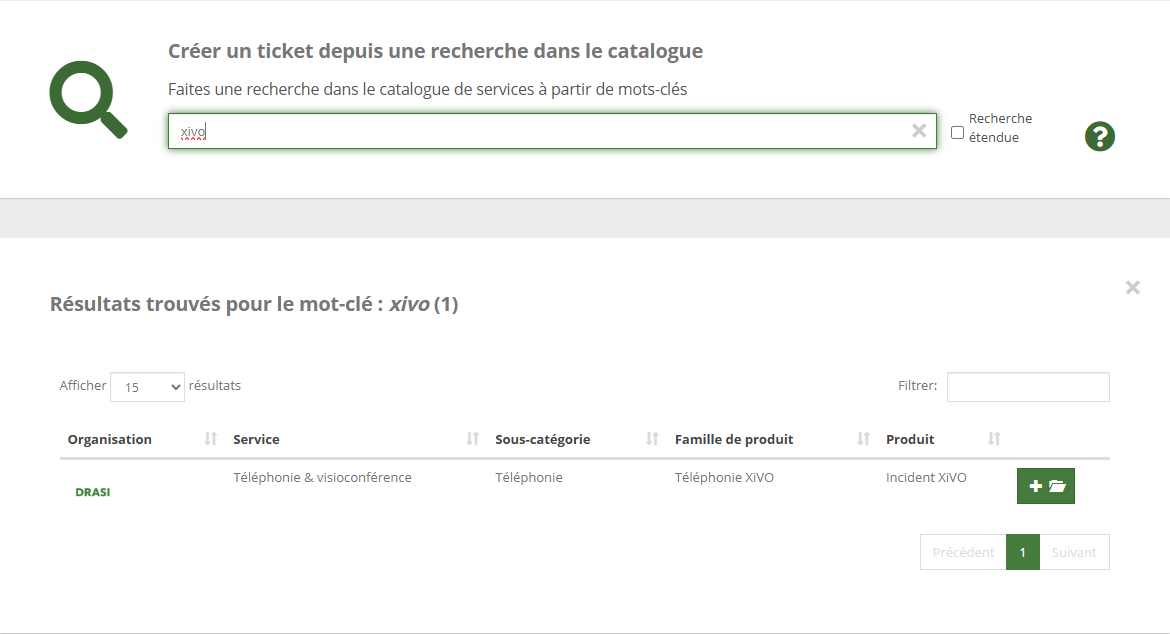
L'agent formule sa demande via <sub>![logo_icon_filaos.png](https://portail.ac-reunion.fr/ladoclela/uploads/images/gallery/2026-03/scaled-1680-/logo-icon-filaos.png)</sub> Fila@os en recherchant Xivo puis en sélectionnant "Incident XIVO".

[![image.png](https://portail.ac-reunion.fr/ladoclela/uploads/images/gallery/2026-04/scaled-1680-/2Tlimage.png)](https://portail.ac-reunion.fr/ladoclela/uploads/images/gallery/2026-04/2Tlimage.png)
##### **<span style="text-decoration: underline;">Étape 2 :</span> Courriel du N+1**

Un courriel du N+1 doit accompagner la demande <sub>![logo_icon_filaos.png](https://portail.ac-reunion.fr/ladoclela/uploads/images/gallery/2026-03/scaled-1680-/logo-icon-filaos.png)</sub> Fil@os attestant le caractère nécessaire de l'appel international et son lien direct avec l'exercice des fonctions de l'agent.

##### **<span style="text-decoration: underline;">Étape 3 :</span> Réception de la demande**

À la réception, la demande est d’abord vérifiée (cohérence et présence du justificatif du N+1), puis transmise à un second niveau de validation.

##### **<span style="text-decoration: underline;">Étape 4 :</span> Après validation**

Après la validation, la DRASI peut instruire la demande, définir les modalités d'ouverture et de traitement.

<p class="callout info">Ce processus est proposé dans l'attente de confirmation par la DFP concernant le portage budgétaire.</p>

##### **Ce processus permet :**

- Éviter les ouvertures non justifiées
- Encadrer les demandes exceptionnelles
- Sécuriser le rôle des différents niveaux de validation