# Gérer ses contacts

Dans cette partie, nous allons voir comment créer et modifier vos contacts. À noter que, par défaut, **votre annuaire académique est déjà initialisé** sur votre profil et que ces contacts **ne sont pas modifiables**.

Les tutoriels ci-dessous concernent uniquement les <span style="text-decoration: underline;">**contacts que vous avez créés personnellement**</span>.

#### **Créer un contact**

<details id="bkmrk-cr%C3%A9er-un-contact-%C2%A0"><summary>Créer un contact</summary>

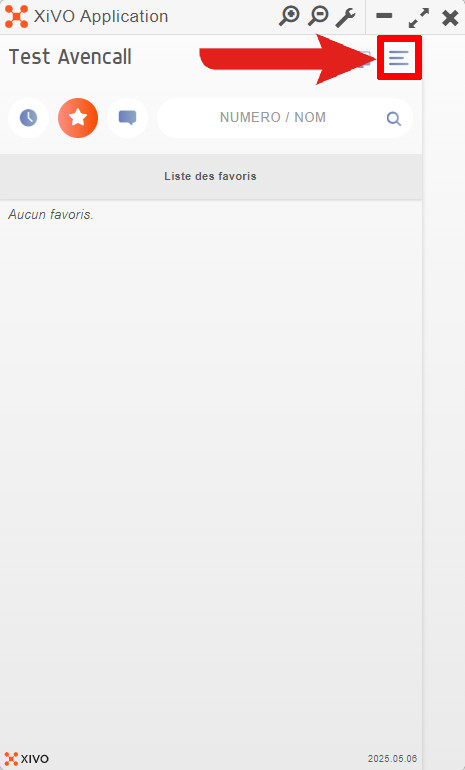
<table border="1" style="border-collapse: collapse; width: 100%; height: 1307.64px; border-width: 1px; border-style: none;"><colgroup><col style="width: 50.5128%;"></col><col style="width: 49.4872%;"></col></colgroup><tbody><tr style="height: 521.172px;"><td style="vertical-align: middle; height: 521.172px; border-style: none;">- **En haut à droite, cliquez sur "<sub>![logo_icon_xivo_configurer.jpg](https://portail.ac-reunion.fr/ladoclela/uploads/images/gallery/2025-09/scaled-1680-/logo-icon-xivo-configurer.jpg) </sub>Configuration".**

</td><td style="vertical-align: middle; height: 521.172px; border-style: none;">[![xivo3.jpg](https://portail.ac-reunion.fr/ladoclela/uploads/images/gallery/2025-09/scaled-1680-/xivo3.jpg)](https://portail.ac-reunion.fr/ladoclela/uploads/images/gallery/2025-09/xivo3.jpg)

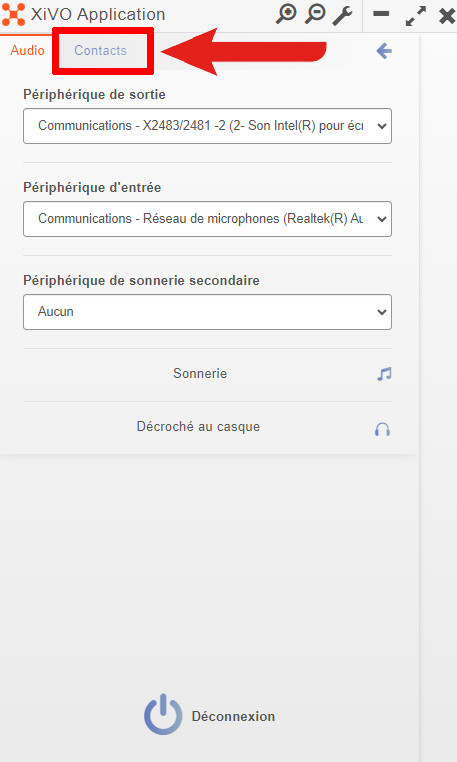
</td></tr><tr style="height: 524.656px;"><td style="vertical-align: middle; height: 524.656px; border-style: none;">- **En haut à gauche, cliquez sur "Contacts".**

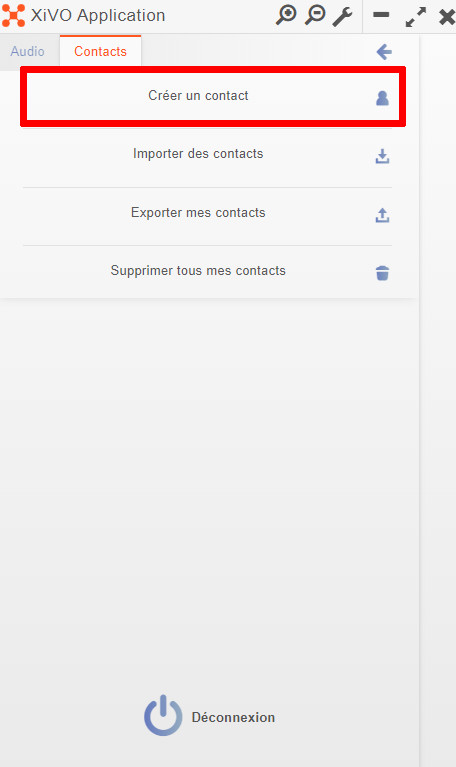
</td><td style="vertical-align: middle; height: 524.656px; border-style: none;">[![xivo4.jpg](https://portail.ac-reunion.fr/ladoclela/uploads/images/gallery/2025-09/scaled-1680-/xivo4.jpg)](https://portail.ac-reunion.fr/ladoclela/uploads/images/gallery/2025-09/xivo4.jpg)</td></tr><tr style="height: 53.2344px;"><td style="vertical-align: middle; height: 53.2344px; border-style: none;">- **Cliquez sur "![xivo_contact_crer.jpg](https://portail.ac-reunion.fr/ladoclela/uploads/images/gallery/2025-09/scaled-1680-/xivo-contact-crer.jpg)<sub> </sub>Créer un contact".**

</td><td style="vertical-align: middle; height: 53.2344px; border-style: none;">[![xivo5.jpg](https://portail.ac-reunion.fr/ladoclela/uploads/images/gallery/2025-09/scaled-1680-/xivo5.jpg)](https://portail.ac-reunion.fr/ladoclela/uploads/images/gallery/2025-09/xivo5.jpg)

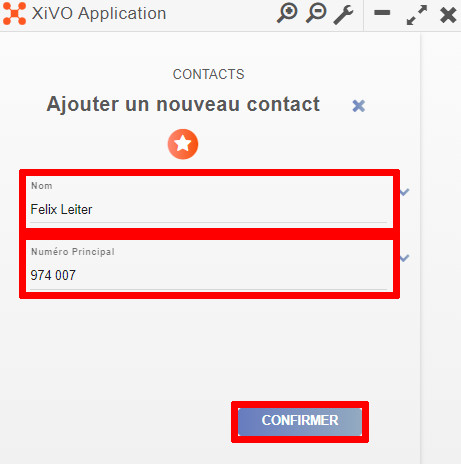
</td></tr><tr style="height: 29.7969px;"><td style="vertical-align: middle; height: 29.7969px; border-style: none;">- **Inscrivez les informations de votre nouveau contact.**

<p class="callout info">Pour intégrer plus de numéro au contact, cliquez sur le symbole "∨" à droite du champ "Numéro Principal".</p>

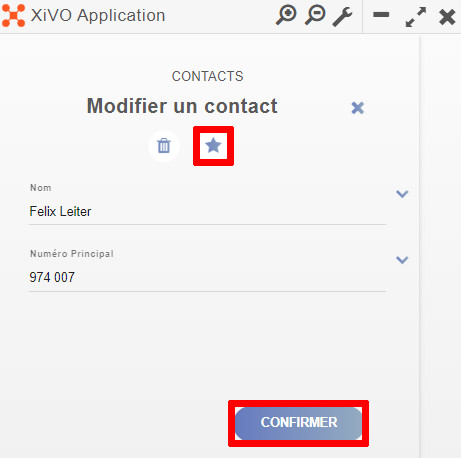
<p class="callout info">Pour ajouter le contact dans vos favoris, cliquez sur le symbole ★.</p>

- **Cliquez sur "CONFIRMER"**

</td><td style="vertical-align: middle; height: 29.7969px; border-style: none;">[![xivo6.jpg](https://portail.ac-reunion.fr/ladoclela/uploads/images/gallery/2025-09/scaled-1680-/xivo6.jpg)](https://portail.ac-reunion.fr/ladoclela/uploads/images/gallery/2025-09/xivo6.jpg)

</td></tr></tbody></table>

</details>---

#### **Importer des contacts**

<details id="bkmrk-exporter-ses-contact-1"><summary>Importer des contacts</summary>

<table border="1" style="border-collapse: collapse; width: 100%;"><colgroup><col style="width: 50.0642%;"></col><col style="width: 50.0642%;"></col></colgroup><tbody><tr><td style="vertical-align: middle; height: 521.172px; border-style: none;">- **En haut à droite, cliquez sur "<sub>![logo_icon_xivo_configurer.jpg](https://portail.ac-reunion.fr/ladoclela/uploads/images/gallery/2025-09/scaled-1680-/logo-icon-xivo-configurer.jpg) </sub>Configuration".**

</td><td style="vertical-align: middle; height: 521.172px; border-style: none;">[![xivo3.jpg](https://portail.ac-reunion.fr/ladoclela/uploads/images/gallery/2025-09/scaled-1680-/xivo3.jpg)](https://portail.ac-reunion.fr/ladoclela/uploads/images/gallery/2025-09/xivo3.jpg)

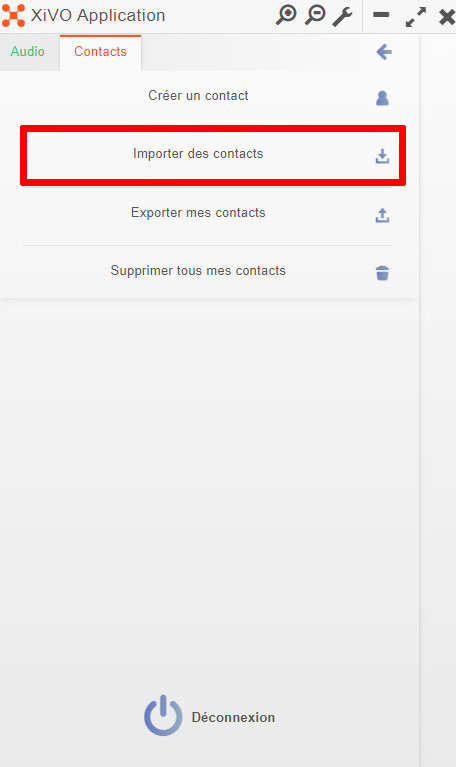
</td></tr><tr><td style="vertical-align: middle; height: 53.2344px; border-style: none;">- **Cliquez sur "<sub>![xivo_contact_importer.jpg](https://portail.ac-reunion.fr/ladoclela/uploads/images/gallery/2025-09/scaled-1680-/xivo-contact-importer.jpg)</sub> Importer des contacts".**
- **Votre explorateur de fichiers s'ouvre.**
- **Sélectionnez votre fichier de contacts.**

</td><td style="vertical-align: middle; height: 53.2344px; border-style: none;">[![xivo7.jpg](https://portail.ac-reunion.fr/ladoclela/uploads/images/gallery/2025-09/scaled-1680-/xivo7.jpg)](https://portail.ac-reunion.fr/ladoclela/uploads/images/gallery/2025-09/xivo7.jpg)

</td></tr><tr><td style="vertical-align: middle; height: 29.7969px; border-style: none;">- **Un message de validation apparait.**

</td><td style="vertical-align: middle; height: 29.7969px; border-style: none;">[![image.png](https://portail.ac-reunion.fr/ladoclela/uploads/images/gallery/2025-09/scaled-1680-/uQiimage.png)](https://portail.ac-reunion.fr/ladoclela/uploads/images/gallery/2025-09/uQiimage.png)

</td></tr></tbody></table>

</details>---

#### **Exporter ses contacts**

<details id="bkmrk-importer-des-contact-1"><summary>Exporter des contacts</summary>

<table border="1" style="border-collapse: collapse; width: 100%;"><colgroup><col style="width: 50.0642%;"></col><col style="width: 50.0642%;"></col></colgroup><tbody><tr><td style="vertical-align: middle; height: 521.172px; border-style: none;">- **En haut à droite, cliquez sur "<sub>![logo_icon_xivo_configurer.jpg](https://portail.ac-reunion.fr/ladoclela/uploads/images/gallery/2025-09/scaled-1680-/logo-icon-xivo-configurer.jpg) </sub>Configuration".**

</td><td style="vertical-align: middle; height: 521.172px; border-style: none;">[![xivo3.jpg](https://portail.ac-reunion.fr/ladoclela/uploads/images/gallery/2025-09/scaled-1680-/xivo3.jpg)](https://portail.ac-reunion.fr/ladoclela/uploads/images/gallery/2025-09/xivo3.jpg)

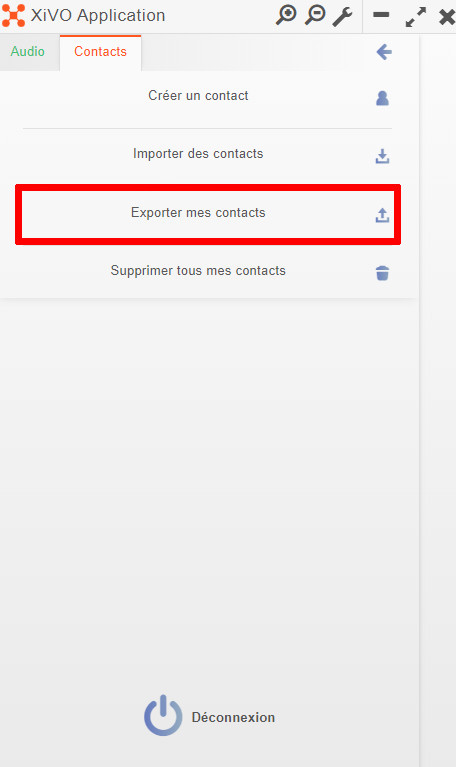
</td></tr><tr><td style="vertical-align: middle; height: 53.2344px; border-style: none;">- **Cliquez sur "<sub>![xivo_contact_exporter.jpg](https://portail.ac-reunion.fr/ladoclela/uploads/images/gallery/2025-09/scaled-1680-/xivo-contact-exporter.jpg)</sub> Exporter des contacts".**
- **Votre explorateur de fichiers s'ouvre.**
- **Choisissez un nom pour votre fichier et enregistrez-le.**

</td><td style="vertical-align: middle; height: 53.2344px; border-style: none;">[![xivo8.jpg](https://portail.ac-reunion.fr/ladoclela/uploads/images/gallery/2025-09/scaled-1680-/xivo8.jpg)](https://portail.ac-reunion.fr/ladoclela/uploads/images/gallery/2025-09/xivo8.jpg)

</td></tr></tbody></table>

</details>---

#### **Mettre un contact en favori**

<details id="bkmrk-mettre-un-contact-en-1"><summary>Mettre un contact en favori</summary>

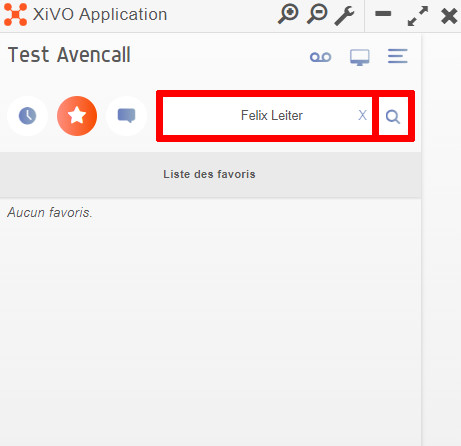
<table border="1" style="border-collapse: collapse; width: 100%; height: 1071.78px;"><colgroup><col style="width: 50%;"></col><col style="width: 50%;"></col></colgroup><tbody><tr style="height: 379.766px;"><td style="vertical-align: middle; height: 379.766px; border-style: none;">- **Dans le champ "NUMERO / NOM", recherchez votre contact.**
- **Cliquez sur "<sub>![logo_icon_rechercher.jpg](https://portail.ac-reunion.fr/ladoclela/uploads/images/gallery/2025-09/scaled-1680-/logo-icon-rechercher.jpg) </sub>Rechercher".**

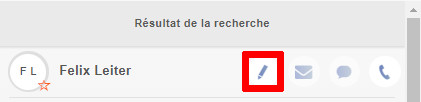
</td><td style="vertical-align: middle; height: 379.766px; border-style: none;">[![xivo9.jpg](https://portail.ac-reunion.fr/ladoclela/uploads/images/gallery/2025-09/scaled-1680-/xivo9.jpg)](https://portail.ac-reunion.fr/ladoclela/uploads/images/gallery/2025-09/xivo9.jpg)</td></tr><tr style="height: 123.781px;"><td style="vertical-align: middle; height: 123.781px; border-style: none;">- **Tous les contacts similaires à votre recherche apparaissent.**
- **Cliquez sur "![logo_icon_xivo_modifier.jpg](https://portail.ac-reunion.fr/ladoclela/uploads/images/gallery/2025-09/scaled-1680-/logo-icon-xivo-modifier.jpg)Modifier" à côté de votre contact.**

</td><td class="align-left" style="vertical-align: middle; height: 123.781px; border-style: none;">[![xivo10.jpg](https://portail.ac-reunion.fr/ladoclela/uploads/images/gallery/2025-09/scaled-1680-/Oqcxivo10.jpg)](https://portail.ac-reunion.fr/ladoclela/uploads/images/gallery/2025-09/Oqcxivo10.jpg)

</td></tr><tr style="height: 389.453px;"><td style="vertical-align: middle; height: 389.453px; text-align: justify; border-style: none;">- **Cliquez sur "★ Ajouter le contact aux favoris".**
- **Cliquez sur "CONFIRMER".**

</td><td style="vertical-align: middle; height: 389.453px; border-style: none;">[![xivo11.jpg](https://portail.ac-reunion.fr/ladoclela/uploads/images/gallery/2025-09/scaled-1680-/xivo11.jpg)](https://portail.ac-reunion.fr/ladoclela/uploads/images/gallery/2025-09/xivo11.jpg)

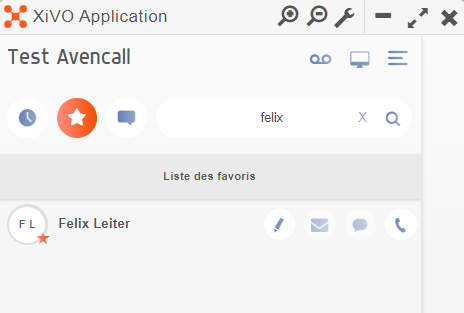
</td></tr><tr style="height: 29.7969px;"><td style="vertical-align: middle; height: 29.7969px; border-style: none;">- **Votre contact apparait sur votre page d'accueil.**

</td><td style="vertical-align: middle; height: 29.7969px; border-style: none;">[![image.png](https://portail.ac-reunion.fr/ladoclela/uploads/images/gallery/2025-09/scaled-1680-/k2Ximage.png)](https://portail.ac-reunion.fr/ladoclela/uploads/images/gallery/2025-09/k2Ximage.png)

</td></tr></tbody></table>

</details>---

#### **Tutoriel vidéo**

<video class=" align-center" controls="controls" height="778" poster="" width="400"><source src="https://podeduc.apps.education.fr/media/videos/69ad71e4757450b26ac3bf7437fab6923afd6e4f78413b393cb68710924828b1/107026/720p.mp4" type="video/mp4"></source></video>

---

<p class="callout success">**Félicitations, vous savez désormais comment configurer vos contacts.**</p>