# ⚠️ - Utiliser le téléphone fixe ou le softphone Xivo

Pour les utilisateurs disposant d’un téléphone fixe, **l’application XiVO** peut contrôler **deux périphériques d’appel** :

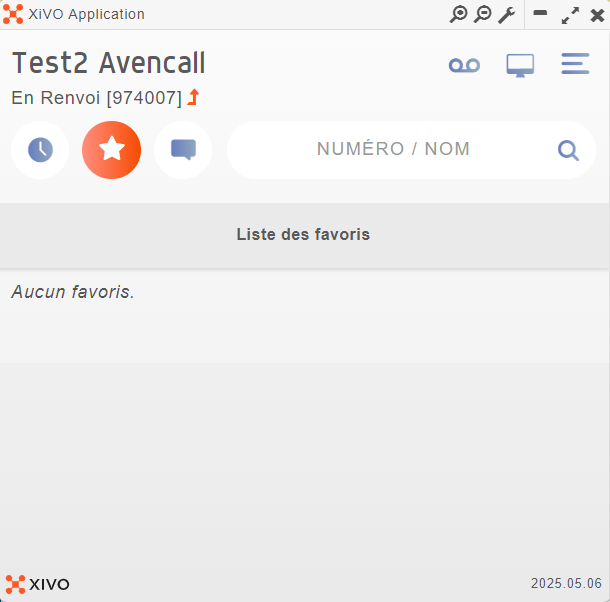
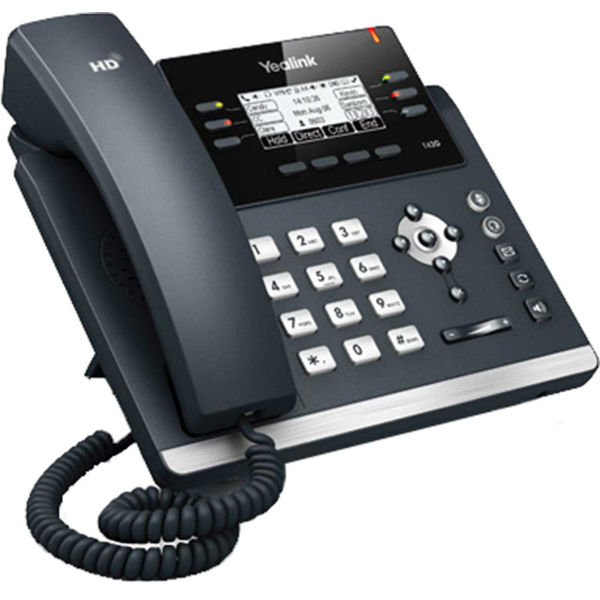
- votre **téléphone fixe**
- et votre **softphone XiVO** (application installée sur l’ordinateur)


---

#### **Différence entre les deux téléphériques :**

<table border="1" id="bkmrk-%C2%A0client-xivo-%C2%A0t%C3%89l%C3%89ph" style="border-collapse: collapse; width: 100%; height: 509px; border: 1px solid rgb(0, 0, 0);"><colgroup><col style="width: 50%;"></col><col style="width: 50%;"></col></colgroup><tbody><tr style="height: 38.7188px;"><td class="align-center" style="height: 38.7188px; background-color: rgb(53, 152, 219); border-color: rgb(0, 0, 0); vertical-align: middle;"><span style="color: rgb(255, 255, 255);">**<sub>![logo_client_xivo_blanc.png](https://portail.ac-reunion.fr/ladoclela/uploads/images/gallery/2025-10/scaled-1680-/logo-client-xivo-blanc.png)</sub>**</span><span style="color: rgb(255, 255, 255);">**<sub> </sub>CLIENT XIVO**</span>

</td><td class="align-center" style="height: 38.7188px; background-color: rgb(53, 152, 219); border-color: rgb(0, 0, 0); vertical-align: middle;"><span style="color: rgb(255, 255, 255);">**<sub>![logo_telephonie_blanc.png](https://portail.ac-reunion.fr/ladoclela/uploads/images/gallery/2025-10/scaled-1680-/logo-telephonie-blanc.png)</sub>**</span><span style="color: rgb(255, 255, 255);">**<sub> </sub>TÉLÉPHONE**</span>

</td></tr><tr style="height: 406.891px;"><td style="height: 406.891px; border-color: rgb(0, 0, 0); vertical-align: middle; border-style: solid;">[![xivo44.png](https://portail.ac-reunion.fr/ladoclela/uploads/images/gallery/2025-10/scaled-1680-/C2ixivo44.png)](https://portail.ac-reunion.fr/ladoclela/uploads/images/gallery/2025-10/C2ixivo44.png)

</td><td style="height: 406.891px; border-color: rgb(0, 0, 0); vertical-align: middle; border-style: solid;">[![image.png](https://portail.ac-reunion.fr/ladoclela/uploads/images/gallery/2025-10/scaled-1680-/u8Wimage.png)](https://portail.ac-reunion.fr/ladoclela/uploads/images/gallery/2025-10/u8Wimage.png)

</td></tr><tr style="height: 63.3906px;"><td style="height: 63.3906px; border-color: rgb(0, 0, 0); vertical-align: middle; border-style: solid;">Correspond à l’application XiVO installée sur votre ordinateur. Lorsqu’il est sélectionné, les appels entrants et sortants passent directement par votre PC.</td><td style="height: 63.3906px; border-color: rgb(0, 0, 0); vertical-align: middle; border-style: solid;">Correspond à votre poste téléphonique physique présent sur votre bureau. Lorsqu’il est sélectionné, les appels passent directement via ce téléphone fixe.</td></tr></tbody></table>

---

#### **Choisir son périphérique**

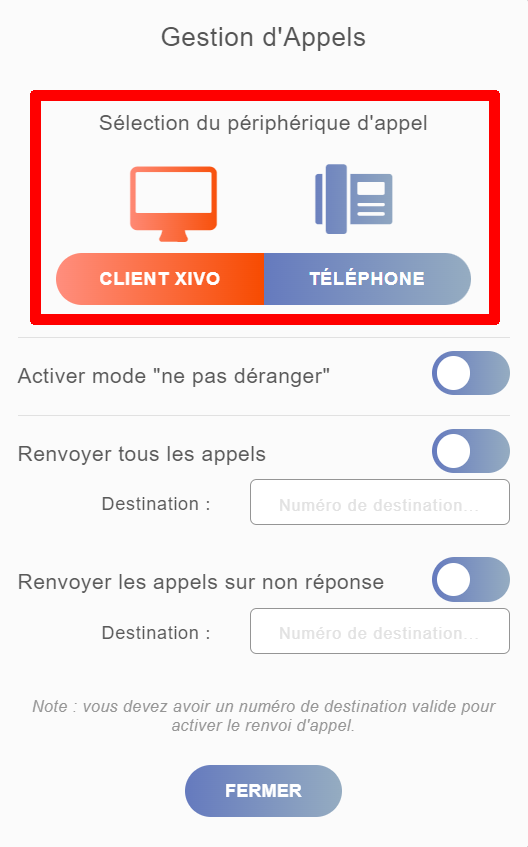
**Les deux périphériques <span style="color: rgb(224, 62, 45);">ne peuvent pas être</span> utilisés simultanément.** Il est donc important de sélectionner celui qui correspond à votre situation :

- **<span style="text-decoration: underline;">Vous disposez d'un téléphone fixe à côté de vous :</span>** "<sub>![logo_telephonie.png](https://portail.ac-reunion.fr/ladoclela/uploads/images/gallery/2025-10/scaled-1680-/logo-telephonie.png) </sub>TÉLÉPHONE"
- **<span style="text-decoration: underline;">Vous n'avez pas de téléphone fixe à côté de vous :</span>** "<sub>![logo_client_xivo.png](https://portail.ac-reunion.fr/ladoclela/uploads/images/gallery/2025-10/scaled-1680-/logo-client-xivo.png) </sub>CLIENT XIVO"
- <span style="text-decoration: underline;">**Vous êtes en télétravail ou en déplacement :** </span>"<sub>![logo_client_xivo.png](https://portail.ac-reunion.fr/ladoclela/uploads/images/gallery/2025-10/scaled-1680-/logo-client-xivo.png) </sub>CLIENT XIVO"

***Exemple de mauvaise pratique :** Vous êtes en télétravail mais avez laissé le périphérique **« Téléphone »** activé. Dans ce cas, tous vos appels seront reçus sur votre poste fixe resté au bureau.*

<p class="callout info">**Pour éviter toute forme de confusion et réduire les manipulations, il est conseillé de paramétrer par défaut le périphérique sur "<sub>![logo_client_xivo.png](https://portail.ac-reunion.fr/ladoclela/uploads/images/gallery/2025-10/scaled-1680-/logo-client-xivo.png) </sub>CLIENT XIVO".** </p>

---

#### **Paramétrer son périphérique**

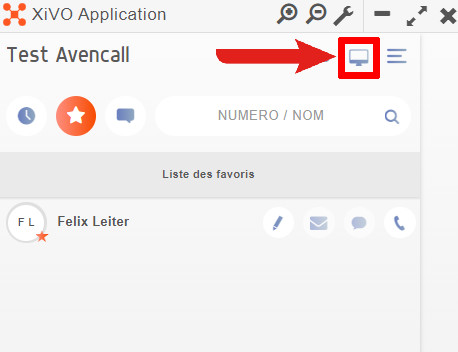
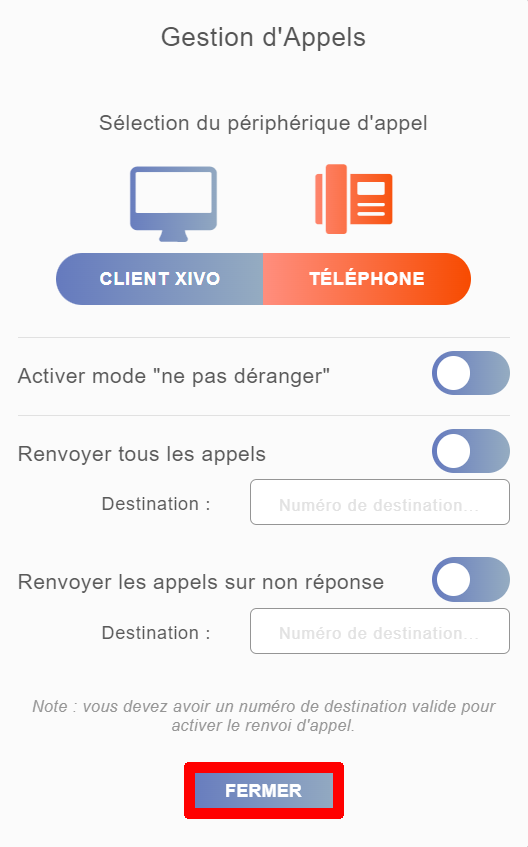
<table border="1" id="bkmrk-en-haut-%C3%A0-droite%2C-cl" style="border-collapse: collapse; width: 100%;"><colgroup><col style="width: 50.0618%;"></col><col style="width: 50.0618%;"></col></colgroup><tbody><tr><td style="height: 306.188px; vertical-align: middle; border-style: none;">- **En haut à droite, cliquez sur "<sub>![logo_icon_xivo_gestion_appel.jpg](https://portail.ac-reunion.fr/ladoclela/uploads/images/gallery/2025-09/scaled-1680-/logo-icon-xivo-gestion-appel.jpg)</sub> Gestion d'Appels".**

<p class="callout info">L'icone peut varier avec "<sub>![logo_telephonie.png](https://portail.ac-reunion.fr/ladoclela/uploads/images/gallery/2025-10/scaled-1680-/logo-telephonie.png)</sub>" selon le périphérique d'appel actuellement sélectionné.</p>

</td><td style="border-style: none;">[![xivo14.jpg](https://portail.ac-reunion.fr/ladoclela/uploads/images/gallery/2025-09/scaled-1680-/xivo14.jpg)](https://portail.ac-reunion.fr/ladoclela/uploads/images/gallery/2025-09/xivo14.jpg)</td></tr><tr><td style="height: 195.797px; vertical-align: middle; border-style: none;">- **Choisissez votre périphérique d’appel en vous référant aux exemples plus haut.**

</td><td style="border-style: none;">[![xivo47.png](https://portail.ac-reunion.fr/ladoclela/uploads/images/gallery/2025-10/scaled-1680-/xivo47.png)](https://portail.ac-reunion.fr/ladoclela/uploads/images/gallery/2025-10/xivo47.png)

</td></tr><tr><td style="vertical-align: middle; border-style: none;">- **Cliquez sur "FERMER".**

</td><td style="border-style: none;">[![xivo48.png](https://portail.ac-reunion.fr/ladoclela/uploads/images/gallery/2025-10/scaled-1680-/xivo48.png)](https://portail.ac-reunion.fr/ladoclela/uploads/images/gallery/2025-10/xivo48.png)

</td></tr></tbody></table>