# Avoir ses calendriers sur iPhone

Nous allons poursuivre le paramétrage de votre iPhone afin d'y intégrer vos calendriers personnels et partagés de votre boîte mail professionnelle de la <sub>![logo_icon_zimbra.png](https://portail.ac-reunion.fr/ladoclela/uploads/images/gallery/2025-08/scaled-1680-/logo-icon-zimbra.png) </sub>messagerie nationale Zimbra.  
Cette méthode fonctionne uniquement avec l'application par défaut [![image.png](https://portail.ac-reunion.fr/ladoclela/uploads/images/gallery/2026-01/scaled-1680-/image.png)](https://portail.ac-reunion.fr/ladoclela/uploads/images/gallery/2026-01/image.png)Calendrier d'Apple.

#### **1. Récupérer le mot de passe d'application sécurisé utilisé pour la boîte mail**

Au moment du paramétrage de votre boîte mail sur votre téléphone vous avez généré depuis Zimbra votre [mot de passe d'application sécurisée](https://portail.ac-reunion.fr/ladoclela/books/messagerie-nationale-zimbra/page/avoir-sa-boite-mail-sur-son-telephone) . Il vous faudra récupérer ce même mot de passe et l'utiliser de nouveau pour profiter des calendriers sur cet appareil.

#### **2. Configurer un calendrier**

<table border="1" id="bkmrk-s%C3%A9lectionnez-%22-r%C3%A9gla" style="border-collapse: collapse; width: 100%; height: 1863.39px;"><colgroup><col style="width: 63.7968%;"></col><col style="width: 36.2169%;"></col></colgroup><tbody><tr style="height: 193.663px;"><td style="vertical-align: middle; border-color: rgb(255, 255, 255); border-style: none; height: 193.663px;">- **Sélectionnez "<sub>![image.png](https://portail.ac-reunion.fr/ladoclela/uploads/images/gallery/2026-01/scaled-1680-/WBCimage.png)</sub> Réglages".**
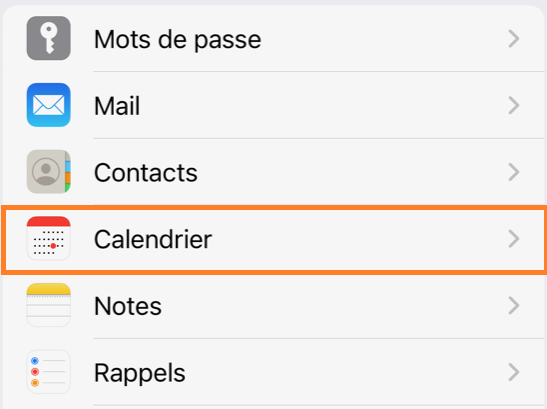
- **Sélectionner "Calendrier".**

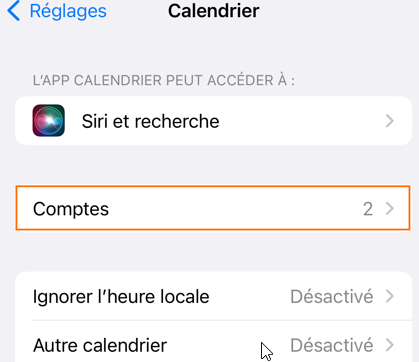
</td><td style="border-color: rgb(255, 255, 255); border-style: none; vertical-align: middle; height: 193.663px;">[![image.png](https://portail.ac-reunion.fr/ladoclela/uploads/images/gallery/2026-01/scaled-1680-/IE6image.png)](https://portail.ac-reunion.fr/ladoclela/uploads/images/gallery/2026-01/IE6image.png)</td></tr><tr style="height: 221.91px;"><td style="vertical-align: middle; border-color: rgb(255, 255, 255); border-style: none; height: 221.91px;">- **Sélectionner "Comptes".**

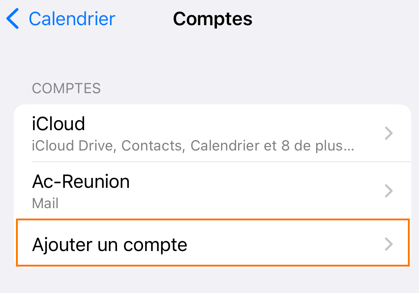
</td><td style="border-color: rgb(255, 255, 255); border-style: none; vertical-align: middle; height: 221.91px;">[![image.png](https://portail.ac-reunion.fr/ladoclela/uploads/images/gallery/2026-01/scaled-1680-/EBximage.png)](https://portail.ac-reunion.fr/ladoclela/uploads/images/gallery/2026-01/EBximage.png)</td></tr><tr style="height: 181.892px;"><td style="vertical-align: middle; border-color: rgb(255, 255, 255); border-style: none; height: 181.892px;">- **Sélectionnez "Ajouter un compte".**

</td><td style="border-color: rgb(255, 255, 255); border-style: none; vertical-align: middle; height: 181.892px;">[![image.png](https://portail.ac-reunion.fr/ladoclela/uploads/images/gallery/2026-01/scaled-1680-/LwHimage.png)](https://portail.ac-reunion.fr/ladoclela/uploads/images/gallery/2026-01/LwHimage.png)</td></tr><tr style="height: 306.944px;"><td style="vertical-align: middle; border-color: rgb(255, 255, 255); border-style: none; height: 306.944px;">- **Sélectionnez "Autre".**

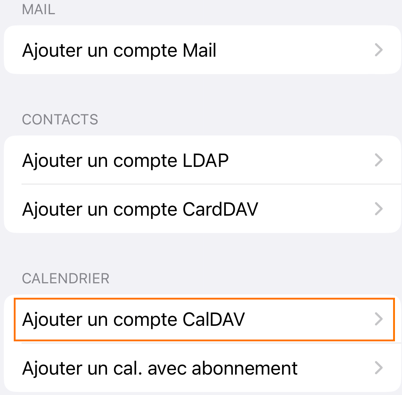
</td><td style="border-color: rgb(255, 255, 255); border-style: none; vertical-align: middle; height: 306.944px;">[![image.png](https://portail.ac-reunion.fr/ladoclela/uploads/images/gallery/2026-01/scaled-1680-/pCIimage.png)](https://portail.ac-reunion.fr/ladoclela/uploads/images/gallery/2026-01/pCIimage.png)</td></tr><tr style="height: 251.285px;"><td style="vertical-align: middle; border-color: rgb(255, 255, 255); border-style: none; height: 251.285px;">- **Sélectionnez "Ajouter un compte CalDAV".**

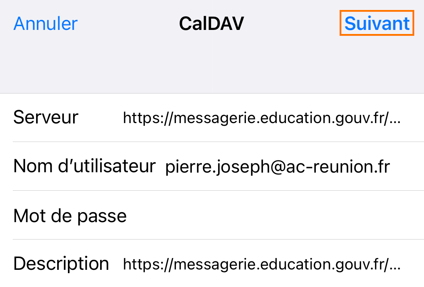
</td><td style="border-color: rgb(255, 255, 255); border-style: none; vertical-align: middle; height: 251.285px;">[![image.png](https://portail.ac-reunion.fr/ladoclela/uploads/images/gallery/2026-01/scaled-1680-/Ld7image.png)](https://portail.ac-reunion.fr/ladoclela/uploads/images/gallery/2026-01/Ld7image.png)</td></tr><tr style="height: 498.542px;"><td style="vertical-align: middle; border-color: rgb(255, 255, 255); border-style: none; height: 498.542px;">- <span style="color: rgb(0, 0, 0);">**Il vous faudra saisir les informations suivantes :**</span>
    - <span style="color: rgb(0, 0, 0);">**<span style="text-decoration: underline;">Serveur :</span>** [https://messagerie.education.gouv.fr/dav/prenom.nom@ac-reunion.fr/Calendar](https://messagerie.education.gouv.fr/dav/prenom.nom@ac-reunion.fr)</span>
    - <span style="color: rgb(0, 0, 0);">**<span style="text-decoration: underline;">Nom d'utilisateur :</span>** <prenom.nom@ac-reunion.fr></span>
    - <span style="color: rgb(0, 0, 0);">**<span style="text-decoration: underline;">Mot de passe :</span>** [mot de passe d'application sécurisée généré au préalable](https://portail.ac-reunion.fr/ladoclela/books/messagerie-nationale-zimbra/page/avoir-sa-boite-mail-sur-son-telephone)</span>
    - <span style="color: rgb(0, 0, 0);">**<span style="text-decoration: underline;">Description :</span>** le nom que vous souhaitez donner à ce calendrier  
          
        </span>
- <span style="color: rgb(0, 0, 0);">**Une fois ces informations saisies, sélectionnez "Suivant".**</span>

<p class="callout warning">**Par défaut le nom du calendrier généré par ![logo-icon-zimbra.png](https://portail.ac-reunion.fr/ladoclela/uploads/images/gallery/2026-01/scaled-1680-/logo-icon-zimbra.png) Zimbra est "Calendar", si un autre nom est donné au calendrier il faudra inscrire celui-ci.**</p>

<p class="callout info">**Pour le calendrier d'une boîte fonctionnelle partagée il s'agit de reproduire les mêmes étapes sauf que dans la partie *Serveur* il vous faudra mettre le nom de la boîte mail partagée tout en gardant dans la partie *Nom d'utilisateur* votre adresse mail professionnelle.**</p>

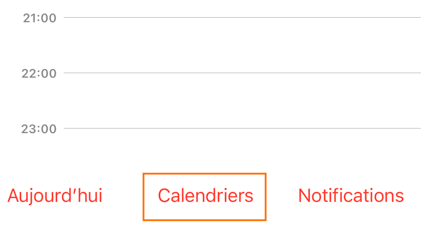
</td><td style="border-color: rgb(255, 255, 255); border-style: none; vertical-align: middle; height: 498.542px;">[![image.png](https://portail.ac-reunion.fr/ladoclela/uploads/images/gallery/2026-01/scaled-1680-/IAVimage.png)](https://portail.ac-reunion.fr/ladoclela/uploads/images/gallery/2026-01/IAVimage.png)</td></tr><tr style="height: 29.8785px;"><td style="vertical-align: middle; border-color: rgb(255, 255, 255); border-style: none; height: 29.8785px;">- **Ouvrir l'application "Calendrier".**
- **Sélectionnez "Calendriers" en bas de la page.**

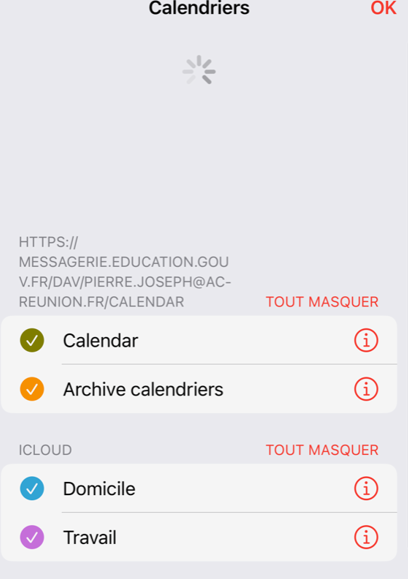
</td><td style="border-color: rgb(255, 255, 255); border-style: none; vertical-align: middle; height: 29.8785px;">[![image.png](https://portail.ac-reunion.fr/ladoclela/uploads/images/gallery/2026-01/scaled-1680-/vm3image.png)](https://portail.ac-reunion.fr/ladoclela/uploads/images/gallery/2026-01/vm3image.png)</td></tr><tr style="height: 29.8785px;"><td style="vertical-align: middle; border-color: rgb(255, 255, 255); border-style: none; height: 29.8785px; text-align: justify;">- **Une fois sur cette fenêtre, tirer là vers le bas pour provoquer manuellement le chargement du calendrier nouvellement ajouté, patienter quelques instant et vous allez enfin voir un nouveau calendrier s'afficher**

</td><td style="border-color: rgb(255, 255, 255); border-style: none; vertical-align: middle; height: 29.8785px;">[![image.png](https://portail.ac-reunion.fr/ladoclela/uploads/images/gallery/2026-01/scaled-1680-/E3nimage.png)](https://portail.ac-reunion.fr/ladoclela/uploads/images/gallery/2026-01/E3nimage.png)</td></tr></tbody></table>