# Effectuer une demande de renouvellement de clef OTP à l'aide de l'application OKEY

<span style="font-size: x-large;">Effectuer une demande de renouvellement de clef OTP à l'aide de l'application OKEY</span>

Connectez-vous à métice et cliquez sur l’icône de l’application **OKEY** (catégorie outils )

[![image.png](https://portail.ac-reunion.fr/ladoclela/uploads/images/gallery/2023-03/scaled-1680-/qL0image.png)](https://portail.ac-reunion.fr/ladoclela/uploads/images/gallery/2023-03/qL0image.png)

<span style="font-size: small;">Cliquez sur « RENOUVELLER MA CLEF »</span>

<span style="font-size: small;">Sélectionnez le type de clef</span>

![](https://portail.ac-reunion.fr/ladoclela/uploads/images/gallery/2023-03/embedded-image-vzt7ylrc.png)

ou

![](https://portail.ac-reunion.fr/ladoclela/uploads/images/gallery/2023-03/embedded-image-vmnycmvn.png)

<span style="font-size: small;">Renseignez le motif de votre demande et joignez les pièces nécessaires à sa validation</span>

![](https://portail.ac-reunion.fr/ladoclela/uploads/images/gallery/2023-03/embedded-image-gq4okctj.png)

<span style="color: #e03e2d;"><span style="font-family: inherit;"><span style="font-size: small;">**Si les justificatifs n’ont pas été ajoutés lors de votre saisie initiale, votre demande ne sera pas envoyée à la personne chargée de la valider.**</span></span></span>

<span style="color: #e03e2d;"><span style="font-family: inherit;"><span style="font-size: small;">**(**</span></span></span><span style="color: #e03e2d;"><span style="font-family: inherit;"><span style="font-size: small;">***Vous pourrez les ajouter ultérieurement en relançant l’application \[OKEY\] ou annuler votre demande***</span></span></span><span style="color: #e03e2d;"><span style="font-family: inherit;"><span style="font-size: small;">**)**</span></span></span>

<p class="callout info">Pour les personnels du 1er degré sur un poste (définitif) de direction ou ayant une délégation à ONDE (faisant fonction de direction) la validation est automatique</p>

<span style="font-size: small;"><span style="color: #444444;"><span style="font-family: Marianne, arial, sans-serif;">Vérifiez que la personne chargée de valider votre demande est correctement renseignée et validez votre demande.</span></span></span>

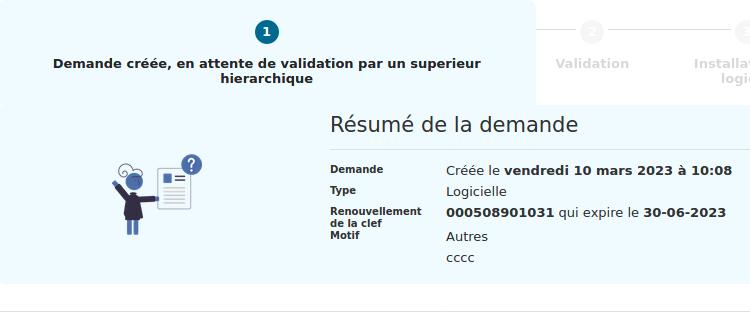
<span style="color: #444444;"><span style="font-family: Marianne, arial, sans-serif;"><span style="font-size: small;">Une fois la demande soumise, elle sera en attente de validation de votre responsable</span></span></span>

![](https://portail.ac-reunion.fr/ladoclela/uploads/images/gallery/2023-03/embedded-image-uldlj0o5.png)

<span style="color: #444444;"><span style="font-family: inherit;"><span style="font-size: small;">*Dans le cas où la personne en charge de la validation de votre demande est absente, votre N+2 dispose également de la possibilité de l'approuver.*</span></span></span>

<span style="color: #444444;"><span style="font-family: Marianne, arial, sans-serif;"><span style="font-size: small;">Une fois la demande validée par votre responsable hiérarchique la procédure diffère légèrement selon le choix du type de clef (logicielle ou matérielle).</span></span></span>

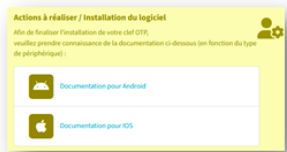
<span style="font-size: small;">\***\*Étape clef logicielle uniquement**\*\* Si vous avez choisi une clef « logicielle » il faudra cliquer sur le type de mobile (Android ou IOS – IPhone) et suivre la procédure décrite dans LaDocLéLa pour installer l'application sur votre mobile :</span>

![](https://portail.ac-reunion.fr/ladoclela/uploads/images/gallery/2023-03/embedded-image-hgxcbr1j.png)

<span style="font-size: small;">L’écran demandant l’installation du logiciel persistera sur l’application \[OKEY\] tant que vous n’aurez pas envoyé les éléments demandés à « okey@ac-reunion.fr ».</span>

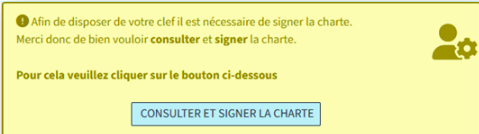
<span style="font-size: small;">L'étape suivante vous invite à signer une charte :</span>

[![image.png](https://portail.ac-reunion.fr/ladoclela/uploads/images/gallery/2023-03/scaled-1680-/pkhimage.png)](https://portail.ac-reunion.fr/ladoclela/uploads/images/gallery/2023-03/pkhimage.png)

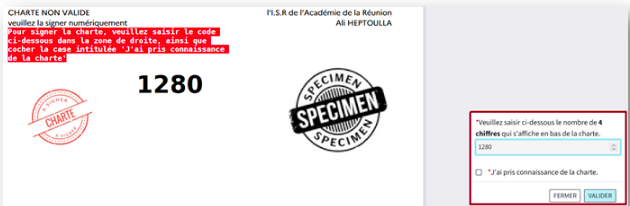
<span style="font-size: small;">Pour cette action, il suffit de reporter le numéro du bas de la charte dans la boite de dialogue prévue à cet effet et valider (n’oubliez pas de cocher la case « J’ai pris connaissance de la charte ») :</span>

![](https://portail.ac-reunion.fr/ladoclela/uploads/images/gallery/2023-03/embedded-image-mivopcpq.png)

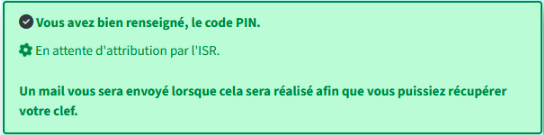
<span style="font-size: small;">Vous n’avez plus qu’à attendre que la DSI finalise les opérations :</span>

![](https://portail.ac-reunion.fr/ladoclela/uploads/images/gallery/2023-03/embedded-image-ayzszghq.png)

<span style="font-size: small;">\*\***Étape clef Physique uniquement**\*\*Lorsque tout sera prêt, vous pourrez prendre rendez-vous au travers de l’application \[OKEY\] pour venir retirer votre clef à l'endroit qui vous aura été indiqué.</span>

**<span style="font-size: large; color: rgb(224, 62, 45);">Le code PIN de votre nouvelle clef sera identique à celui de la précédente.</span>**