# Présentation/utilisation Dicte.ai

L’application <sub>![image.png](https://portail.ac-reunion.fr/ladoclela/uploads/images/gallery/2026-03/scaled-1680-/Wt0image.png) </sub>Dicte.ai est un assistant de réunion IA qui permet de transcrire et analyser vos réunions afin de créer des comptes-rendus automatiques.

##### **Accéder à l'application ![image.png](https://portail.ac-reunion.fr/ladoclela/uploads/images/gallery/2026-03/scaled-1680-/Wt0image.png)<sub> </sub>Dicte.ai**

<details id="bkmrk-acc%C3%A9der-%C3%A0-l%27applicat-1"><summary>Accéder à l'application Dicte.ai</summary>

<details><summary>Lien direct</summary>

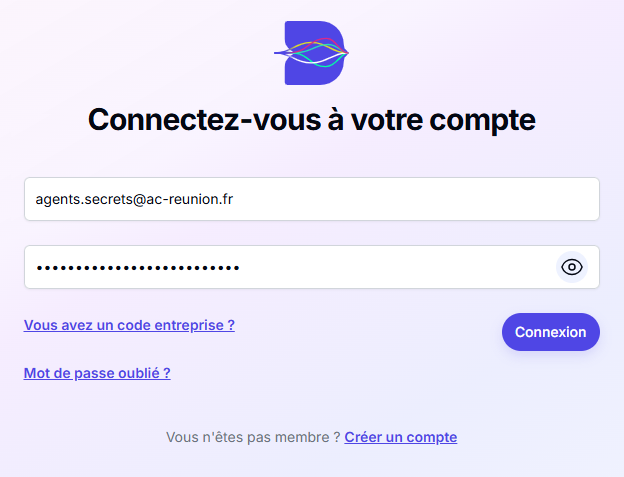
- **Accéder à <sub>![image.png](https://portail.ac-reunion.fr/ladoclela/uploads/images/gallery/2026-03/scaled-1680-/Wt0image.png) </sub>Dicte.ai depuis [ce lien](https://app.dicte.ai/fr/signin)**.

- **Renseignez vos informations de connexion.**

<p class="callout info">**Les informations de connexion sont associées à un compte lié à votre service.**</p>

[![dict19.png](https://portail.ac-reunion.fr/ladoclela/uploads/images/gallery/2026-03/scaled-1680-/dict19.png)](https://portail.ac-reunion.fr/ladoclela/uploads/images/gallery/2026-03/dict19.png)

- **Cliquez sur "Connexion".**

</details><details><summary>Application mobile</summary>

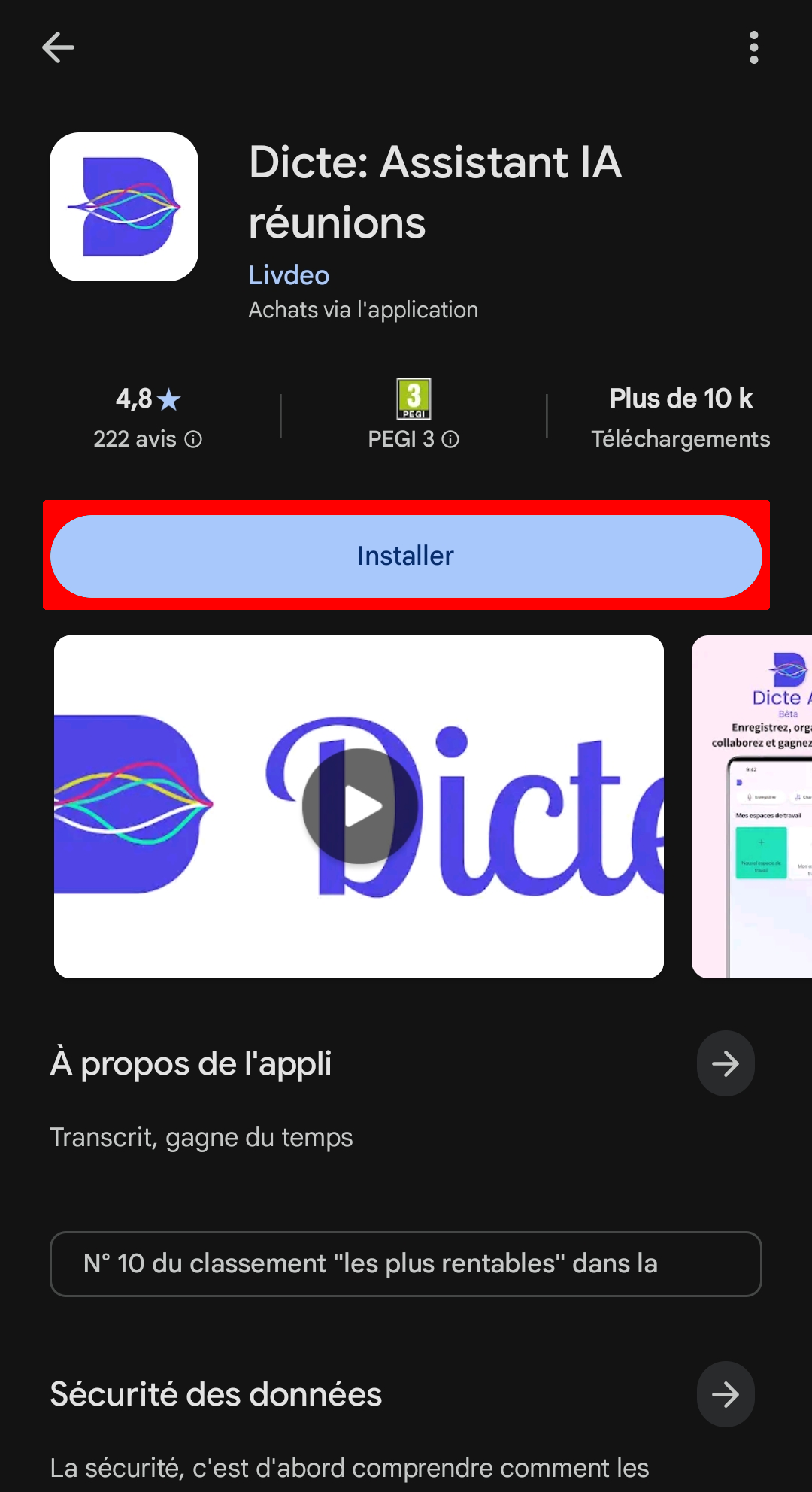
<table border="1" style="width: 100%; height: 238.375px; border-collapse: collapse; border: 1px none rgb(255, 255, 255);"><colgroup><col style="width: 50%;"></col><col style="width: 50%;"></col></colgroup><tbody><tr style="height: 29.7969px;"><td style="height: 29.7969px; border-color: rgb(255, 255, 255);">- **Sur <sub>![image.png](https://portail.ac-reunion.fr/ladoclela/uploads/images/gallery/2026-03/scaled-1680-/sm9image.png)</sub>le Play Store ou <sub>![image.png](https://portail.ac-reunion.fr/ladoclela/uploads/images/gallery/2026-03/scaled-1680-/qmUimage.png)</sub> l'App Store, recherchez l'application "<sub>![image.png](https://portail.ac-reunion.fr/ladoclela/uploads/images/gallery/2026-03/scaled-1680-/Wt0image.png) </sub>Dicte.ai".**

- **Installez l'application.**

</td><td style="height: 29.7969px; border-color: rgb(255, 255, 255);">[![dict1.png](https://portail.ac-reunion.fr/ladoclela/uploads/images/gallery/2026-03/scaled-1680-/dict1.png)](https://portail.ac-reunion.fr/ladoclela/uploads/images/gallery/2026-03/dict1.png)</td></tr><tr style="height: 29.7969px;"><td style="height: 29.7969px; border-color: rgb(255, 255, 255);">  
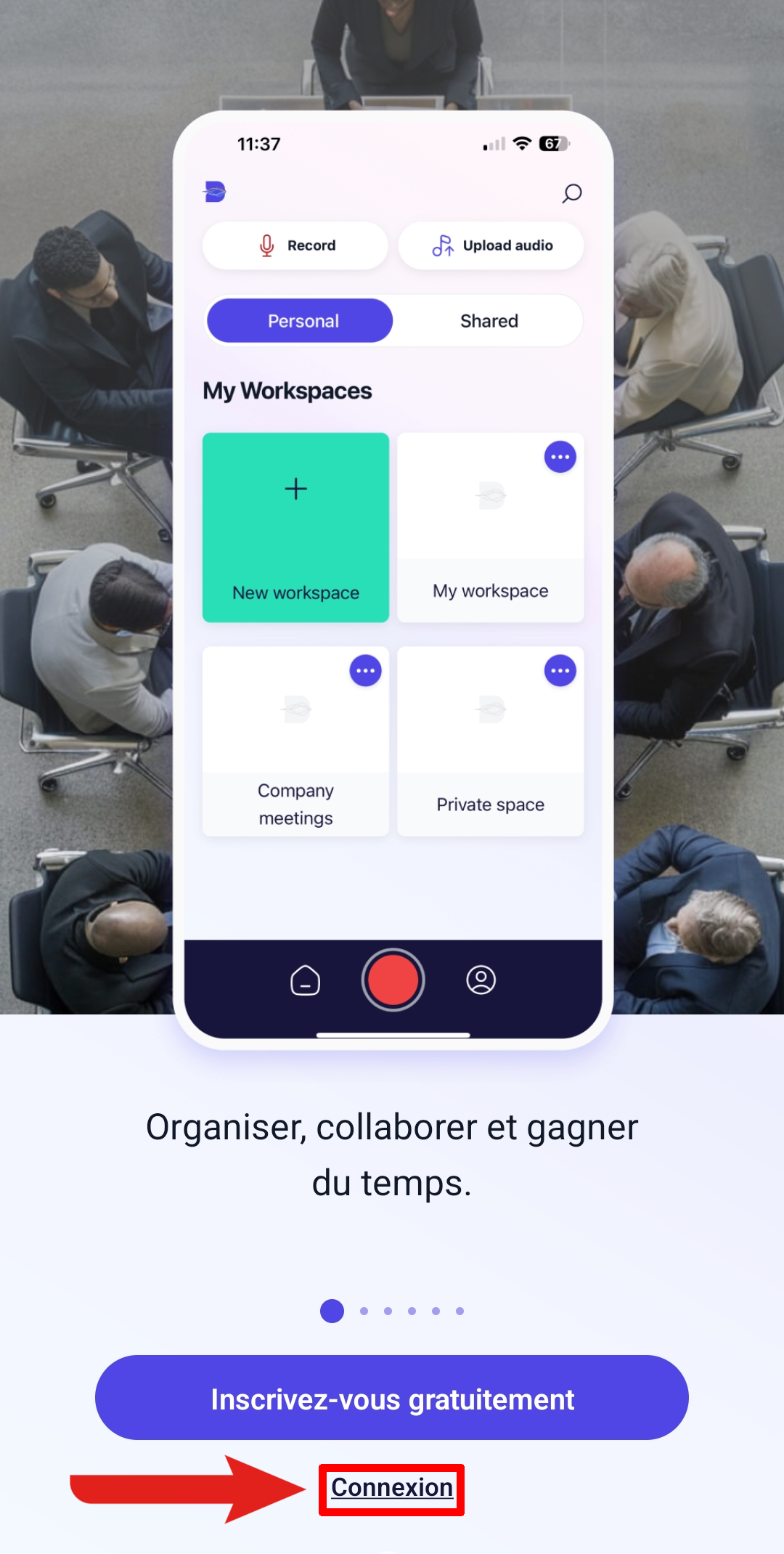
- **En bas, cliquez sur "Connexion".**

</td><td style="height: 29.7969px; border-color: rgb(255, 255, 255);">[![dict2.png](https://portail.ac-reunion.fr/ladoclela/uploads/images/gallery/2026-03/scaled-1680-/dict2.png)](https://portail.ac-reunion.fr/ladoclela/uploads/images/gallery/2026-03/dict2.png)</td></tr><tr style="height: 29.7969px;"><td style="height: 29.7969px; border-color: rgb(255, 255, 255);">  
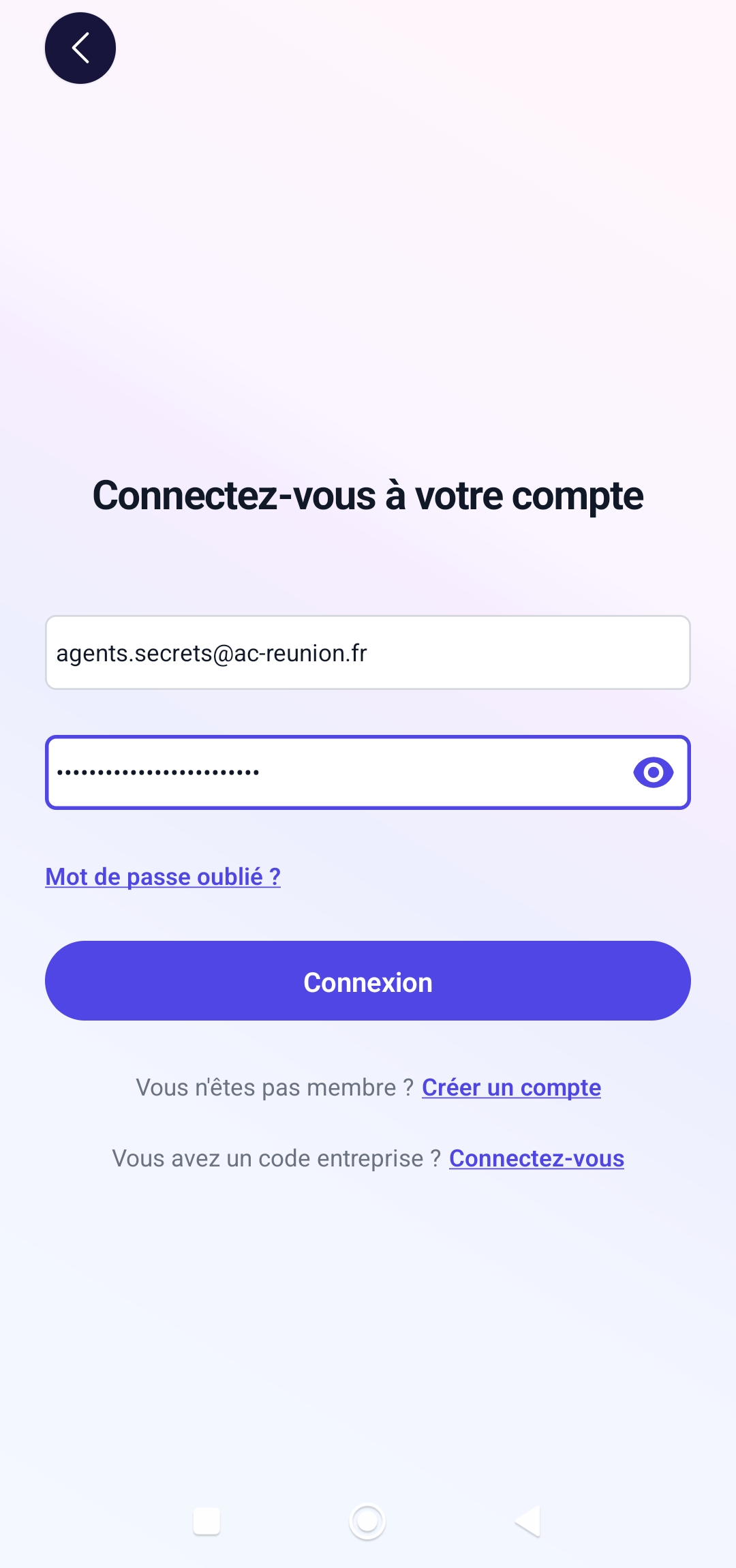
- **Renseignez vos informations de connexion.**
- **Cliquez sur "Connexion".**

<p class="callout info">**Les informations de connexion sont associées à un compte lié à votre service.**</p>

</td><td style="height: 29.7969px; border-color: rgb(255, 255, 255);">[![dict20.png](https://portail.ac-reunion.fr/ladoclela/uploads/images/gallery/2026-03/scaled-1680-/dict20.png)](https://portail.ac-reunion.fr/ladoclela/uploads/images/gallery/2026-03/dict20.png)

</td></tr></tbody></table>

</details></details>---

##### **Créer un nouvel espace de travail**

<details id="bkmrk-%C2%A0-1"><summary>Créer un nouvel espace de travail</summary>

- **Sur la page d'accueil, cliquez sur "Nouvel espace de travail".**

[![dicte_ai1.png](https://portail.ac-reunion.fr/ladoclela/uploads/images/gallery/2026-03/scaled-1680-/dicte-ai1.png)](https://portail.ac-reunion.fr/ladoclela/uploads/images/gallery/2026-03/dicte-ai1.png)

- **Une nouvelle fenêtre s'ouvre.**
- **Renseignez le nom de l'espace de travail.**
- **Cliquez sur "Créer un espace de travail".**

[![dicte_ai2.png](https://portail.ac-reunion.fr/ladoclela/uploads/images/gallery/2026-03/scaled-1680-/dE0dicte-ai2.png)](https://portail.ac-reunion.fr/ladoclela/uploads/images/gallery/2026-03/dE0dicte-ai2.png)

</details>---

##### **Enregistrer une réunion depuis son téléphone**

<details id="bkmrk-%C2%A0-3"><summary>Enregistrer une réunion depuis son téléphone</summary>

<table border="1" style="border-collapse: collapse; width: 100%; height: 1511.73px;"><colgroup><col style="width: 56.0695%;"></col><col style="width: 44.018%;"></col></colgroup><tbody><tr style="height: 684.787px;"><td style="height: 684.787px;">- **Ouvrez l'application "<sub>![image.png](https://portail.ac-reunion.fr/ladoclela/uploads/images/gallery/2026-03/scaled-1680-/Wt0image.png) </sub>Dicte.ai".**
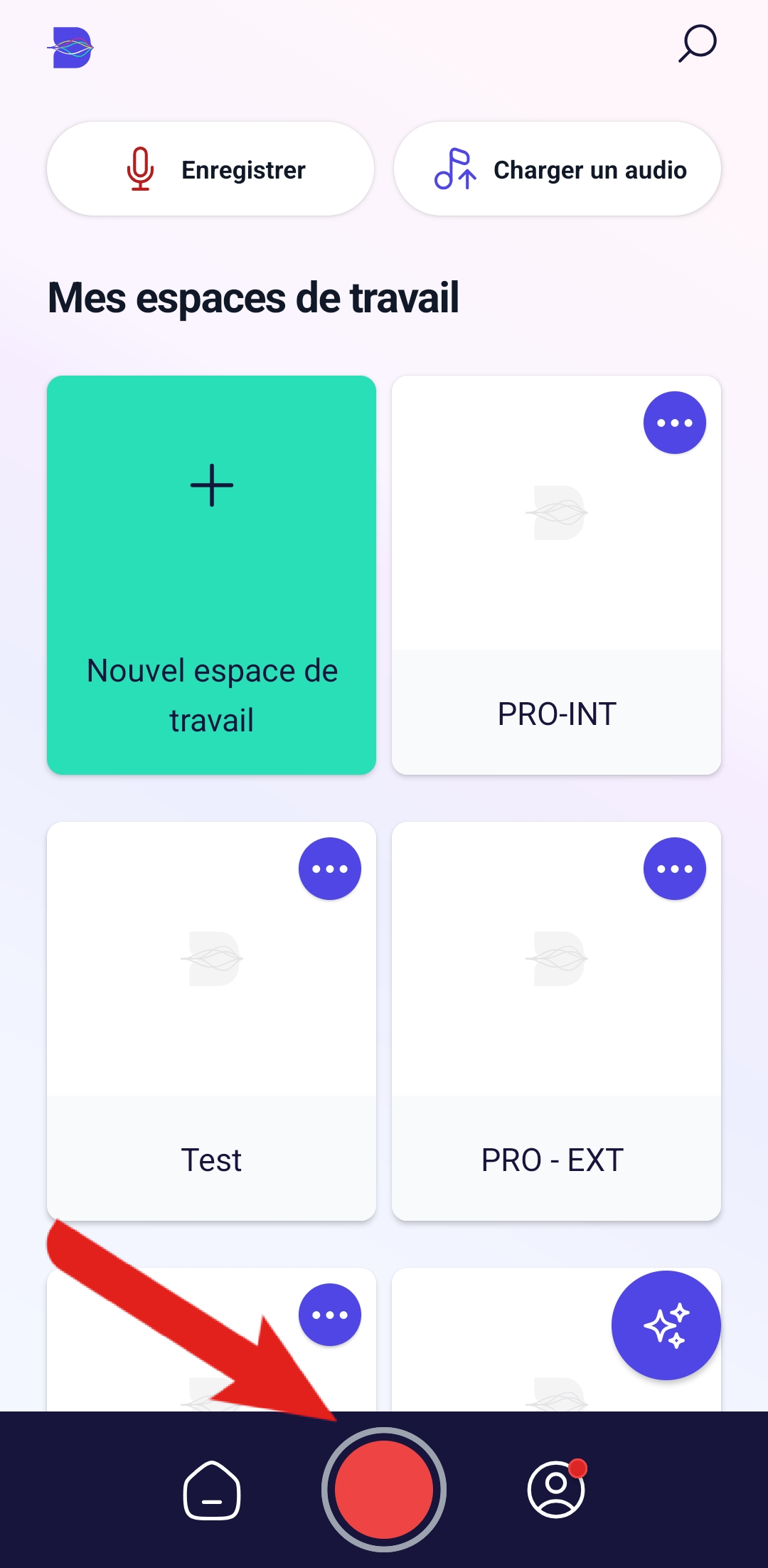
- **En bas, cliquez sur le bouton rouge.**

</td><td style="height: 684.787px;">[![dict11.png](https://portail.ac-reunion.fr/ladoclela/uploads/images/gallery/2026-03/scaled-1680-/dict11.png)](https://portail.ac-reunion.fr/ladoclela/uploads/images/gallery/2026-03/dict11.png)

</td></tr><tr style="height: 69.9432px;"><td style="height: 69.9432px;">  
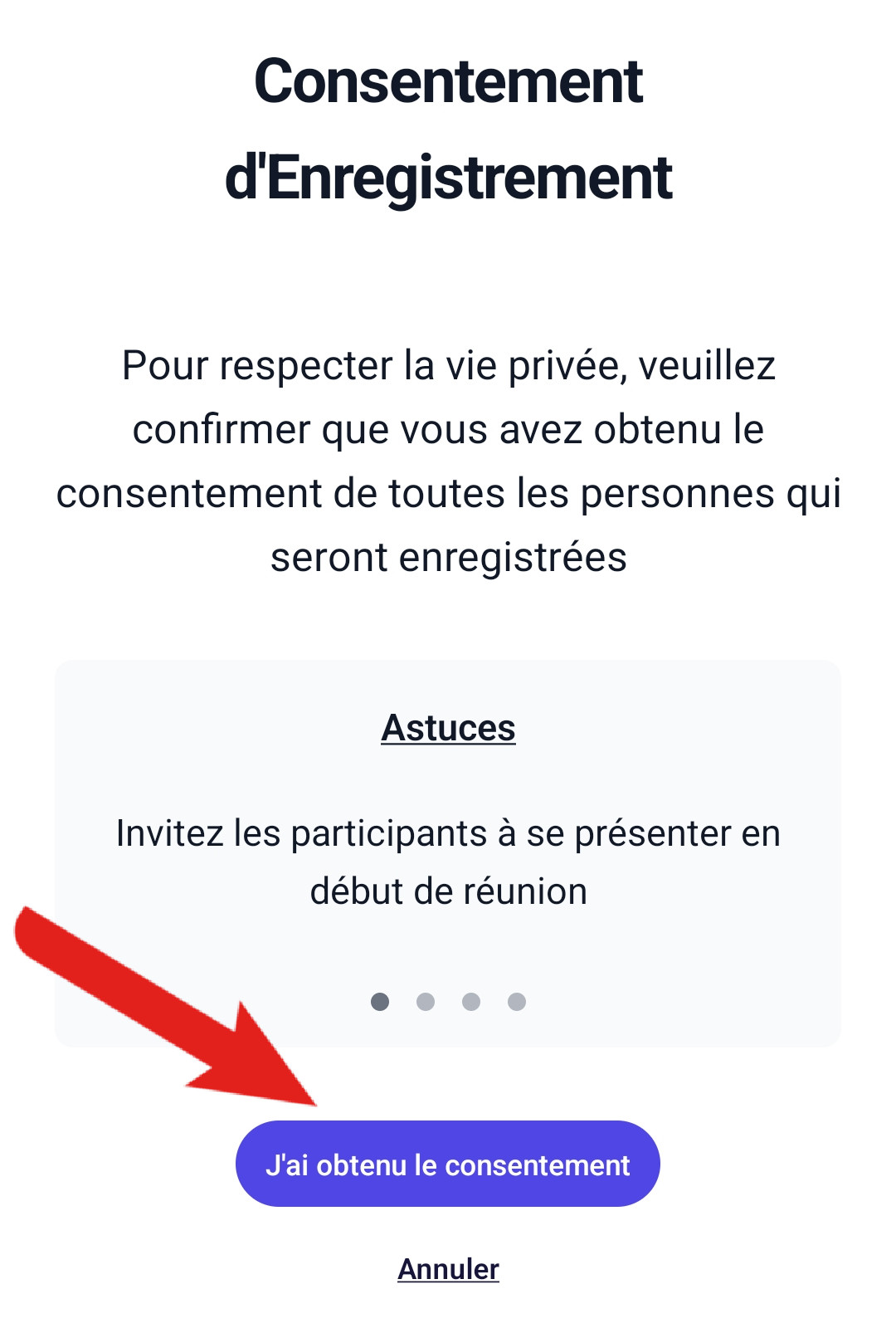
- **En bas, cliquez sur "J'ai obtenu le consentement".**

</td><td style="height: 69.9432px;">[![dict12.jpg](https://portail.ac-reunion.fr/ladoclela/uploads/images/gallery/2026-03/scaled-1680-/TySdict12.jpg)](https://portail.ac-reunion.fr/ladoclela/uploads/images/gallery/2026-03/TySdict12.jpg)

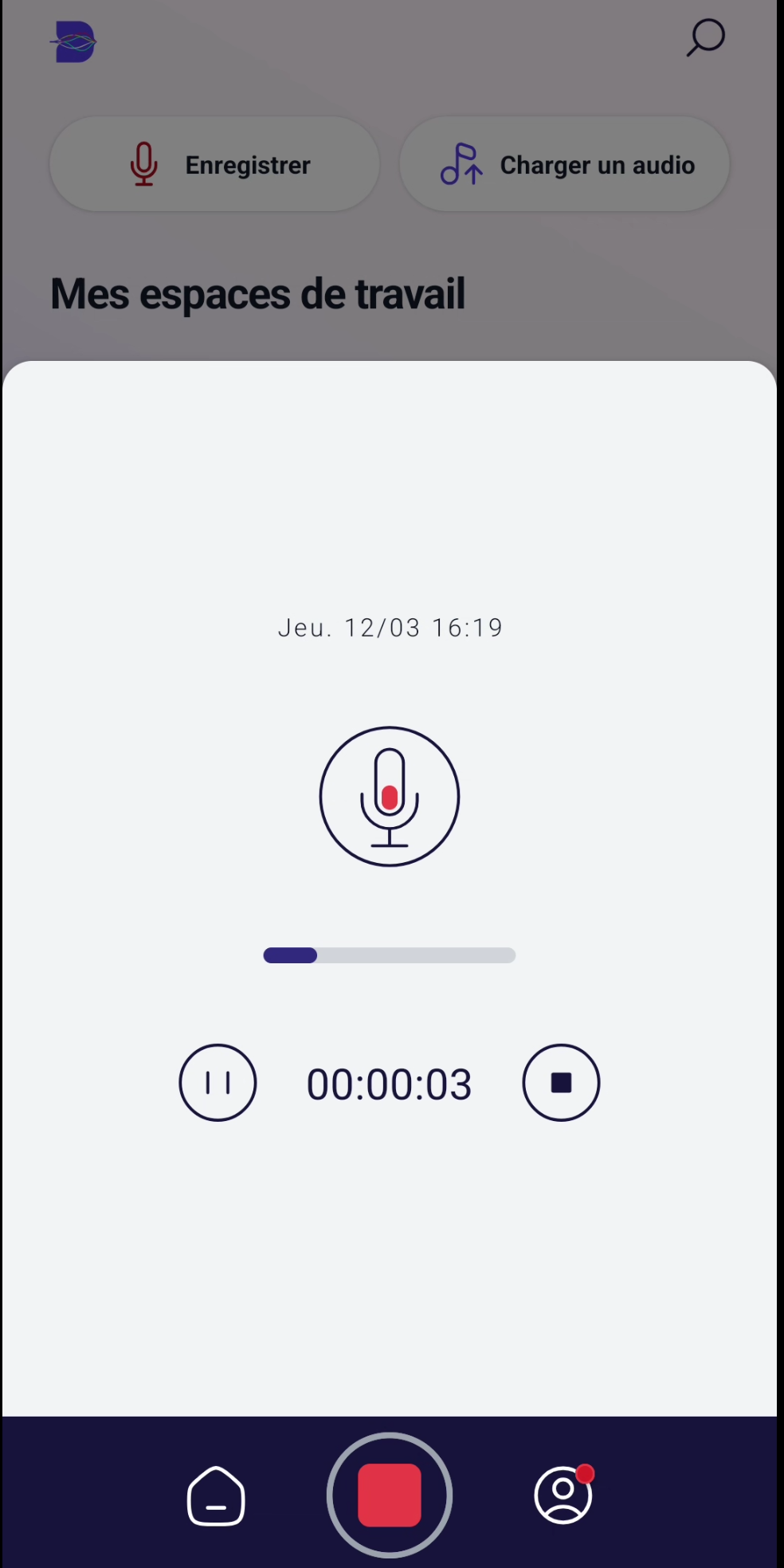
</td></tr><tr style="height: 279.773px;"><td style="height: 279.773px;">- **L'enregistrement est en cours.**

<p class="callout info">**Pour l'aider à identifier les collaborateurs, vous pouvez vous présentez comme *"Je m'appelle James Bond, je suis agent secret"*.**</p>

- - **Le bouton <sub>[![dictpause.png](https://portail.ac-reunion.fr/ladoclela/uploads/images/gallery/2026-03/scaled-1680-/dictpause.png)](https://portail.ac-reunion.fr/ladoclela/uploads/images/gallery/2026-03/dictpause.png)</sub> permet de mettre en pause l'enregistrement.**
    - **Le bouton <sub>![dictarret.png](https://portail.ac-reunion.fr/ladoclela/uploads/images/gallery/2026-03/scaled-1680-/dictarret.png)</sub> permet d'arrêter l'enregistrement.**

</td><td style="height: 279.773px;">[![dict4.png](https://portail.ac-reunion.fr/ladoclela/uploads/images/gallery/2026-03/scaled-1680-/5Dtdict4.png)](https://portail.ac-reunion.fr/ladoclela/uploads/images/gallery/2026-03/5Dtdict4.png)

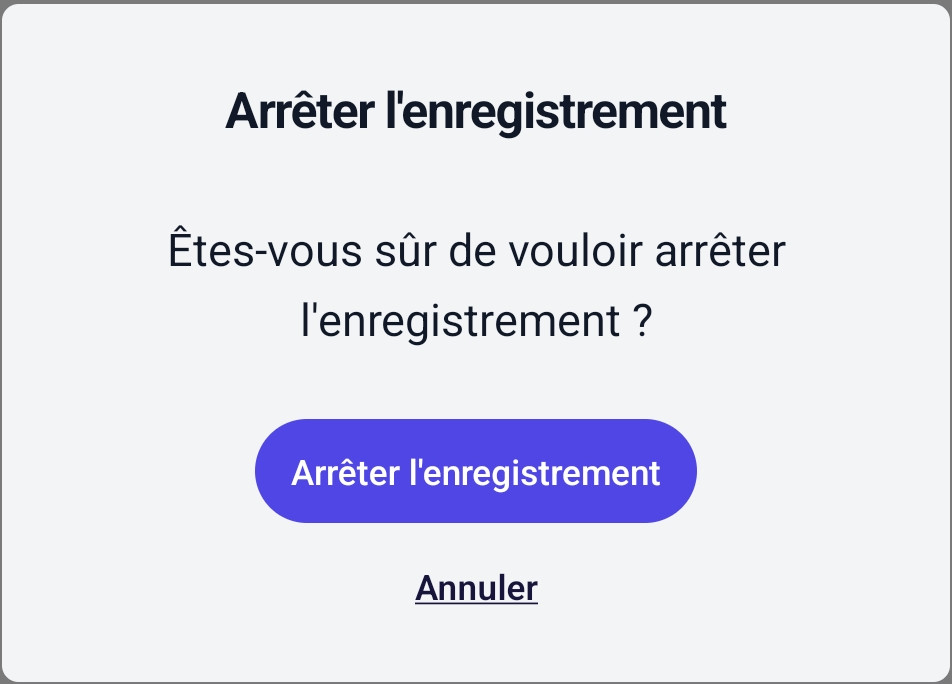
</td></tr><tr style="height: 53.1392px;"><td style="height: 53.1392px;">- **Pour arrêter, cliquez sur le bouton d'arrêt.**
- **Cliquez sur "Arrêter l'enregistrement".**

</td><td style="height: 53.1392px;">[![dict13.jpg](https://portail.ac-reunion.fr/ladoclela/uploads/images/gallery/2026-03/scaled-1680-/dict13.jpg)](https://portail.ac-reunion.fr/ladoclela/uploads/images/gallery/2026-03/dict13.jpg)

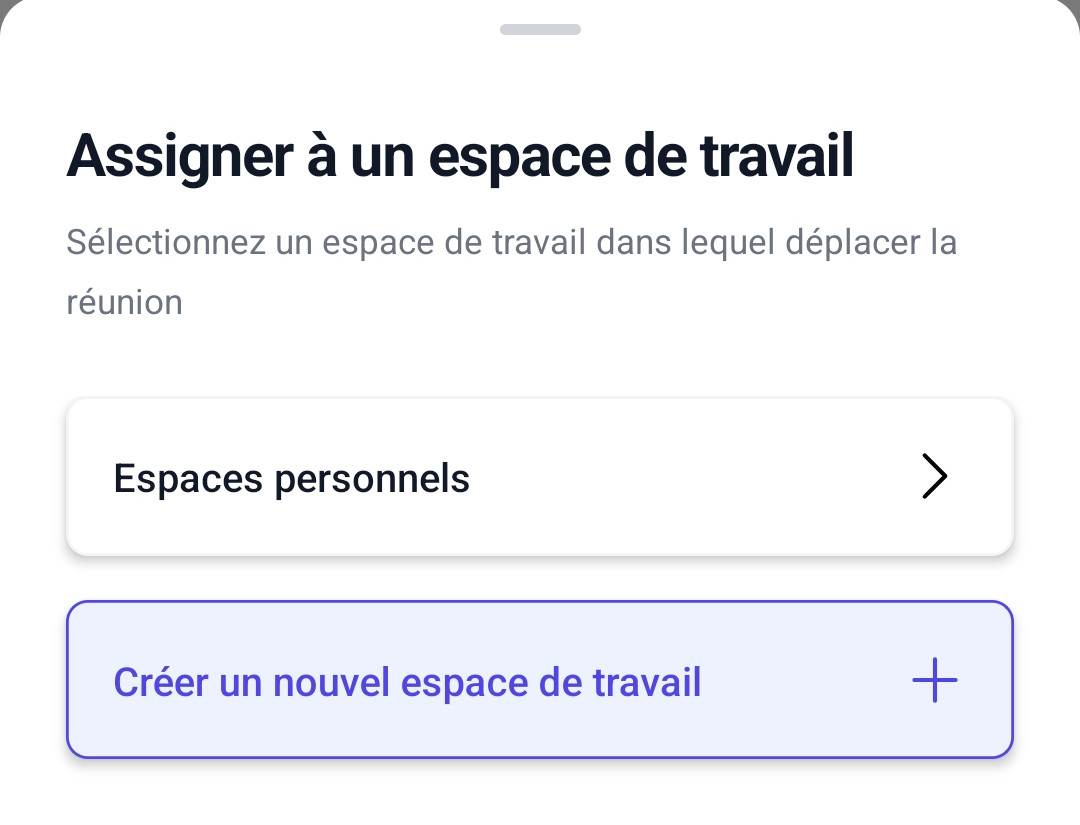
</td></tr><tr style="height: 103.551px;"><td style="height: 103.551px;">- **Cliquez sur "Espaces personnels" ou "Créer un nouvel espace de travail" selon vos espaces de travail déjà existants.**
- **Choisissez l'espace de travail où enregistrer la réunion.**

</td><td style="height: 103.551px;">[![dict14.jpg](https://portail.ac-reunion.fr/ladoclela/uploads/images/gallery/2026-03/scaled-1680-/dict14.jpg)](https://portail.ac-reunion.fr/ladoclela/uploads/images/gallery/2026-03/dict14.jpg)

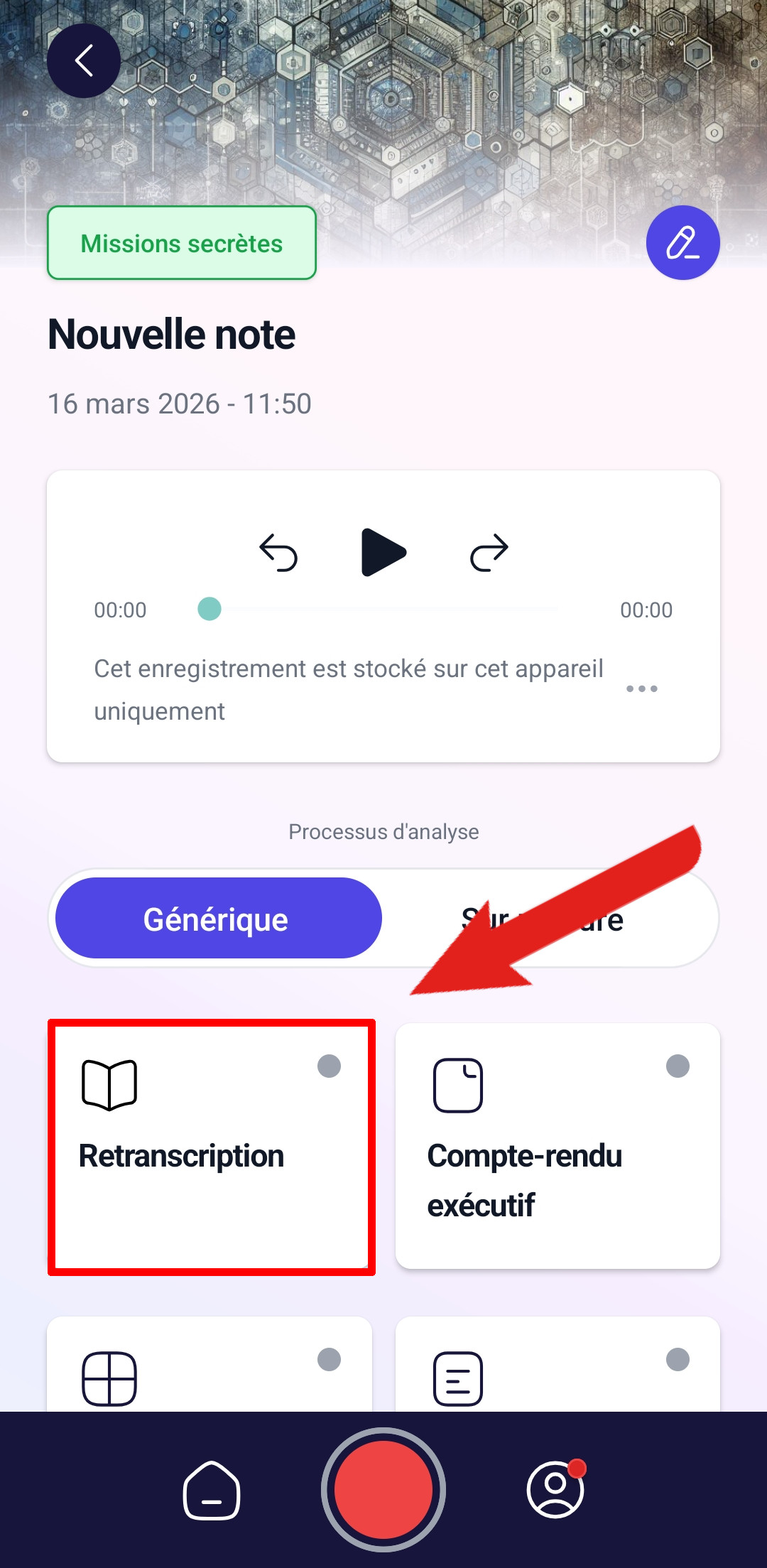
</td></tr><tr style="height: 144.318px;"><td style="height: 144.318px;">- **Cliquez sur "Retranscription".**

<p class="callout warning">**Cette étape est obligatoire si vous voulez que le fichier audio soit partagée pour tous les collaborateurs dans l'espace de travail.**</p>

</td><td style="height: 144.318px;">[![dict15.jpg](https://portail.ac-reunion.fr/ladoclela/uploads/images/gallery/2026-03/scaled-1680-/dict15.jpg)](https://portail.ac-reunion.fr/ladoclela/uploads/images/gallery/2026-03/dict15.jpg)

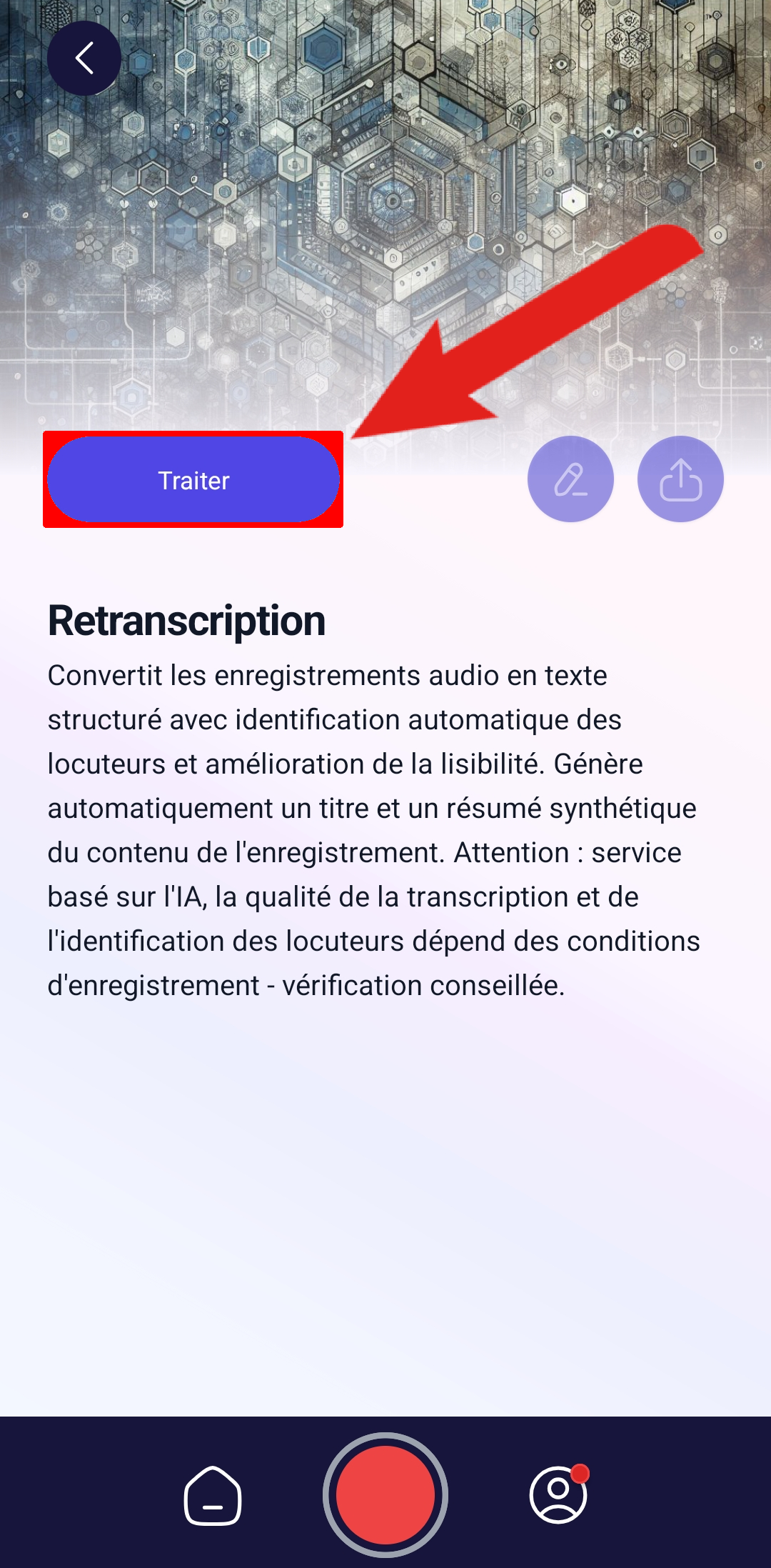
</td></tr><tr style="height: 53.1392px;"><td style="height: 53.1392px;">- **Cliquez sur "Traiter".**

</td><td style="height: 53.1392px;">[![dict16.png](https://portail.ac-reunion.fr/ladoclela/uploads/images/gallery/2026-03/scaled-1680-/IhRdict16.png)](https://portail.ac-reunion.fr/ladoclela/uploads/images/gallery/2026-03/IhRdict16.png)

</td></tr><tr style="height: 53.1392px;"><td style="height: 53.1392px;">  
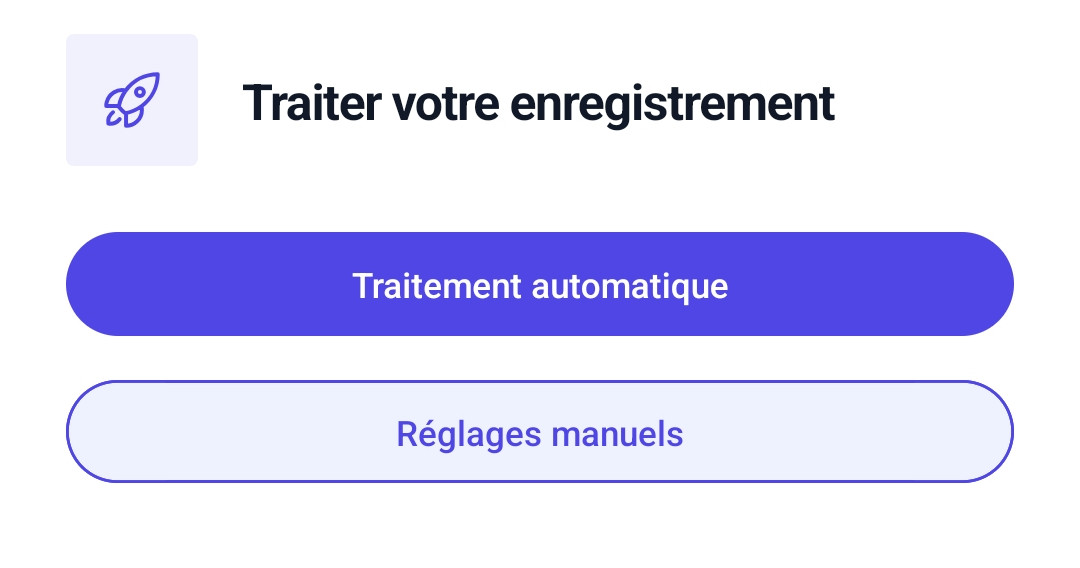
- **Cliquez sur "Traitement automatique".**

</td><td style="height: 53.1392px;">[![dict17.jpg](https://portail.ac-reunion.fr/ladoclela/uploads/images/gallery/2026-03/scaled-1680-/dict17.jpg)](https://portail.ac-reunion.fr/ladoclela/uploads/images/gallery/2026-03/dict17.jpg)

</td></tr><tr style="height: 69.9432px;"><td style="height: 69.9432px;">- **Patientez, le temps que l'outil fasse la retranscription**

</td><td style="height: 69.9432px;">[![dict18.jpg](https://portail.ac-reunion.fr/ladoclela/uploads/images/gallery/2026-03/scaled-1680-/foSdict18.jpg)](https://portail.ac-reunion.fr/ladoclela/uploads/images/gallery/2026-03/foSdict18.jpg)

</td></tr></tbody></table>

</details>---

##### **Importer un vocal**

<details id="bkmrk-%C2%A0-4"><summary>Importer un vocal</summary>

**Si vous avez enregistré votre vocal sur un outil d'enregistrement différent de Dicte.ai, vous pouvez l'importer sur votre espace de travail.**

- **Sélectionnez votre espace de travail ciblé.**

[![dict5.png](https://portail.ac-reunion.fr/ladoclela/uploads/images/gallery/2026-03/scaled-1680-/dict5.png)](https://portail.ac-reunion.fr/ladoclela/uploads/images/gallery/2026-03/dict5.png)

- **En haut à droite, cliquez sur "Importer un fichier audio".**

**[![dict6.png](https://portail.ac-reunion.fr/ladoclela/uploads/images/gallery/2026-03/scaled-1680-/dict6.png)](https://portail.ac-reunion.fr/ladoclela/uploads/images/gallery/2026-03/dict6.png)**

- **Glissez votre fichier audio dans l'encadré au centre.**
- **Cliquez sur "Transcrire"**

[![dict7.png](https://portail.ac-reunion.fr/ladoclela/uploads/images/gallery/2026-03/scaled-1680-/dict7.png)](https://portail.ac-reunion.fr/ladoclela/uploads/images/gallery/2026-03/dict7.png)

- **Informez un maximum d'information pour aider l'IA dans la retranscription.**
- **Cliquez sur "Valider".**

[![dict8.png](https://portail.ac-reunion.fr/ladoclela/uploads/images/gallery/2026-03/scaled-1680-/dict8.png)](https://portail.ac-reunion.fr/ladoclela/uploads/images/gallery/2026-03/dict8.png)

- **Une fois la retranscription terminée, une notification apparait**[![dict9.png](https://portail.ac-reunion.fr/ladoclela/uploads/images/gallery/2026-03/scaled-1680-/dict9.png)](https://portail.ac-reunion.fr/ladoclela/uploads/images/gallery/2026-03/dict9.png)

</details>---

##### **Faire des rapports générés par l'IA**

<details id="bkmrk-faire-des-rapports-g"><summary>Faire des rapports générés par l'IA</summary>

**L'outil Dicte.ia va au-delà de la simple retranscription, il vous permet de rédiger des rapports sous différentes formes. Cliquer sur l'une des réunions et vous aurez :**

<table border="1" style="border-collapse: collapse; width: 99.9738%; height: 310.682px;"><colgroup><col style="width: 36.5959%;"></col><col style="width: 63.519%;"></col></colgroup><tbody><tr style="height: 37.2301px;"><td class="align-center" style="height: 37.2301px;">**<sub>![image.png](https://portail.ac-reunion.fr/ladoclela/uploads/images/gallery/2026-03/scaled-1680-/z4fimage.png) </sub>Compte-rendu exécutif**

</td><td style="height: 37.2301px;">Rédige un compte rendu synthétique de la réunion.</td></tr><tr style="height: 46.5057px;"><td class="align-center" style="height: 46.5057px;"><sub>![image.png](https://portail.ac-reunion.fr/ladoclela/uploads/images/gallery/2026-03/scaled-1680-/xsfimage.png) </sub>**Analyse SWOT**

</td><td style="height: 46.5057px;">Analyse les forces, les faiblesses, les opportunités et les menaces de la réunion.</td></tr><tr style="height: 46.5057px;"><td class="align-center" style="height: 46.5057px;">**<sub>![image.png](https://portail.ac-reunion.fr/ladoclela/uploads/images/gallery/2026-03/scaled-1680-/7eDimage.png)</sub> Compte-rendu détaillé**

</td><td style="height: 46.5057px;">Rédige un long compte rendu reprenant tous les points évoqués à la Réunion.</td></tr><tr style="height: 46.5057px;"><td class="align-center" style="height: 46.5057px;">**<sub>![image.png](https://portail.ac-reunion.fr/ladoclela/uploads/images/gallery/2026-03/scaled-1680-/7eDimage.png)</sub> Rapport de Pilotage**</td><td style="height: 46.5057px;">Analyse des indicateurs du projet, détection de signaux faibles et recommandations stratégiques pour prioriser les actions de pilotage.</td></tr><tr style="height: 63.3097px;"><td class="align-center" style="height: 63.3097px;">**<sub>![image.png](https://portail.ac-reunion.fr/ladoclela/uploads/images/gallery/2026-03/scaled-1680-/7eDimage.png)</sub> Carte Mentale de Réunion**

</td><td style="height: 63.3097px;">Analyse experte de transcriptions de réunions pour extraire les thèmes clés et créer des cartes mentales facilitant la compréhension et la décision.</td></tr><tr style="height: 35.3125px;"><td class="align-center" style="height: 35.3125px;">**<sub>![image.png](https://portail.ac-reunion.fr/ladoclela/uploads/images/gallery/2026-03/scaled-1680-/7eDimage.png)</sub> Analyse PESTEL (bêta)**</td><td style="height: 35.3125px;">Analyse PESTEL identifiant facteurs, risques et opportunités à partir de documents, avec recommandations actionnables.</td></tr><tr style="height: 35.3125px;"><td class="align-center" style="height: 35.3125px;">**<sub>![image.png](https://portail.ac-reunion.fr/ladoclela/uploads/images/gallery/2026-03/scaled-1680-/7eDimage.png)</sub> Expert en Analyse d'Ateliers (bêta)**</td><td style="height: 35.3125px;">Analyse des ateliers d’idéation : insights, observations clés et recommandations pour améliorer créativité et décision.</td></tr></tbody></table>

<p class="callout info">**Ces analyses peuvent comporter des petites erreurs, n'hésitez pas checker le compte rendu.**</p>

</details>---

##### **Utiliser le Tchat Bot**

<details id="bkmrk-%C2%A0-6"><summary>Utiliser le Tchat Bot</summary>

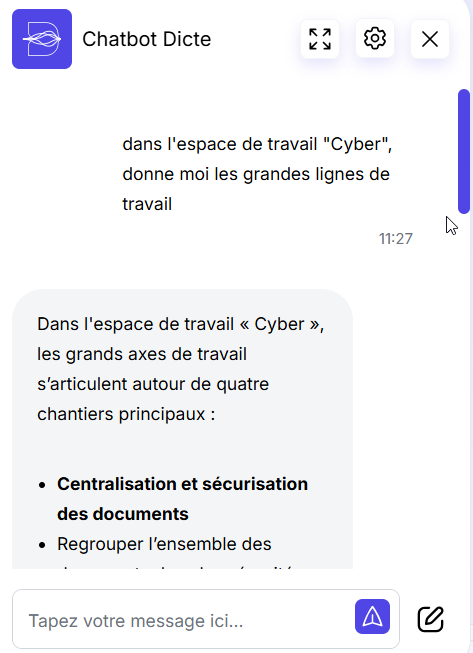
<p class="callout info">**Dicte.ia est muni d'un tchat bot vous permettant de lui poser des questions sur toutes les réunions importées.** </p>

- **En bas à droite, cliquez sur "Chatbot Dicte".**
- **Posez une question sur un document / un espace de travail.**

[![dict10.png](https://portail.ac-reunion.fr/ladoclela/uploads/images/gallery/2026-03/scaled-1680-/dict10.png)](https://portail.ac-reunion.fr/ladoclela/uploads/images/gallery/2026-03/dict10.png)
</details>